How to Take a Screenshot on a Mac
Capture a Mac screen, window, or selected area using built-in shortcuts. Includes clipboard controls, save locations, and newer format options.
Quick answer: On a Mac, press Shift + Command + 3 to capture the whole screen. Press Shift + Command + 4, then drag a rectangle to capture only part of it. For a window, press Shift + Command + 4, tap Space, and click the window. To choose where the image is saved, open the Screenshot toolbar with Shift + Command + 5.
These built-in shortcuts work on current macOS versions and do not require an extra app. This guide also covers external monitors, the clipboard, the Screenshot toolbar, and newer format options available only on some Macs running macOS Tahoe 26 or later.
Capture the entire Mac screen
- Bring the content you need to the foreground, and close any notifications or messages you would not want in the image.
- Press Shift + Command (⌘) + 3 at the same time, then release.
- A small thumbnail may appear in the corner. Click it to mark up or share the capture, or leave it alone and wait for the screenshot to save.
- Look on the Desktop for a file named with the screenshot date and time, unless you previously changed the save location.
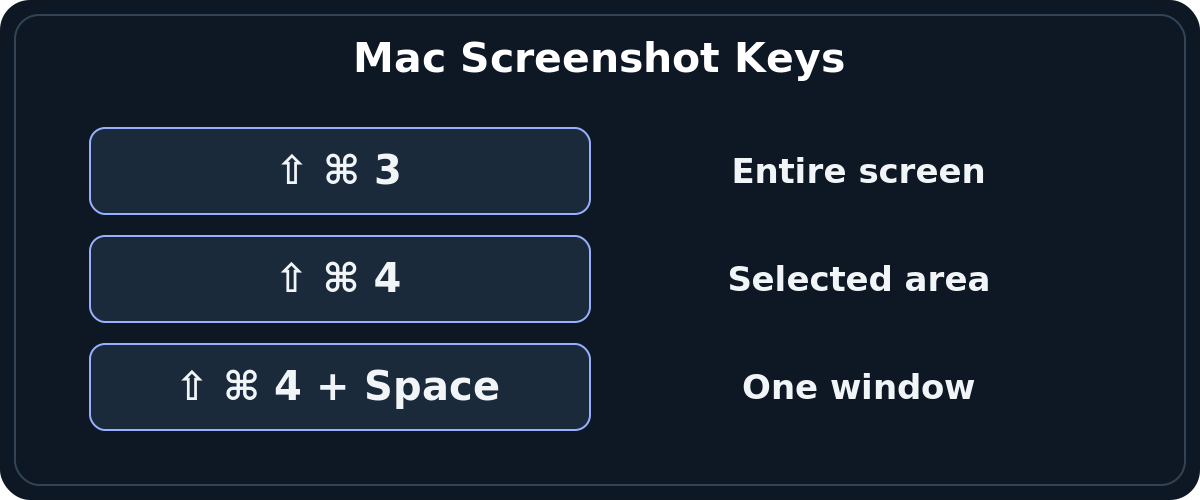
If more than one display is connected, this shortcut can create captures for the connected screens. Open the file or files before sharing; a secondary screen may include unrelated content. For a single chart or one app, a selection or window capture is usually cleaner.
Capture only a selected area
- Press Shift + Command + 4. The pointer becomes a crosshair.
- Position the crosshair at the corner of the content you want to keep.
- Hold the mouse or trackpad button and drag to the opposite corner.
- Release to take the screenshot. To cancel without saving, press Esc before releasing the selection.
For more precise cropping, hold Space while dragging to move the selected box without changing its size. This is useful for a table, an error message, or a single paragraph. Review the result before sharing because even a tightly cropped screenshot may show names, account details, or active browser tabs.
Capture one window without trimming it manually
- Open the window or menu you want to show.
- Press Shift + Command + 4, then press Space once. A camera pointer appears.
- Move the pointer over the window and click to capture it. If you want to omit the usual window shadow, hold Option as you click.
- Wait for the image to save, or click its floating thumbnail to edit it immediately.
This method is especially useful for instructions: a window shot makes boundaries clear. It is not a guaranteed way to capture every app; Apple notes that certain windows, including some protected video content, may prevent screenshots.
Use Shift + Command + 5 to control the save location
Press Shift + Command + 5 to open the built-in Screenshot toolbar. Its still-image controls let you capture the full screen, a chosen window, or a selected portion. Click Options to choose where screenshots go, set a timer, control the floating thumbnail, and adjust other capture options. Then click Capture or select the target window as prompted.
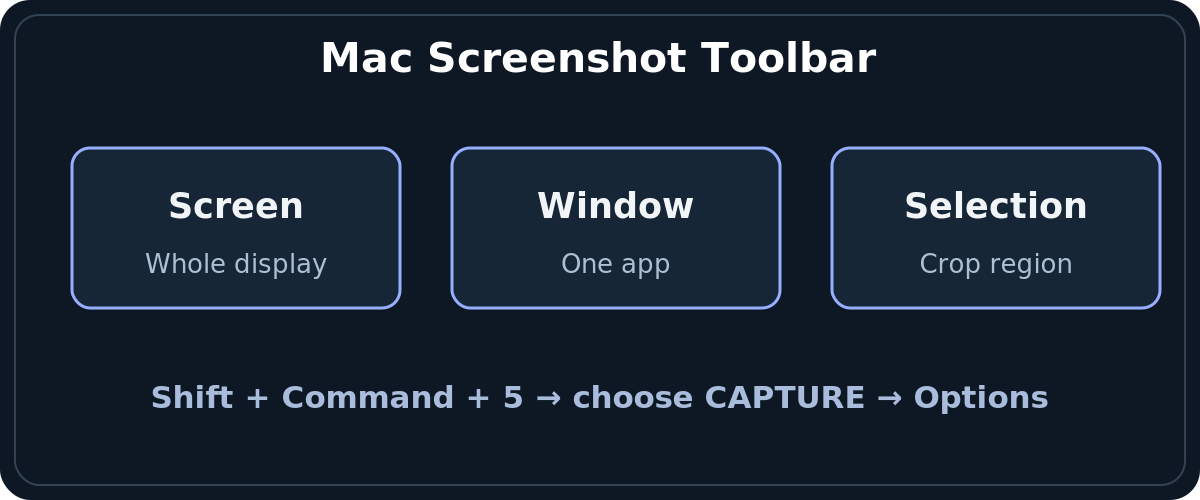
The toolbar is helpful when you need to capture a menu that closes too quickly. Set a timer, start the capture, and reopen the menu before the countdown ends. If the toolbar seems unfamiliar, note that it combines screen recording controls with screenshot controls. Choose a still-image icon when you need a PNG or photo rather than a movie file.
Newer macOS file-format choices
On supported Mac models with macOS Tahoe 26 or later, Apple’s Screenshot Options can offer SDR (Most Compatible) for PNG or HDR for HEIF. Not every Mac or version shows both choices. Use a standard compatible format when sending instructions to someone who uses older software, and verify the actual saved filename extension before attaching it.
Copy a screenshot without creating another desktop file
Hold Control in addition to the regular shortcut. For example, press Control + Shift + Command + 3 to copy the whole screen to the clipboard. Open the email, document, or message and press Command + V to paste it. Apple’s Screenshot thumbnail can also offer a Save to Clipboard command when you Control-click it.
This is efficient for a one-time message, but clipboard content is not the same as a permanently saved image. If you need a reproducible record, save a file. Remember that copying a new item replaces the current clipboard content unless a separate clipboard manager is installed.
Find screenshots after taking them
By default, Mac screenshots save to the Desktop with a name beginning with Screen Shot or Screenshot and a date and time. If you changed the destination, press Shift + Command + 5 → Options to see the active Save to location. You can also search Finder for recent screenshot files or sort the target folder by date.
If a floating thumbnail is still visible, you can drag it into a message, document, or folder before the standard save completes. If a thumbnail does not appear, the option may be disabled; that does not necessarily mean the screenshot failed. If you used a Control-modified keyboard shortcut, first try pasting with Command + V rather than searching for a new file.
Troubleshooting: shortcuts, keyboard layouts, and blocked captures
Nothing happens when I press the keys
Check that you are pressing Command, not Control, for the normal capture shortcut. For selected-area capture, release Shift + Command + 4 before dragging. Test on the Finder desktop or a normal web page. You can also launch Screenshot from the Applications → Utilities folder and use its buttons instead of the shortcuts.
My screenshot saved in the wrong location
Open Shift + Command + 5 → Options and inspect Save to. An earlier choice such as Documents, Clipboard, or Other Location can persist. Choose Desktop if that is easiest for you, then take a new test screenshot. Do not assume a desktop filename was deleted simply because it is absent from Desktop.
The selected area keeps moving or the window shadow is unwanted
When dragging a selection, release Space if you want to resize rather than reposition the box. For a whole window, use Shift + Command + 4, then Space. Hold Option while clicking to remove the shadow on captures that support it.
I cannot capture a video app or restricted window
Some applications prevent screen capture of protected content. Confirm that the shortcut works in Finder or another unrestricted window. If it does, the limitation is likely app-specific. Do not attempt workarounds that defeat protected playback or confidentiality controls.
My image looks different on another computer
Review whether you saved a newer HDR/HEIF option or the more widely supported SDR/PNG format. Apple’s HDR choice is conditional on macOS version and Mac model. When compatibility matters more than dynamic range, prefer SDR (Most Compatible) if offered, or convert a saved file in Preview before sharing.
Frequently asked questions
How do I screenshot a MacBook without a mouse?
Use the keyboard shortcut and the trackpad. Shift + Command + 4 lets you press and drag on the trackpad to choose a region; Shift + Command + 3 needs no pointer interaction at all.
Can I take a screenshot of just one monitor?
Use Shift + Command + 4 to select the region you want, or the single-window method. The whole-screen shortcut can create more than one file when several displays are active.
Is Shift + Command + 5 for screenshots or recording?
Both. It opens a toolbar with still-image and video-capture choices. Select the camera/photo-style capture mode for a static image, or the recording option when you actually need a movie.
Sources and further reading
Use the checklists as you go, and confirm the result before moving on to a more involved repair.