How to Take a Screenshot on Windows 11
Capture a Windows 11 screenshot by area or full display. Learn where it saves, how to paste it, and what to do when a shortcut fails.
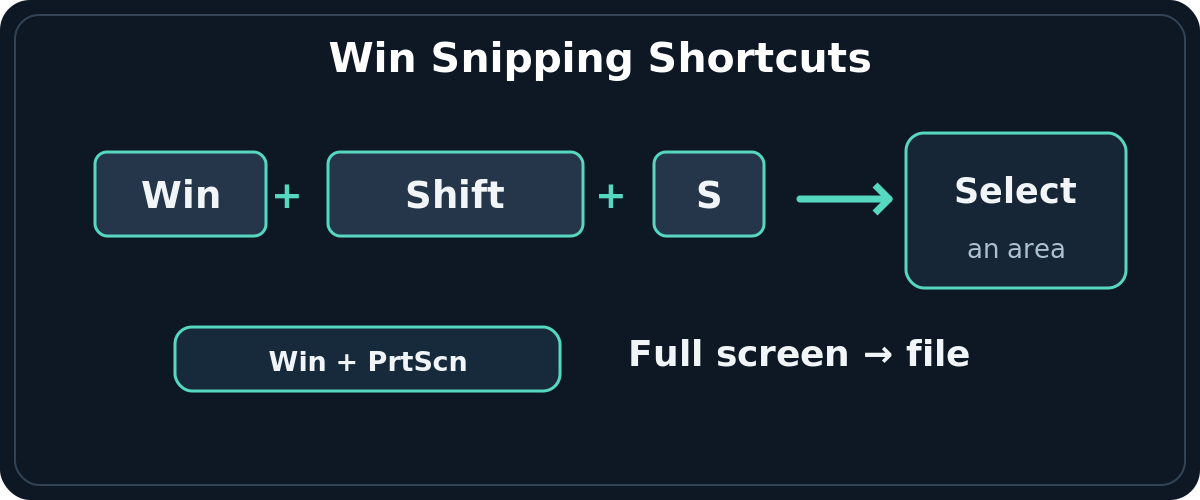
Quick answer: On Windows 11, press Windows + Shift + S, choose a rectangular snip, and drag around the content you want. To save the entire display straight to a file, press Windows + PrtScn on a keyboard that supports it, then look in Pictures → Screenshots. You can also open Snipping Tool from Start to capture, annotate, delay, or save a selected area.
This guide covers Windows 11 PCs, including laptops with compact keyboards and multi-monitor setups. The wording and location of controls can vary with Snipping Tool updates, manufacturer keyboard layouts, and whether screenshot auto-save is enabled.
Capture exactly the area you need with Windows + Shift + S
- Arrange the content you need. Close private tabs and dismiss notifications you do not want to share.
- Press Windows logo key + Shift + S together. The screen dims and a capture toolbar appears.
- Choose Rectangle for a normal cropped screenshot. Drag from one corner of the desired area to the other, then release. The toolbar may also offer window, full-screen, and freeform snips.
- Open the capture notification or Snipping Tool preview to crop, highlight, copy, or save the image. If the notification disappears, open Snipping Tool or check the saved Screenshots folder before taking another image.
- To paste the image directly into a document or chat, click the destination and press Ctrl + V. To keep a separate file, use Save as in Snipping Tool and choose a memorable name.
A rectangle is usually the best option for error messages and settings dialogs: it keeps the reader focused. For an entire application window, select the window-snipping mode rather than attempting to draw a perfectly straight border. Some menus disappear when you activate the overlay; the Snipping Tool Delay control is useful for capturing a menu after a few seconds.
Save the full screen with Windows + PrtScn
- Locate the PrtScn, PrtSc, or Print Screen key. On compact laptops it may share a key with another function.
- Press Windows + PrtScn. On some keyboards, you may also need Fn because Print Screen is a secondary function.
- Open File Explorer → Pictures → Screenshots and look for the new image. If OneDrive redirects your Pictures folder, check the synced Pictures location as well.
- Open the file and crop it in Photos or another editor if it shows more than you intended, especially on a multi-monitor setup.
Microsoft documents Fn + Windows + Space as an alternative for devices without a PrtScn key. The result and save behavior depend on the device and screenshot settings; use Snipping Tool when you want a predictable manual Save as workflow.
What happens when you press PrtScn alone?
Microsoft’s shortcut guidance describes PrtScn as a way to copy a static full-screen capture, but many Windows 11 installations configure the key to launch the screen-snipping overlay instead. If pressing PrtScn opens a selection toolbar, that is not necessarily a fault. The practical difference is whether you want a copied image, a selection, or an automatically saved full-screen file. Use Windows + Shift + S for a selection or Windows + PrtScn for a full-screen file.
Use the Snipping Tool app for a timer or edits
Open Start, search for Snipping Tool, and choose New after selecting the screenshot mode. The app has rectangle, window, full-screen, and freeform modes. For a menu that closes when you press a shortcut, choose a Delay of a few seconds, click New, reopen the menu, and make your capture when the countdown ends.
Afterward, use the crop, pen, highlighter, or shape controls to explain what matters. If you need text rather than a picture, the Text actions tool can help copy recognized text from the capture. Review the output carefully: extracted text may not retain spacing or the original context. Redaction tools should be checked visually before sharing a screenshot containing private data.
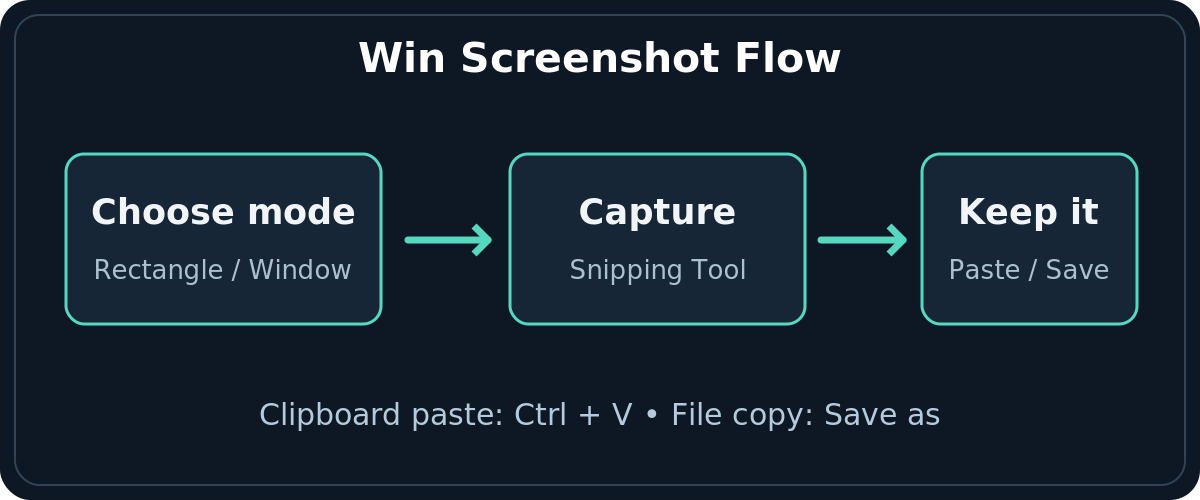
Newer Snipping Tool releases may automatically save captured images to the Screenshots folder, with an option to change auto-save behavior in the app’s settings. Do not assume that a missing popup means the image was never captured. To be certain where a specific shot went, open it in the app and use Save as to name and place your own copy.
Find the screenshot you just took
For Windows + PrtScn, begin with File Explorer → Pictures → Screenshots. For a Snipping Tool capture, check the same folder if auto-save is enabled, and check the Snipping Tool editor or clipboard for a capture you have not saved manually. Screenshots pasted with Ctrl + V may exist only in the destination app if you did not save a separate file.
When searching, look for file types such as PNG and names resembling Screenshot. The actual directory can be relocated by file sync or folder settings. If you saved using Save as, use the folder you selected—not the default screenshots directory.
Fix the most common Windows 11 screenshot problems
The shortcut does nothing
Try pressing the keys separately once to verify they are responsive, then use a single simultaneous key press. Some compact laptop keyboards require Fn for the secondary Print Screen function. Search for Snipping Tool in Start and launch it directly; if the application is missing or behaves abnormally, check Windows Update and the app updates in Microsoft Store. A work-managed computer may restrict captures in certain programs.
The picture is not where you expected
A selection and a full-screen shortcut are not identical workflows. Windows + Shift + S creates a snip you can paste or work with in the app; Windows + PrtScn targets a saved full-screen capture. Check Pictures → Screenshots, the Snipping Tool preview, clipboard-paste into Paint, and any moved or synced Pictures folder. Avoid treating all screenshots as though they are saved to your Downloads folder.
It captured the wrong monitor or extra desktop space
A full-screen shortcut can include multiple attached displays. Use Windows + Shift + S and draw around just the display or window you want. If you repeatedly capture the same app, choose the Window mode. Review the result before sending it because other monitors may show private workspaces.
The menu disappears before you can capture it
Open Snipping Tool, use Delay, and trigger the dropdown or tooltip during the countdown. The delayed capture gives the interface time to reappear. For ordinary static content, a rectangle snip is simpler than a timer.
The result is black, blank, or missing protected content
Some applications or protected media intentionally limit screen capture. Try a screenshot of a normal settings window to see whether the general shortcut works. If only one protected app fails, check that app’s official policy rather than attempting to defeat the restriction.
Which screenshot method should you choose?
Use Windows + Shift + S for support tickets, crop-friendly explanations, and quick pasting; use Windows + PrtScn when you want a saved record of everything visible; use Snipping Tool’s app window when you need a delay or annotations. A screenshot is a static image: for a sequence of clicks over time, consider a screen recording instead.
Frequently asked questions
Can I screenshot just one window?
Yes. Press Windows + Shift + S, select the Window snip option, then click the window you want. Its availability follows the Windows 11 Snipping Tool UI.
Does Windows 11 save every screenshot automatically?
Not necessarily. Full-screen Windows + PrtScn captures are saved to a Screenshots folder; Snipping Tool’s automatic-saving behavior has its own setting. If you need certainty, save the image explicitly from the editor.
How do I take a screenshot on a laptop without PrtScn?
Try Windows + Shift + S or open Snipping Tool from Start. Microsoft also documents Fn + Windows + Space for devices without a dedicated Print Screen key.
Sources and further reading
Use the checklists as you go, and confirm the result before moving on to a more involved repair.