How to Zip Files on Windows 11
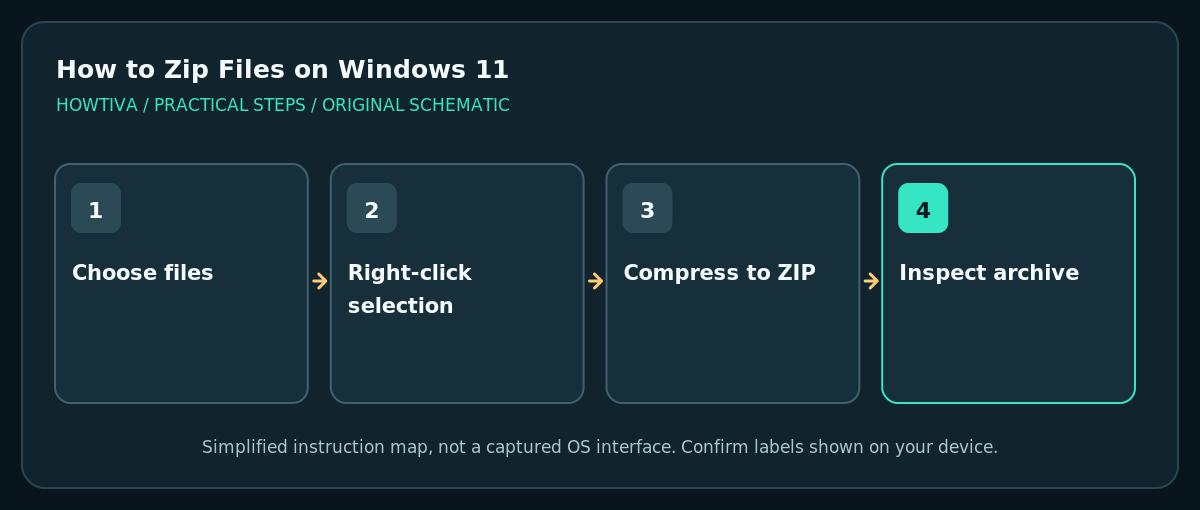
In File Explorer, select the files or folders, right-click the selection, and choose Compress to ZIP file if available.
Quick answer: In File Explorer, select the files or folders, right-click the selection, and choose Compress to ZIP file if available. If that option is missing, choose Show more options > Send to > Compressed (zipped) folder. Rename the new .zip file and check that it contains the intended items.
A ZIP file is one portable archive that holds one or more files and folders. It is handy for emailing project assets or handing off a folder without losing its structure. It is not a private vault or a complete backup: creating one does not delete the source files, and ordinary ZIP compression does not automatically password-protect anything. These instructions apply to Windows 11; available context-menu labels can differ by update level.
Create a ZIP archive in File Explorer
- Open File Explorer with Windows + E. Go to a local folder that contains the items to send. If they are stored in OneDrive and marked online-only, allow them to download completely before relying on the archive.
- Decide whether you want a single top-level folder inside the ZIP. If you want the recipient to unpack one tidy folder, create a parent folder first and move copies of your intended documents inside it.
- Select one or more items. Hold Ctrl to select individual files, or use Shift for a continuous range. Check the highlighted names before continuing; hidden files can be included if selected.
- Right-click the selection. Some Windows 11 versions show Compress to > ZIP File or Compress to ZIP file directly. Microsoft’s documented fallback is Show more options > Send to > Compressed (zipped) folder. Select the ZIP choice available on your device.
- Wait for Windows to create the new archive, usually beside the source selection. Give it a descriptive name, such as
Quarterly-Reports.zip. Keep the.zipextension; renaming its letters does not encrypt or convert it. - Double-click the archive to inspect its contents. Confirm that expected subfolders, filenames and representative files are present. For a critical transfer, extract a copy elsewhere and open important documents before sending.
Understand the resulting folder structure
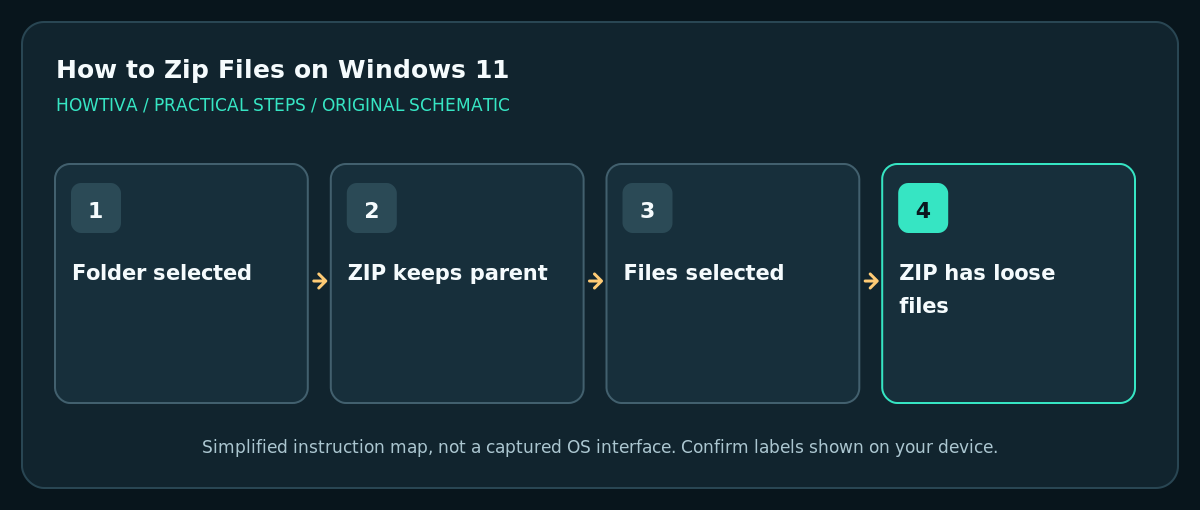
If you select a folder before compressing, the archive generally preserves that folder as an entry. Selecting the files inside a folder instead often places those files at the archive root. That distinction determines whether the recipient sees one parent folder or many loose files after extraction. Choose deliberately rather than rearranging someone else’s final folder later.
Alternative: compress with the classic menu
On a Windows 11 installation where the shorter context menu lacks a ZIP action, select the item and use Show more options. The Microsoft-documented Send to > Compressed (zipped) folder path remains the most conservative fallback. You can also select items and inspect the File Explorer toolbar for an archive command, but its name and presence vary with Windows updates. Avoid assuming every machine has third-party archiver software.
Important security and compatibility limits
- ZIP is not encryption. Anyone who can open an ordinary archive can generally view the files. Do not send passwords, medical documents or confidential client data in an unprotected ZIP just because it is compressed.
- Encrypted source files need care. Microsoft warns that adding encrypted files to ZIP archives can result in decrypted output on extraction. Use an appropriately configured secure transfer service for sensitive material.
- Compressed formats vary. Windows 11 version 24H2 supports additional archive formats, but Microsoft’s native support does not cover encrypted compressed archives in the same way a dedicated archiver may. This guide covers ZIP creation only.
- Size savings are unpredictable. JPEG photographs, MP4 videos and many PDFs are already compressed. ZIP may make them only slightly smaller; its main benefit may be keeping everything together.
- Do not delete originals immediately. Preserve originals until you confirm the destination received and extracted everything correctly.
Troubleshooting
Compress to ZIP file is missing
Try Show more options > Send to > Compressed (zipped) folder. Check that you selected a regular file or folder, not a virtual Recent item or inaccessible network shortcut. On a managed work computer, ask IT whether archive creation is restricted.
Archive is created but is unexpectedly tiny
Open the ZIP and inspect the file list. Cloud placeholders or failed downloads can prevent the content you expected from being packaged; make the files available offline, verify them locally, then try again. A tiny archive can also be legitimate for empty folders or highly compressible text.
Windows reports access denied or cannot finish
Save the archive in a writable folder such as Documents. Check free space and whether any item is open or protected by permissions. Do not change security ownership or disable antivirus just to force the archive to work.
The recipient says files are missing
Compare the file list against the original folder, check nested paths, and ask which archive tool they used. Recompress the intended parent folder rather than individually selecting scattered files. Confirm that your email or cloud service did not block the attachment.
Frequently asked questions
Will making a ZIP remove my original files?
No. ZIP creation usually leaves originals where they were; the ZIP is another copy of the selected content. Deleting the ZIP afterward will not delete the originals, unless you separately moved or removed those items.
Can I make a password-protected ZIP using File Explorer alone?
Do not rely on Windows File Explorer’s standard ZIP action for password protection. Use a vetted solution with appropriate encryption or your organisation’s secure-sharing method, and verify recipients can open it.
Is ZIP always smaller than the selected files?
No. Compression ratios depend on file types; photos and video may barely shrink. Count and inspect the archive’s entries rather than relying on its size alone.
Sources & Further Reading
- Microsoft — Zip and unzip files — Classic context-menu procedure, archive basics, compression limits, encrypted-archive caveat.
- Microsoft — File Explorer in Windows — File Explorer use and file handling.
Use the checklists as you go, and confirm the result before moving on to a more involved repair.