How to Unzip Files on Windows 11
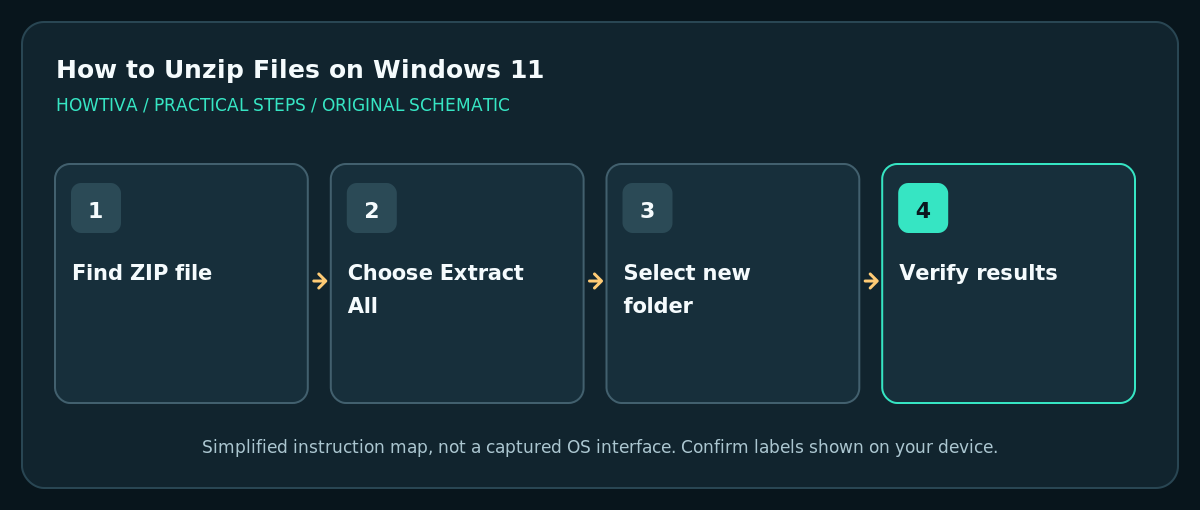
Find the.zip file in File Explorer, right-click it, select Extract All, choose a destination folder, and select Extract.
Quick answer: Find the .zip file in File Explorer, right-click it, select Extract All, choose a destination folder, and select Extract. To take out just one file, open the ZIP and drag the item to an ordinary folder. Do not run unexpected programs directly from an untrusted archive.
Downloading a ZIP does not mean its contents have been extracted. Windows may display an archive like a folder, but software installers and documents often work more reliably after you copy them into a normal destination. The safest approach is to keep the original ZIP until you have checked the extracted contents. Windows 11 labels can vary with build and installed archive tools.
Extract every file from a ZIP archive
- Open File Explorer using Windows + E, then navigate to Downloads or the location where you saved the archive. If you downloaded it from an email or website, identify the sender before opening it.
- Look at the name and file type. Confirm it ends in
.ziprather than a disguised executable such asarchive.zip.exe. In File Explorer, enable View > Show > File name extensions if the suffix is hidden. - Right-click the ZIP and select Extract All…. If this is not immediately shown, open the full context menu or inspect the toolbar. Do not choose a third-party action unless you intended to use that program.
- In the extraction dialog, select a destination you can find again, such as
Documents\Project-Assets. Prefer a fresh empty folder to avoid mixing old and new versions. Verify there is enough free disk space for the uncompressed content. - Select Extract, and allow the operation to finish. If the archive contains many files, it may take time. Then browse the extracted folder to verify expected file names and subfolders.
- Open a safe sample file, such as a PDF or text document, using its normal app. For software installations, follow the publisher’s verified installation instructions rather than executing unknown scripts from Downloads.
Extract only one file or folder
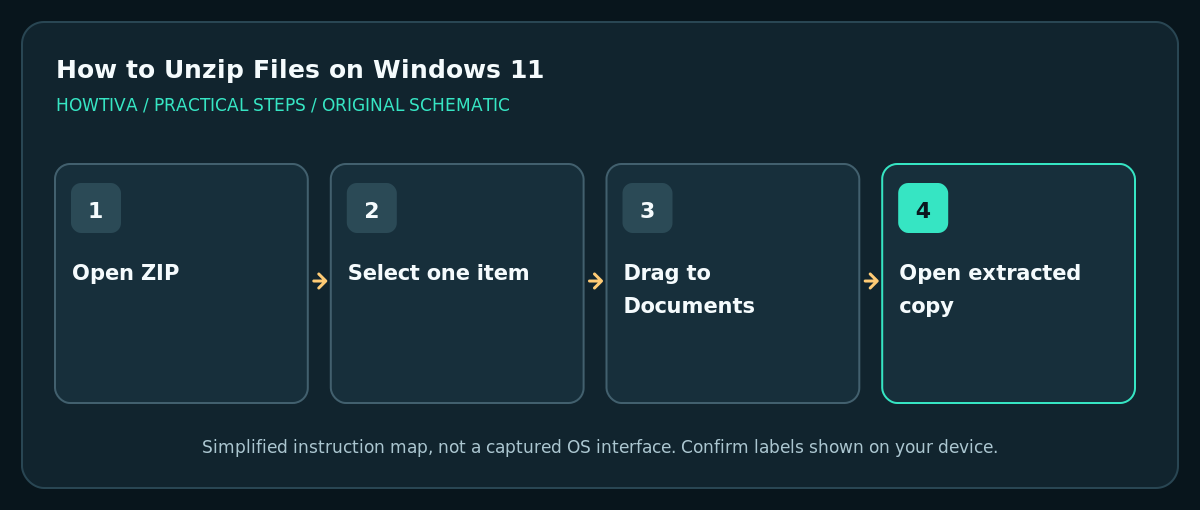
If you do not need everything, double-click the ZIP in File Explorer. Locate the item, then drag it out into a normal destination folder; Microsoft documents this as an extraction method. Confirm that the extracted copy exists at the destination and is not simply a shortcut. Keep the original ZIP until you know the copy opens.
ZIP, RAR and 7z are not interchangeable
Recent Windows 11 releases, including version 24H2, can work with additional common archive types such as RAR, 7z and TAR. That does not mean every archive variant or encrypted archive will open natively. This guide covers ordinary .zip extraction; when the operating system rejects a supported-looking archive, identify its true type and ask the sender which tool created it. Do not rename .rar to .zip as a workaround.
Safety before opening extracted files
- A compressed archive may contain unsafe executables, macros, scripts or links. Treat files from unfamiliar senders as untrusted even when the ZIP itself opens successfully.
- Avoid extracting an archive over an existing project directory. A duplicate filename may replace or conflict with earlier work; choose a new destination and compare deliberately.
- Do not bypass Windows security prompts or run as administrator simply to read a file. Verify the software publisher and download source first.
- If documents contain personal or business data, extract them only to an appropriate protected location and clean up extra copies according to your organisation’s policy.
Troubleshooting
Extract All is unavailable
Check that the selection is the actual .zip file in a writable local location, not a search result or cloud placeholder. Use File Explorer to download a local copy first. On older builds or when a third-party archiver owns the association, right-click Show more options and look for the Windows extraction entry.
Not enough disk space
The ZIP may be much smaller than its unpacked contents. Check free space in the destination drive, delete unnecessary temporary files only after review, or extract to a drive with more room. Do not assume that archive size equals extraction size.
Windows says the archive is invalid
The download may be incomplete, corrupt or the wrong format. Compare its size with the sender’s version, download from the legitimate source again, or ask the sender to remake it. Renaming the extension does not repair damage.
Password-protected ZIP will not open
Windows’ built-in handling may not support that encryption. Do not ask for the password in a public chat. Obtain the password securely and use an approved archiver that supports the format if company policy allows; do not upload sensitive ZIPs to random online extraction websites.
The extracted folder has unexpected nesting
This usually reflects how the sender packaged files. Open the extracted top-level folder until you find the intended content; do not delete folders based on a guess. Consider moving copies of verified files into your working project folder.
Frequently asked questions
Does Extract All delete the ZIP?
No, it normally writes separate extracted files and leaves the original ZIP in place. Keep the original until you have verified the contents and no longer need the backup copy.
Can I preview a file without extracting every file?
Yes. Open the archive and drag just the required file into a normal folder. Some apps cannot safely save changes back into a compressed archive; work on the extracted copy instead.
Why are extracted files larger than the ZIP?
The archive stores compressed representations of data. Extraction recreates ordinary files, which can require significantly more disk space than the archive itself.
Sources & Further Reading
- Microsoft — Zip and unzip files — Extract All, single-item drag-out and encrypted formats limitations.
- Microsoft — File Explorer in Windows — Find, browse and manage extracted items.
Use the checklists as you go, and confirm the result before moving on to a more involved repair.