How to Add a Printer on a Mac
Connect and power on the printer, then open Apple menu > System Settings > Printers & Scanners > Add Printer, Scanner, or Fax.
Quick answer: Connect and power on the printer, then open Apple menu > System Settings > Printers & Scanners > Add Printer, Scanner, or Fax. Choose a detected printer and click Add. For an AirPrint printer, connect the Mac and printer to the same usable network first; if automatic discovery fails, use the printer’s verified IP address and supported protocol.
Most recent Macs can print to compatible AirPrint printers without a separate vendor driver. Other printers may require manufacturer software, network configuration or a USB connection. Apple describes adding a printer from Printers & Scanners and provides an IP-based route for devices that are not discovered automatically. Do not install a driver from an unrelated download site.
Prepare the printer and connection
- Unpack the printer, install paper and ink or toner, and clear any control-panel alerts according to its manual. If you are installing a printer at work, check with the network administrator before changing it.
- For Wi-Fi or Ethernet printing, join the printer to the correct network using its own setup process. Verify that the Mac is connected to the same accessible network; guest networks may isolate clients even when the network name looks similar.
- For USB, connect a compatible cable or adapter without forcing the connector. Printers can take time to initialize or download software before appearing.
- Check whether the printer is AirPrint-compatible. Apple’s AirPrint feature generally avoids separate driver installation for supported devices and functions, though printer-specific extras may still depend on the model.
- If the printer was previously configured under a different network or IP address, record its current network status from the printer rather than reusing a stale address.
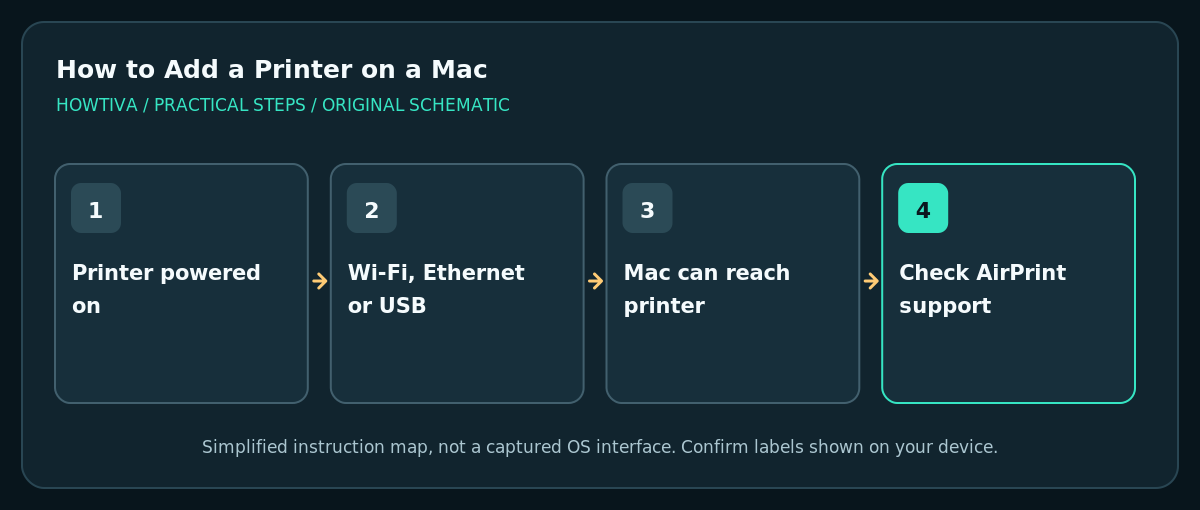
Add a detected printer in System Settings
- Choose Apple menu > System Settings on the Mac.
- Click Printers & Scanners in the sidebar. Scroll if it is not visible.
- Click Add Printer, Scanner, or Fax. In the Add Printer window, wait briefly for devices to be discovered.
- Select the correct model. Inspect the Use or driver choice when presented; choose AirPrint when supported and appropriate, or an approved vendor driver when required.
- Click Add. Open a harmless test document, choose File > Print, select the intended printer and print a single page. Check the actual output before declaring setup complete.
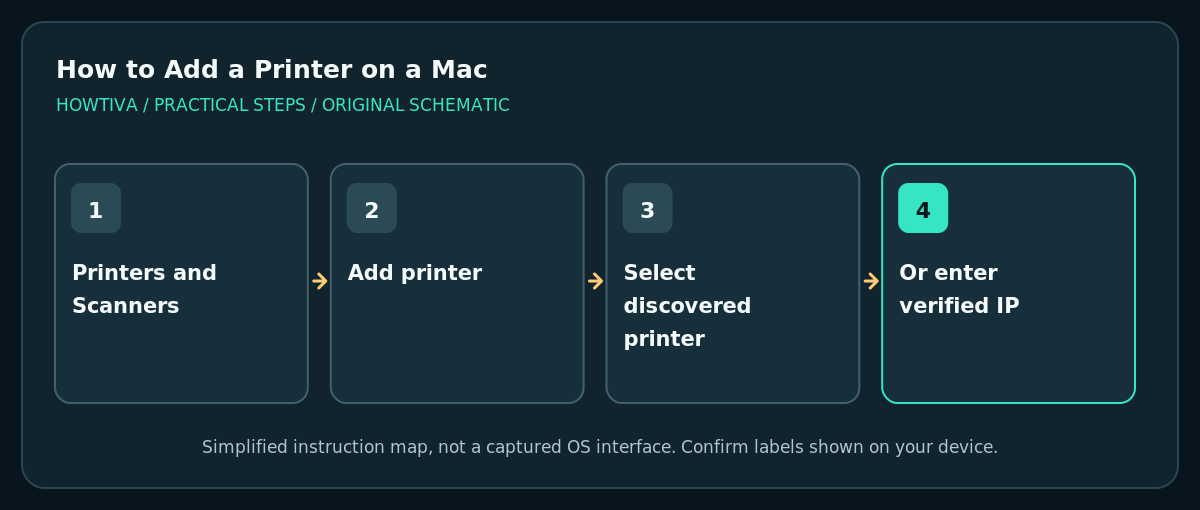
If the printer is not listed: add by IP
Apple provides an IP printer route in the Add Printer dialog. Select the IP option and enter the printer’s verified IP address or hostname. Choose a protocol the printer supports, such as AirPrint, IPP, LPD or HP Jetdirect (Socket), then supply the correct queue and software if applicable. The printer manual or administrator—not a guess—should determine the protocol, queue and driver.
A device added with a generic driver may print ordinary pages but lack duplex, finishing or advanced features. Apple explicitly notes that some generic protocols have limited feature support. Try manufacturer-recommended software when a specific feature is absent.
USB and other connection options
A USB printer may be detected automatically after you connect it. On a Mac with USB-C-only ports, confirm the adapter passes data; some charging-only cables will not carry printer data. Bluetooth-capable or Windows-shared printers follow different setup flows and may require permissions or the correct print-server details.
AirPrint does not mean every printer will become visible from every network. Corporate segmentation, firewalls and mobile hotspots may prevent device discovery. Ask IT to provide the correct network printer path rather than weakening protections.
Troubleshooting
The printer never appears: confirm power and error status; check the same network, then wait a minute for discovery. Restart the printer per its manual and try IP setup if you have the correct address.
You added a printer but cannot print: inspect the queue in Printers & Scanners or Print Center. Confirm that the selected model is the intended device and that paper/ink alerts are cleared.
A driver installation request appears: use the official printer manufacturer or Apple-supported setup flow. Never install an unexpected profile from an unknown website.
Duplex or scanning is missing: inspect supported hardware capabilities and correct driver choice. A basic generic queue may not expose all model features.
Frequently asked questions
Can I add an AirPrint printer without extra software?
For compatible printers, AirPrint generally supports printing without vendor-specific printer software. Confirm feature support for your exact model.
Do I need the printer’s IP address?
Not if automatic discovery succeeds. The IP-based method is a fallback for known network printers.
Can different Mac users share the same printer?
Often yes on a reachable network. Separate user permissions, print servers and enterprise policies may affect access.
Sources & Further Reading
- Apple — Add and manage printers on Mac — AirPrint, Settings flow, IP protocols and limitations.
- Apple — Printers & Scanners settings — Printer discovery, IP and device settings.
Use the checklists as you go, and confirm the result before moving on to a more involved repair.