How to Fix a Printer Showing Offline in Windows
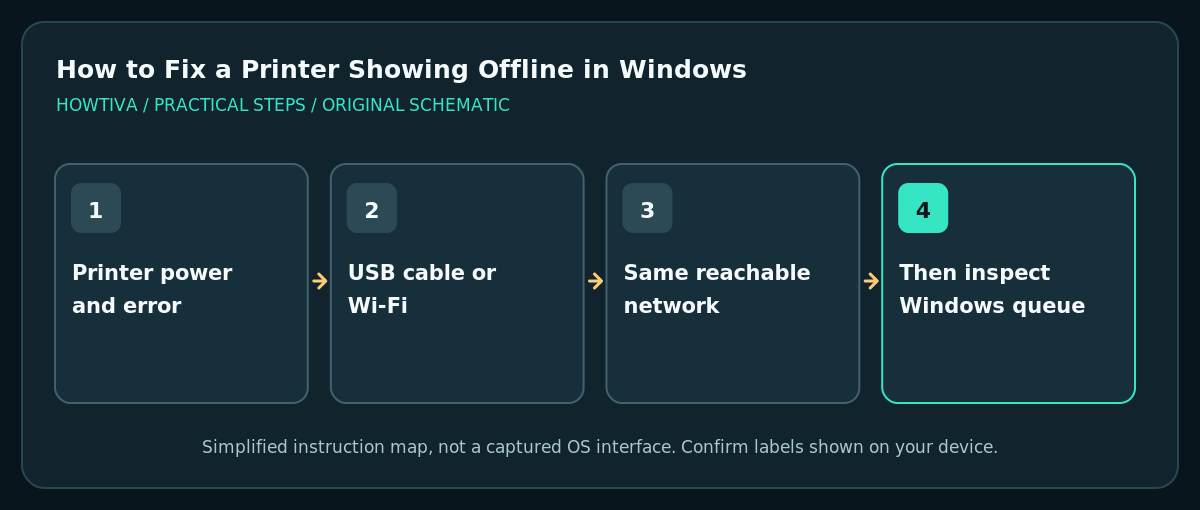
Confirm the printer is powered on, has no paper or error alert, and is connected to the same network as your PC (or securely by USB).
Quick answer: Confirm the printer is powered on, has no paper or error alert, and is connected to the same network as your PC (or securely by USB). In Windows 11 open Settings > Bluetooth & devices > Printers & scanners, select it, inspect the print queue, and run the printer troubleshooter before reinstalling anything.
A printer marked Offline is not necessarily broken. Windows may be using an old queue, the printer could be on a different Wi-Fi network, or the device may be asleep, jammed or unavailable. Microsoft recommends connection checks, queue inspection and Print Spooler troubleshooting. Preserve important queued documents before clearing them.
Check the printer before changing Windows
- Look at the printer’s screen and lights. Clear a paper jam or replace paper only according to the manufacturer’s safety instructions; never reach into moving or hot mechanisms.
- Confirm the device is powered on. If it is paused or asleep, use its normal wake control. Microsoft suggests turning the printer off, unplugging it, waiting about 30 seconds and restarting if needed.
- For a network printer, check its own Wi-Fi status or network report and make sure the PC and printer are on a reachable network. Guest Wi-Fi can isolate devices, even when both appear connected.
- For a USB printer, inspect the cable and port. If you use a docking station, try a direct compatible port where possible without forcing the connector.
- On a work network, confirm whether the printer is managed by a print server. Do not change driver or queue permissions without authorization.
Clear an Offline status in Windows 11
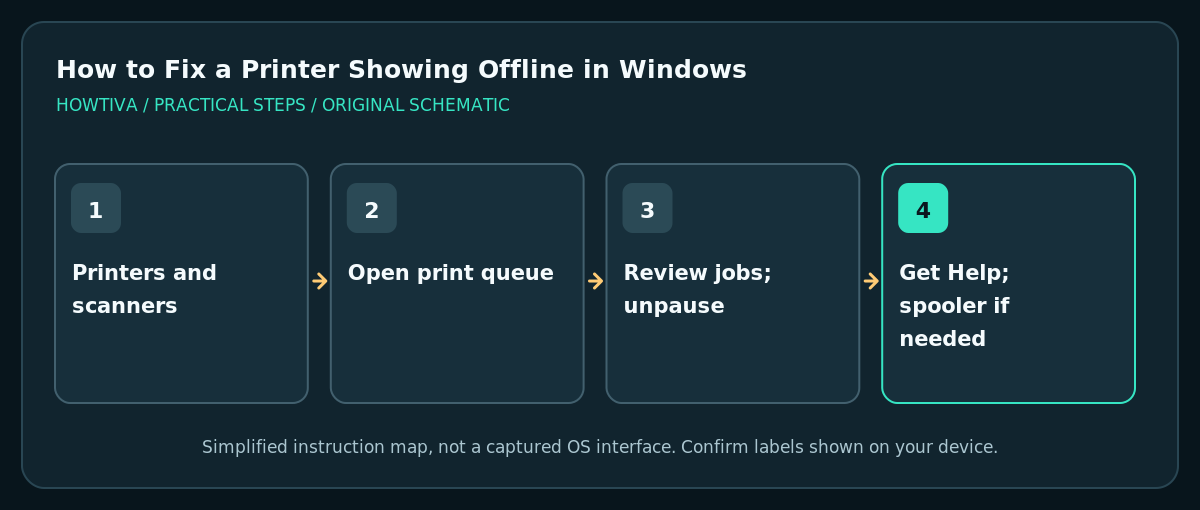
- Open Start > Settings > Bluetooth & devices > Printers & scanners, then choose the affected printer.
- Select Open print queue and review the waiting jobs. A single stuck job may block later print requests.
- In queue controls, look for Pause Printing or Use Printer Offline if these options appear in your version; turn them off when inappropriately enabled. Queue menus and placement vary among Windows builds and legacy printer interfaces.
- If you decide to Cancel all queued jobs, first check for documents another person needs. Clearing the queue deletes pending print requests, not their original files, but the jobs must be resent.
- Run the Windows 11 printer troubleshooter through Get Help. Follow its diagnostic prompts and test printing with a non-confidential single-page document.
- If the queue is still stuck, open Services, find Print Spooler and select Restart, provided you have the permissions and it will not interrupt other users of a shared service.
Reinstall the printer only after simpler checks
Return to Printers & scanners and choose the device. Removing it from Windows can discard the local printer configuration, custom settings and queues. Keep any IP address, network port, credentials or approved driver details before removing. Use Add device to install the recognized printer again; for a managed office printer, ask the administrator for the correct deployment method.
If Windows cannot find it, use the printer maker’s official support page to confirm firmware, Windows 11 drivers and network setup; do not trust third-party driver sites. For printers on enterprise print servers, IT may need to fix the shared queue instead.
Common problems
Printer online on phone but offline on PC: inspect the Windows queue and whether the PC points to an old printer instance or IP address. Some routers assign new IP addresses after a restart.
The status changes repeatedly: check Wi-Fi signal, sleep settings, firmware and whether the PC’s VPN blocks local-network discovery.
Jobs say Printing but nothing comes out: inspect consumables, paper size, physical jams and the printer’s control-panel error, not just Windows’ status.
Wrong printer is used: change the selection in the application’s Print dialog; the default printer setting determines only which device is chosen automatically.
Frequently asked questions
Does restarting the spooler erase documents on my PC?
Restarting the service targets pending print processing, not the source document, but interrupted print jobs may need resubmission.
Should I disable my firewall to find the printer?
No. Check network isolation, approved discovery and vendor guidance before considering security changes.
Is a network printer the same as a USB printer?
No. Network troubleshooting includes IP reachability and router settings; USB troubleshooting starts with the physical port and device connection.
Sources & Further Reading
- Microsoft — Troubleshooting offline printer problems — Power cycle, same Wi-Fi, default printer, queue, spooler and reinstall.
- Microsoft — Fix printer connection and printing problems — Connection and driver issues, printer diagnostics and vendor guidance.
Use the checklists as you go, and confirm the result before moving on to a more involved repair.