How to Turn On Two-Factor Authentication for Google
Open your Google Account’s Security & sign-in section, switch on 2-Step Verification, and add a recovery method you control.
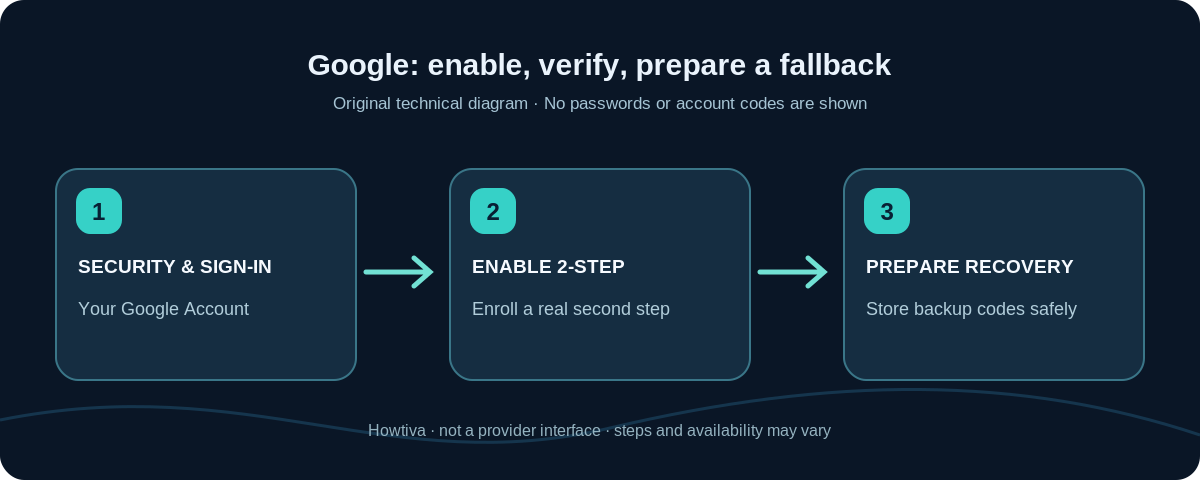
Quick answer: Open your Google Account at myaccount.google.com, choose Security & sign-in, and under How you sign in to Google select Turn on 2-Step Verification. Follow the prompts to finish setup. Then review your sign-in methods and store backup codes in a secure place that you can access if your phone is lost. Do not share a code or approve a prompt you did not initiate.
Google calls its two-factor system 2-Step Verification (2SV). With a password-based sign-in, an additional verification method protects you if your password is stolen. A passkey can instead provide a phishing-resistant sign-in using your device’s built-in authorization; Google may not request a separate second step in that flow. That is normal and does not mean you disabled protection.
Turn on Google 2-Step Verification
- On a trusted phone or computer, go directly to https://myaccount.google.com/ or open your Google Account from an official Google app.
- Select Security & sign-in. On some screens you may see a shorter Security label; look for How you sign in to Google rather than following an old screenshot exactly.
- Choose Turn on 2-Step Verification if setup is offered. If you see 2-Step Verification with a status already on, open it to review the existing methods instead of reenrolling unnecessarily.
- Follow the account’s authentication prompts and enroll the offered second step. The choices depend on your account, device and organization. You might be offered a Google prompt, an authenticator code, phone verification, passkey, or security key.
- Confirm that the service shows the feature as enabled, then review backup options while you are still signed in on a trusted device.
Use only the legitimate account page. A caller or message claiming to ‘test’ your Google security by requesting a code is not part of this setup. Google says it does not call to ask for your verification codes. If an unexpected sign-in prompt appears, deny it and review your account security independently.
Choose a second factor that works for your devices
Google prompts: For password sign-ins, Google generally recommends prompts. They can appear on Android phones signed in to the account, or eligible signed-in Google apps on iPhone. Review the device and location and select Yes only for an attempt you made; select No when unfamiliar. Prompts need a working connection and an eligible signed-in device.
Authenticator app: Google Authenticator and other compatible authenticator apps can produce time-based codes without mobile service or Internet access after setup. Register the authenticator from your account’s 2-Step Verification options, verify setup on the site, and follow the app’s transfer or backup procedure before replacing the phone. Do not assume uninstalling and reinstalling restores all codes.
Passkeys or physical security keys: Supported passkeys and security keys provide stronger resistance to fake sign-in sites. Their availability depends on hardware, browser, account policy and registration. Consider a second enrolled device/key when an account is especially important.
SMS or calls: A phone number may be offered, but Google warns that text or call verification can be vulnerable to phone-number takeover. It is better used as an available fallback than assumed to be the strongest method. Google may also restrict use of a newly added phone number for a period while it assesses the change.
Set up backup codes before losing your phone
While signed in, open Security & sign-in → 2-Step Verification → Backup codes. Google documents an option to generate a set of 10 single-use, eight-digit backup codes. Print them or store them in a protected offline location. Creating a new set invalidates the previous set, and each code stops working once used. Do not keep the only copy on the same phone you could lose, do not place them in a screenshot gallery, and never forward them to a support chat.
Backup codes are not necessarily available in every configuration: Google says Advanced Protection Program users cannot download them. Use the recovery approaches supported by your account’s protection level instead of searching for unsupported bypasses.
Check that protection is active, safely
Return to the 2-Step Verification settings and check the enabled status and available sign-in methods. You can also attempt a sign-in on another trusted device to understand the normal approval process, but Google may choose a different challenge based on its risk assessment or use a passkey. Do not intentionally log out of your only trusted session to test security if your backups are incomplete.
If the account is managed by a workplace or school, the administrator may require specific methods or hide setup controls. Follow your organization’s instructions; you cannot assume the consumer Google steps are authorized for managed accounts.
Troubleshooting common problems
No Google prompt appears
Confirm that the proposed receiving phone is signed in to the correct Google Account, is online, and has a supported Google app where needed. On the sign-in screen, choose Try another way to use another method already configured. Do not approve stale or unexpected prompts later just to make the notification disappear.
Codes arrive late or never arrive
Check mobile reception and the correct number. Google might send a prompt instead of an SMS, or restrict codes after unusual activity. Use another enrolled factor or a securely saved backup code rather than repeatedly requesting codes from untrusted pages.
You lost your device
Use a different signed-in phone, enrolled key/passkey, backup number or backup code if you have one. Google also recommends signing the lost device out and changing your password when appropriate. Start account recovery only through official Google pages if all enrolled factors are unavailable.
The 2-Step Verification switch is missing
Look for a status already enabled, inspect How you sign in to Google, and check whether your school or work account is organization-managed. Google may change individual screens and challenge choices over time. Do not install a third-party ‘unlock 2FA’ tool.
Frequently asked questions
Will I need a code every time I open Gmail?
Not necessarily. Google can remember a trusted device, offer a passkey, or ask again when risk changes. Never mark shared or public computers as trusted.
Do passkeys replace 2-Step Verification?
They can provide a strong sign-in that does not display a separate code prompt. Google’s official help states that sign-in with a passkey bypasses an extra second challenge because possession and device authorization are combined.
Can I still sign in without mobile service?
Often yes, if you have already configured an authenticator, passkey, security key or saved backup code. Set these up before you need them.
Should I share a backup code with support?
No. Treat backup codes as secrets. Only enter them into the verified Google sign-in flow you initiated.
Sources and further reading
- Google Account Help: Turn on 2-Step Verification (checked 2026-10-27).
- Google Account Help: Sign in with backup codes (checked 2026-10-27).
- Google Account Help: Fix common issues with 2-Step Verification (checked 2026-10-27).
Use the checklists as you go, and confirm the result before moving on to a more involved repair.