How to Delete Your Google Search History
Sign in to the correct Google Account, open myactivity.google.com, locate saved Search activity (or the newer Search Services History controls if they are available for your account), and choose the items or date range you want to Delete.
Quick answer: Sign in to the correct Google Account, open myactivity.google.com, locate saved Search activity (or the newer Search Services History controls if they are available for your account), and choose the items or date range you want to Delete. Google is gradually rolling out Search Services History, so some accounts still control search activity through Web & App Activity. Deleting Google’s saved account activity is not the same as deleting history stored locally in Chrome or Safari.
Deleting saved history can remove personalization signals and make it harder to revisit old searches. Review the chosen account, product filter and time range before confirming. There is no reason to share your Google password, verification code or a screenshot of private search queries with a guide or third-party ‘cleaner’.
Step 1: Open the correct Google activity account
- Visit myactivity.google.com by typing the address directly into your browser, not by following an unsolicited ad.
- Sign in if prompted. Check the account avatar/email carefully if you use several Google Accounts on the same browser.
- Find the Search, Search Services History or Web & App Activity controls that are currently offered. Google states that newer Search-services settings are being deployed gradually.
- Read what each setting covers. Search Services History can cover Search, Maps, Shopping, Flights, Hotels, Translate and News—not necessarily only typing terms into the Google search box.
- If you want to delete just Search rather than activity from unrelated products, use a Search product filter where it is available.
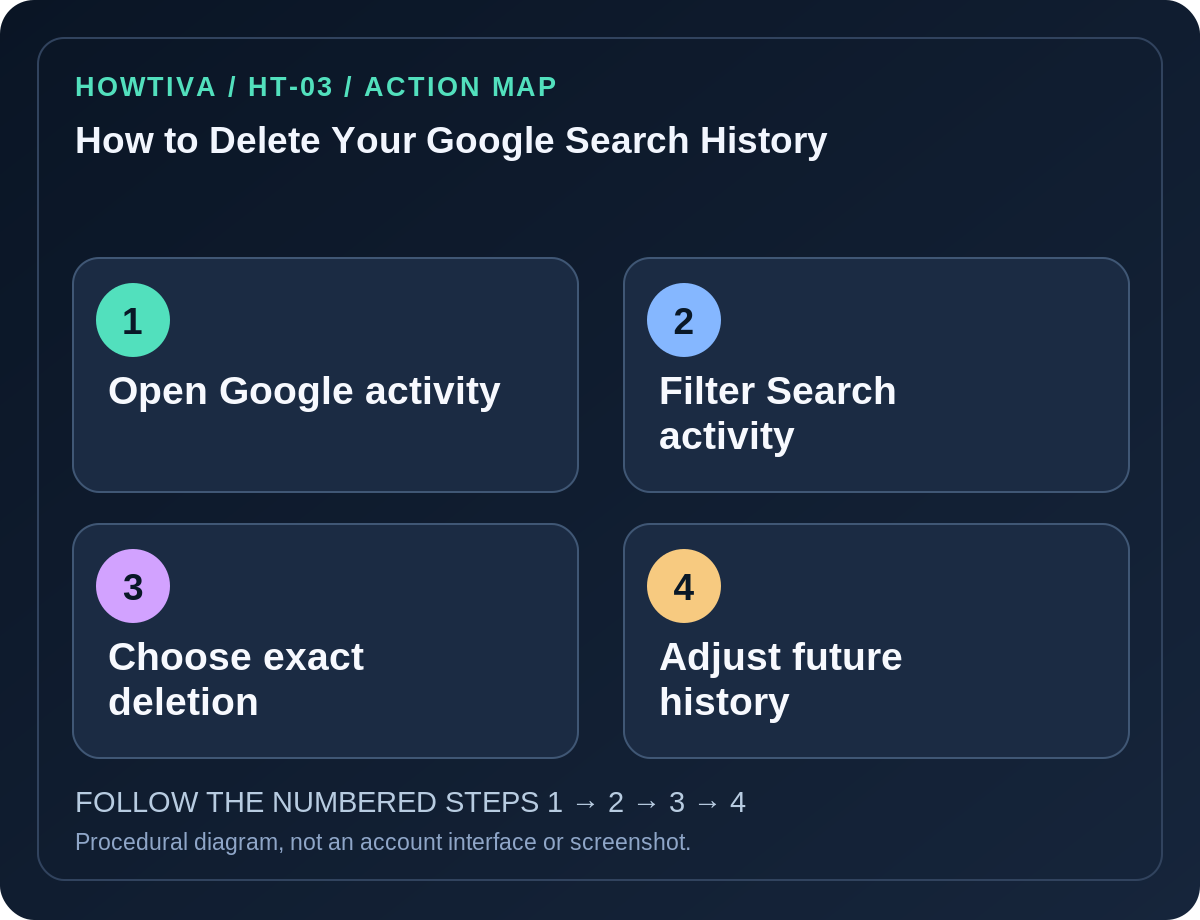
Step 2: Delete specific searches, a period or everything
- In My Activity, locate the search and date filtering tools and select the appropriate product and period.
- For a single sensitive search, find that entry and choose its Delete control.
- To delete the displayed filtered results, use the Delete action associated with those results. Read the confirmation so you know which activity will be removed.
- For a broader range, use the offered Last hour, Last day, Custom range or All time options, if shown in your interface.
- Confirm the deletion only after checking that the displayed product/account/time range is correct.
- Refresh the relevant activity view and verify that the intended items are no longer listed. This checks the visible account view; it is not a forensic deletion guarantee for every separate retention system.
Step 3: Control what Google saves in the future
In Google Account → Data & privacy → History settings, find the setting governing saved search and app activity. Depending on rollout, it can be Search Services History or Web & App Activity. You may be able to Turn off, choose Turn off and delete activity, or set auto-deletion intervals for supported data. Google documents options for automatically deleting eligible activity older than 3, 18 or 36 months, but product rollout and eligibility can affect what is displayed.
Turning off history is not the same as deleting existing saved records. Conversely, deleting records does not necessarily stop future saving while the relevant preference stays on. Check both choices if that is your goal.
Do not confuse Google account history with browser history
Chrome, Safari and other browsers may still retain addresses visited locally, even after Google My Activity is cleared. Websites, applications, network administrators and service providers can maintain records independently under their own policies. Clearing a Google account’s search history does not retroactively erase data held elsewhere.
If you are trying to remove visited sites from a shared computer, use that browser’s Delete browsing data procedure as a separate step and consider signing out of the browser profile. Never assume Incognito means activity cannot be saved by a Google Account you sign into while using it.
Troubleshooting
- No Search Services History option: This rollout is gradual. Use the documented Web & App Activity control and product filtering in My Activity.
- Old searches reappear: Check the correct account, browser address bar predictions and independently saved browser history. Some items may come from a different device or service.
- You cannot find an item: It may not have been saved, may belong to another account or may be part of activity outside the selected product filter.
- Account administered by a school or employer: The administrator may enforce policies; don’t assume all settings are available.
- Deletion removes a useful shortcut: The removed activity may no longer power a personalized suggestion. Saving important links outside your history first may be wise.
Frequently asked questions
Does this remove Chrome browsing history too? No, browser history can require a separate action.
Does deleting history turn future history off? No. Verify the setting that governs subsequent saving.
Does deleting searches erase Gmail or Drive documents? Not by itself. Those products have separate content stores and controls.
Sources & Further Reading
- Find & manage Search Services History — Google Search Help.
- Manage your Google data with My Activity — Google Account Help.
- Delete your activity — Google Account Help.
Use the checklists as you go, and confirm the result before moving on to a more involved repair.