How to Turn On Two-Factor Authentication for Apple
Open Settings or System Settings, select your name and Sign-In & Security, then enable two-factor authentication if it is not already on.
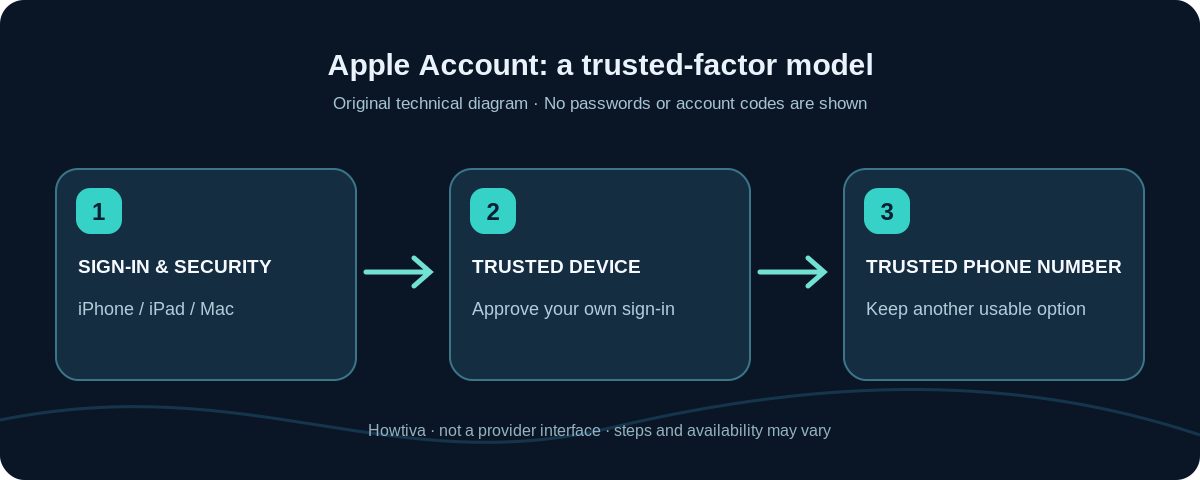
Quick answer: On an iPhone or iPad, open Settings → [your name] → Sign-In & Security, then turn on Two-Factor Authentication if offered and follow the instructions. On a Mac, use System Settings → [your name] → Sign-In & Security. Most Apple Accounts already have this protection enabled; if you see trusted-device and trusted-phone-number options rather than an on switch, review them instead of trying to start over.
Apple’s feature protects your Apple Account (the name replacing Apple ID), not necessarily unrelated apps in which you used ‘Sign in with Apple’. When a new device or browser needs authorization, Apple may require your account password plus a six-digit verification code shown on a trusted Apple device or sent to a trusted phone number. Device passcodes may also be requested for some protected iCloud content.
Turn on two-factor authentication on iPhone or iPad
- Connect to a trusted Internet connection and open Settings.
- Tap your name at the top. If you are not signed into the Apple Account you want to secure, finish the official sign-in flow first.
- Open Sign-In & Security and find Two-Factor Authentication. Follow the offered Turn On or account-security upgrade flow if not enabled.
- When asked, add a trusted phone number that you control and can access for verification. Complete the verification steps shown by Apple; do not enter a code into a page opened from an unsolicited message.
- Return to the section and confirm which trusted phone numbers and devices are associated with your Apple Account.
On current iPhone software, Settings → [your name] → Sign-In & Security → Two-Factor Authentication is also where Apple describes management of trusted numbers. Labels or the order of follow-up prompts can differ by software version and account state. Do not assume there is a button to turn the feature on if the account was created with it enabled.
Turn on two-factor authentication on Mac or the web
On Mac, open Apple menu → System Settings → [your name] → Sign-In & Security. If two-factor authentication is not already active, follow the offered enablement process and verify a trusted number. Your account must be signed in before its full security options appear.
If a compatible device is not at hand, Apple documents a web route at account.apple.com: sign in, then use Upgrade Account Security when that option is presented. Some accounts may need to respond to existing security questions or an email challenge during the upgrade. If no option is shown, the account may already be protected or may not qualify for that web flow.
Important limitation: Two-factor authentication is not available for every account type or in every region. Apple also states that if an account was created using two-factor authentication, it cannot be removed. A very recently upgraded account may have a limited period to revert, but do not plan account access on the assumption that you can turn the feature off later.
Protect your trusted phone numbers before you need them
Apple requires at least one trusted phone number. In Settings → [your name] → Sign-In & Security → Two-Factor Authentication, review your numbers and choose Add a Trusted Phone Number if available. Apple recommends considering a second number that is not linked to your only iPhone so that losing that phone does not simultaneously remove your trusted device and your only route to receive codes.
A trusted number is not the same as a trusted Apple device. A trusted device is a supported Apple device already signed into your account with two-factor authentication; it can display verification codes. A trusted phone number can receive a code by text or automated phone call when offered, including on a basic phone. Merely adding a number does not turn that phone into a signed-in trusted Apple device.
Never remove an old trusted number until the new number works and the account’s recovery arrangements are updated. If you share a phone number with other people, think carefully before using it for security verification.
Recognize a legitimate verification request
When you initiate sign-in on a new device or the web, a trusted Apple device may show an approval alert. Check that the request matches your attempt before choosing Allow. The verification code belongs only in the legitimate Apple sign-in window. If you did not try to sign in, deny the request and review your account devices and password rather than sending a code to anyone.
For an expected sign-in when you cannot use a trusted device, look for Didn’t get a verification code? on the sign-in flow to request delivery to one of your existing trusted numbers. Whether a particular fallback is shown depends on the account and current sign-in challenge. Do not guess at bypasses.
Troubleshooting common situations
Two-Factor Authentication is already enabled
That is normal for many accounts. Check the trusted numbers and device list and update them when you change phones. Do not create a new Apple Account simply to find a setup switch.
You did not receive a code on your iPhone
Review the other signed-in trusted devices and trusted phone numbers already on file. Choose the official code-resend or Didn’t get a verification code? route where offered. Check network reception for SMS/calls and verify that the sign-in attempt is yours. Avoid repeated approvals you did not request.
Your only trusted iPhone is lost or broken
Try an existing second trusted device or an accessible trusted phone number. If neither works, follow Apple’s official account recovery procedure; recovery can involve waiting and is not guaranteed to be immediate. Do not trust anyone offering paid ‘instant Apple ID unlock’.
A family or managed Apple Account has no option
Check the account’s eligibility, country or region and organization restrictions. Some accounts cannot enable the same security options. Avoid inventing hidden settings or bypasses; use Apple Support or your organization administrator.
Frequently asked questions
Is Apple Account two-factor authentication the same as my iPhone passcode?
No. The iPhone passcode protects the device locally. Apple Account two-factor authentication verifies account sign-ins using your account credentials and trusted factors.
Can I use an authenticator app instead of Apple’s trusted-device codes?
Do not assume a generic TOTP authenticator can replace Apple Account’s own trusted-device/number setup. Follow the sign-in methods Apple officially makes available to your specific account; Apple’s separate app or website login verification can work differently.
Why am I not asked for a code every day?
Apple generally does not request a code again on an already authorized device unless you sign out, erase it, or need to change your password for security reasons. A fresh browser or device may still trigger verification.
Can I turn two-factor authentication off later?
For accounts created with 2FA, Apple says no. For newly upgraded eligible accounts, a short reversal window may exist; treat it as an exception, not a dependable future setting.
Sources and further reading
- Apple Support: Two-factor authentication for Apple Account (checked 2026-10-27).
- Apple Support: iPhone two-factor authentication (checked 2026-10-27).
- Apple Support: Trusted phone numbers and devices (checked 2026-10-27).
- Apple Support: 2FA security on Mac (checked 2026-10-27).
Use the checklists as you go, and confirm the result before moving on to a more involved repair.