How to Turn On Two-Factor Authentication for Microsoft
For a personal Microsoft account, open Security → Manage how I sign in → Two-step verification → Turn on; work accounts use organization-managed security info.
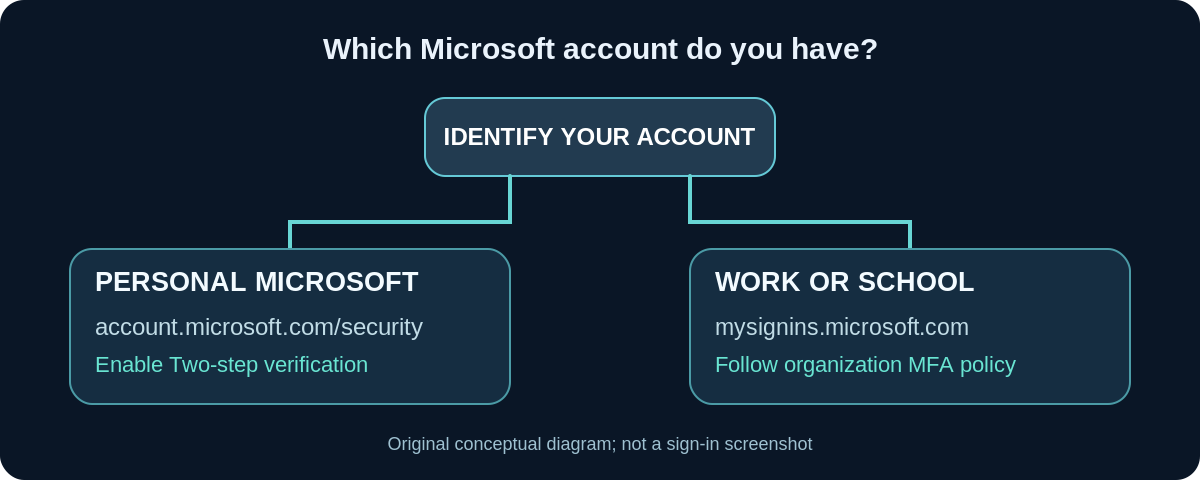
Quick answer for a personal Microsoft account: Visit account.microsoft.com/security, sign in, select Manage how I sign in, then under Additional security → Two-step verification, select Turn on and follow the instructions. For a work or school Microsoft 365 account, the equivalent process is often administered by your organization; use mysignins.microsoft.com/security-info to register the methods it permits.
Microsoft calls the consumer feature two-step verification. A method saved in your account—such as an authenticator app or alternate address—helps verify that it is you when a sign-in needs additional protection. Adding a verification method and turning on two-step verification are separate actions; do not assume the toggle is enabled merely because Microsoft Authenticator is installed.
For personal Microsoft accounts: switch on two-step verification
- Open the official https://account.microsoft.com/security page yourself on a trusted device. Use the personal Microsoft account you want to protect (for example, the account used for Outlook.com or Xbox).
- Select Manage how I sign in. If you are prompted to verify identity before seeing security settings, finish that normal account challenge.
- Scroll to Additional security and locate Two-step verification.
- Choose Turn on and complete Microsoft’s on-screen instructions. Your account may ask you to configure an authenticator or additional security information.
- Return to the page and verify that the two-step feature shows On. Add another supported way to verify your identity while you still have access to existing methods.
Microsoft has announced a phased move away from SMS for personal Microsoft account authentication and recovery. Do not build a long-term recovery plan that depends only on a text message being offered. The methods available to you can vary with your account and Microsoft’s rollout.
Set up Microsoft Authenticator as an approved method
If you want app-based verification, install Microsoft Authenticator only from the official store linked by Microsoft. In the personal account security portal choose Manage how I sign in → Add a new way to sign in or verify → Use an app where offered. In Authenticator, select Add (+) → Personal account → Scan a QR Code and follow the site’s verification instructions. If your camera cannot scan, use Microsoft’s documented I can’t scan the bar code fallback if it appears; do not copy a live QR code into a forum or support chat.
This registration adds Authenticator as a method. Return to Additional security → Two-step verification and make sure the setting itself is On. Microsoft’s separate Passwordless account control is a different feature; it is not required simply to enable two-step verification.
For work or school Microsoft 365 accounts
Do not use the personal Microsoft portal for a company-managed identity. Open https://mysignins.microsoft.com/security-info with your work or school account. Use Add sign-in method to enroll one of the methods permitted by the organization. You may see a prompt during Microsoft 365 sign-in when your administrator requires MFA; the available choices and enforcement schedule are set by organizational policy.
If you do not see a two-step on/off switch, that is not necessarily an error. Work and school administrators control whether MFA is required and which methods can be used. Microsoft recommends having several usable sign-in methods; contact your administrator if you cannot enroll or have lost access. Do not try to disable an employer’s MFA requirement from a consumer account guide.
Save a Microsoft account recovery code
For personal accounts, Microsoft documents a 25-digit recovery code. While signed in, open the security dashboard’s Manage how I sign in page and find Recovery code → Generate a new code. Print it and store it somewhere separate and secure, rather than only on the device that signs into your Microsoft account. Generating another code invalidates the previous one, and Microsoft says you cannot retrieve an existing code later. This recovery code is not an ordinary six-digit sign-in code; do not share either kind.
This personal-account recovery-code procedure does not automatically apply to Microsoft Entra work/school accounts. Those organizations supply their own recovery rules, which can require an admin or help desk.
Check your other verification methods before signing out
Review the security methods in your dashboard. Keep a second usable contact or verification factor when Microsoft allows it. If you replace phones, enroll the new method and verify it before removing the old one. With two-step verification on, a forgotten password plus loss of every registered method can make recovery substantially harder.
Avoid testing by signing out of your only trusted session until you have verified the recovery routes. A normal sign-in may not prompt on a known device, and the exact challenge depends on Microsoft’s current security assessment.
Troubleshooting problems
You cannot find ‘Manage how I sign in’
Verify you are in the personal account security dashboard, not signed in with your organization’s account. Microsoft may also ask you to complete an account verification challenge first. For organization accounts, use the separate security-info site.
Authenticator shows the wrong kind of account
Check whether you chose Personal account or Work or school account when registering in the app. Do not erase a functioning account method until you have an alternative; re-register through the matching security portal if required.
No notification arrives in Authenticator
Confirm the app is installed and registered for the right account, the phone is connected, and notifications are allowed. At the legitimate sign-in page, choose another method already registered when one is offered. Never approve a surprise request as a diagnostic test.
You lost your phone or changed your number
Use another enrolled method or your securely stored personal Microsoft account recovery code where the official recovery flow supports it. If every method is gone, start Microsoft’s sign-in helper or your organization’s help-desk process. Microsoft’s support staff cannot simply send you secret codes or bypass the account’s verification system.
The page asks you to switch on ‘Passwordless account’
Passwordless sign-in is optional and distinct from the Two-step verification switch. Check the page section name before confirming any enrollment; don’t turn on unrelated settings just to follow an outdated screenshot.
Frequently asked questions
Is enabling Microsoft Authenticator enough to turn on two-step verification?
No. Adding the app can create a sign-in method without enabling the personal account’s two-step verification setting. Check Additional security → Two-step verification.
Can I use a non-Microsoft authenticator app?
A compatible app may be supported for some accounts and enrollment routes. Use the exact options offered by the account; work/school policy may restrict choices.
Why does my employer’s Microsoft account have different screens?
Because work and school identities use Microsoft Entra policies rather than the consumer Microsoft account security portal. Organization administrators control supported methods and mandatory MFA.
Will Microsoft always send me a text code?
No. Microsoft has announced a phased reduction in SMS-based methods for personal accounts. Keep current alternative sign-in and recovery options instead of relying on one phone number.
Sources and further reading
- Microsoft Support: How to use two-step verification with Microsoft account (checked 2026-10-27).
- Microsoft Support: Add your accounts to Microsoft Authenticator (checked 2026-10-27).
- Microsoft Support: How to get a Microsoft account recovery code (checked 2026-10-27).
- Microsoft Support: Sign in to work or school account with two-step verification (checked 2026-10-27).
- Microsoft Support: Set up MFA for Microsoft 365 (checked 2026-10-27).
Use the checklists as you go, and confirm the result before moving on to a more involved repair.