How to Scan a Document with an Android Phone
Open Google Drive, tap its camera shortcut, capture your pages and save a PDF to Drive.
Quick answer: Open Google Drive on your Android phone, tap the Camera button in the lower-right area, aim at the paper and capture it. Review the page, adjust the crop, add other pages if needed, then tap Done and Save. Choose PDF when you need a normal document rather than a single picture. You do not need a separate scanning app for this method.
These instructions cover the current Android Google Drive app. Some phones also ship with scanner functions in their own camera or files apps, but their labels are not universal. Drive is a practical common route when you already use a Google Account. The finished document is saved to Google Drive, so consider whether it contains sensitive personal information before sharing the link.
Scan one page with Google Drive
- Put the receipt, letter or form on a flat, contrasting surface. Smooth folds where you can and avoid a strong overhead reflection.
- Launch Google Drive and confirm the signed-in Google Account is the one where you want the finished file stored.
- Tap the Camera button at the bottom right. If your version offers automatic capture, choose Auto or switch to Manual when timing matters.
- Hold your phone level above the page. Keep all four edges inside the camera view. A blue border indicates the crop Drive has detected.
- Capture the page, then inspect the result rather than immediately accepting it. Zoom into small print to make sure the text is legible and not blurred.
- Use Crop & Rotate if a corner is cut off; use Filter for colour or grayscale and Clean for marks when those controls are available.
- Select Done. Give the document a useful name, choose .pdf for a document or .jpg for an image, choose a Drive folder if necessary, and tap Save.
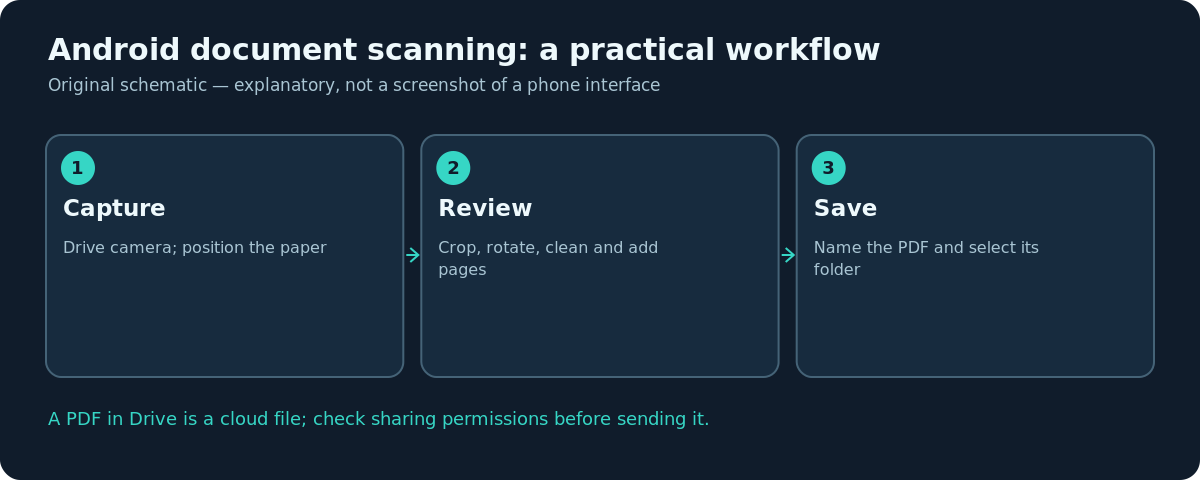
The difference between a phone snapshot and a good document scan is usually the crop and readability check. A receipt photographed from an angle may still open, but its totals can be impossible to read when printed. If text looks soft, retake the page before adding more pages.
Make a multi-page PDF
Need to submit three pages as one attachment? Stay in the scan editor instead of saving the first page. After scanning page one, select Add to photograph page two, and repeat for the remaining pages. Review the ordering before tapping Done, because a missing page is harder to notice once the file is shared. Google Drive documents the Add control for extra scanned pages and Delete for a page you do not want.
Choose PDF at the save stage. A multi-page PDF is generally easier for the recipient to download, print and archive than a sequence of unrelated image files. Use a descriptive filename such as lease-signed-pages.pdf rather than scan-1.pdf. Keep the original paper until the recipient confirms the file is usable.
Improve the result before saving
Crooked corners: Use Crop & Rotate and include the entire document boundary. For receipts with faded ink, select an appropriate filter and compare the preview with the physical receipt. Filters improve contrast; they cannot recover words that were not captured sharply.
Glare or shadow: Move away from direct reflections and use diffuse natural light. Keep your hands out of the document area. If your phone shadow falls over a signature, change the angle or lighting rather than applying an aggressive filter.
Tiny writing: Move close enough to fill the frame without clipping edges. Hold still through capture. After scanning, zoom in on account numbers or footnotes; these are the first parts likely to become unreadable. Check colour originals if red marks, stamps or highlights carry meaning.
Where did the scan go?
It is stored in the Google Drive folder you selected during Save, under the account active in Drive. Open Drive, visit that folder or search for the filename you chose. The Files app on your phone may not show a Drive document as an ordinary offline download. If you need a local copy, use the file’s Download option when available. For an email attachment, attach the PDF file or deliberately choose recipient access if sending a Drive link.
Avoid assuming a Drive share link is private merely because you sent it to one person. Open the file’s sharing controls and check whether access is Restricted or available to anyone with the link. For medical or identity documents, use the least permissive sharing method that meets the recipient’s requirements.
Other Android scanning options
Google Drive is not the only scanner on Android. A Samsung, Pixel or another manufacturer may include a document-capture tool in its Camera, Gallery or file manager, and those features change between versions. Use the manufacturer’s documented controls rather than assuming a button shown for one brand exists on all Android phones. If you need searchable text, verify the exported PDF actually has selectable text; image-only PDF files are not automatically a guarantee of OCR quality.
For pages that must remain strictly offline, a manufacturer tool that explicitly exports to local device storage may be preferable. Before using a third-party scanner, examine where it saves files and whether you trust its data-handling policy. Avoid scanning private documents inside an unfamiliar app without checking those details.
Troubleshooting
- No Camera button: Update Google Drive, check that you are using its Android app rather than Drive in a browser, and look for the scanning function in the current app interface. The menu may differ across releases.
- Camera is black or permission denied: In Android app settings, inspect camera permission for Drive and allow it while using the app if you want to scan.
- Document was cropped incorrectly: Retake it with the whole page visible against a contrasting background; correct the boundaries before saving.
- Scan is not visible on a second device: Confirm both devices use the same Google Account and that the upload finished; check the intended Drive folder.
- PDF is too large to email: Remove unnecessary scans and check the recipient’s attachment limit. Consider using a carefully restricted Drive link rather than compressing away important text detail.
Frequently asked questions
Can I scan a document on Android without buying an app?
Yes. The Google Drive Android app provides a scanning feature that can save PDFs. Availability of other built-in scanners depends on your brand and software.
Does Google Drive save scans on my phone or in the cloud?
The documented Drive workflow saves the result in Google Drive. Download a separate local copy if offline storage is required.
Can I scan several pages into one file?
Yes. Add pages from the scanning editor before you save the finished PDF. Inspect page order and legibility first.
Can a scan replace an original legal document?
That depends on the receiving organization and document type. Ask whether a scan is accepted, whether colour is required and whether the original must be retained.
Sources and further reading
- Scan documents with Google Drive — Google Drive Help.
Use the checklists as you go, and confirm the result before moving on to a more involved repair.