How to Review App Permissions on an iPhone
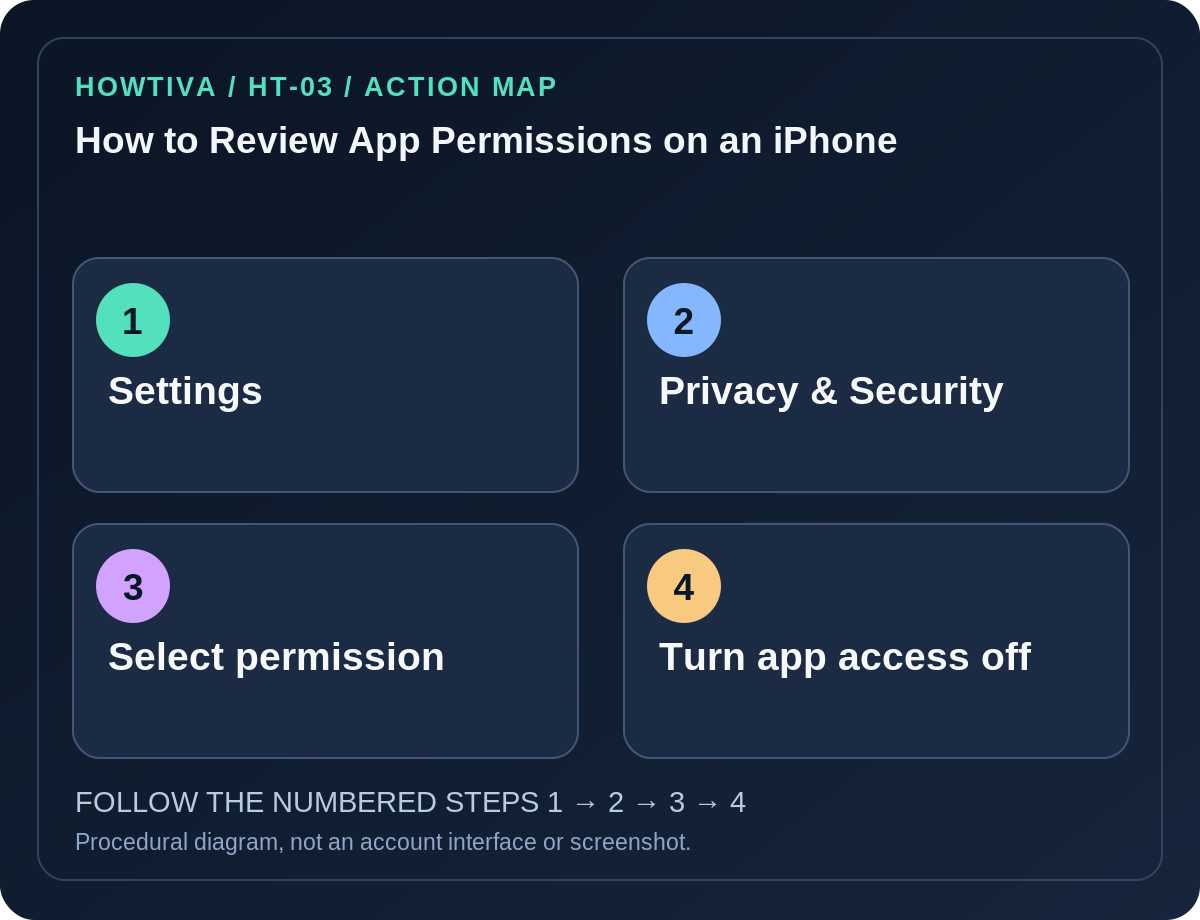
On an iPhone, open Settings → Privacy & Security, then select a permission category such as Camera, Microphone, Contacts, Photos, Calendars or Location Services.
Quick answer: On an iPhone, open Settings → Privacy & Security, then select a permission category such as Camera, Microphone, Contacts, Photos, Calendars or Location Services. Review which apps have requested access and change permissions that they do not need. iPhone privacy controls are grouped primarily by data type, not in one master switch that revokes everything.
A permission describes an app’s ability to access a phone resource; it does not mean the app actually used that resource at a particular time. App permissions should match an app’s purpose, and you may be able to grant access just when needed.
Audit the permissions that expose the most information
- Open Settings → Privacy & Security on your iPhone.
- Select Location Services to review apps with location permission. Consider Never or While Using the App instead of Always unless background location is essential.
- Go back and select Microphone, then inspect apps that have requested microphone access. Switch off any unnecessary access.
- Review Camera and Photos separately. Photos permissions can be more granular than a simple yes/no depending on the iOS release and app integration.
- Check Contacts, Calendars, Bluetooth, Local Network and other data categories if you have installed a wide range of apps.
- Launch an app whose access you changed and confirm its core function still works. If not, restore only the narrow permission that the needed feature requires.
Control location and the precision of location data
For an app that needs nearby-search functionality but not your exact coordinates, open Privacy & Security → Location Services → [app]. Apple offers location choices such as Never, Ask Next Time Or When I Share, While Using the App, and Always when supported by the app and device. If offered, turn off Precise Location to give only an approximate location.
Not every app shows every option: iOS permissions reflect the app’s declared usage and available functions. Turning off app location does not by itself end sharing in Find My’s People tab, and it is not the same as toggling the phone’s global Location Services off.
Use App Privacy Report for extra context
On compatible iOS versions, Apple offers Settings → Privacy & Security → App Privacy Report. If enabled, the report can show how apps use granted permissions and details about network activity. This is a useful prompt for questions, not a definitive proof of improper data collection. A network domain may also be a legitimate service provider used by the app.
If you turn off App Privacy Report, Apple says its stored report data is deleted. Record any information you need before disabling it. Availability and history differ by system version and whether the report was active previously.
When permissions are unavailable or keep changing
- App missing from Camera or Microphone: iOS may show only apps that have asked for that permission. Use the app feature requiring that capability to see whether it legitimately requests access.
- Setting is grayed out: Screen Time, device management or a restriction can affect controls. Do not remove organization management or parental controls without authorization.
- Photos appear even after access was revoked: An app may still display media previously imported or stored in its own account; withdrawing permission does not remotely delete copies already uploaded.
- A website requested camera access: Browser website permissions may require review inside Safari or another browser in addition to app-level privacy controls.
- An app stops recording after revocation: Restore microphone permission only if you decide that specific function is needed.
Maintain a practical privacy routine
Review privacy categories after a major software update, when installing a new app or after an unusual permission prompt. Remove applications you no longer use. Prefer granting temporary or limited access for apps that do not need continuous access. Check the app’s privacy information and your account’s connected services separately; iOS permission switches do not revoke data already collected by a company.
Frequently asked questions
Does disabling Contacts delete my contacts from an app’s servers? Not necessarily. Previously uploaded contact data may be subject to a separate deletion or account request.
Will turning off Camera permission stop taking photos in Apple’s Camera app? It controls relevant third-party app access, not a blanket deactivation of the built-in camera hardware.
Can I see every time an app used the microphone? App Privacy Report can provide permission-use details when enabled, but availability and retention depend on iOS; don’t assume a complete historical audit.
Sources & Further Reading
Use the checklists as you go, and confirm the result before moving on to a more involved repair.