How to Back Up an iPhone to iCloud
Settings → your name → iCloud → iCloud Backup → Back Up This iPhone, then Back Up Now.
Quick answer: On your iPhone, go to Settings → [your name] → iCloud → iCloud Backup. Turn on Back Up This iPhone, then choose Back Up Now while connected to Wi-Fi. Leave the phone connected until the backup finishes and check the date of the last successful backup. This is the best confirmation that setup did more than simply turn on the switch.
Apple’s iOS 27 guide states that automatic iCloud Backup normally runs daily when the iPhone is locked, connected to power and on Wi-Fi. Some 5G-capable devices and carriers may permit cellular backup, but it is not a safe assumption for every plan. The exact wording of the menu can differ on older iOS versions. Make sure you are signed in to the Apple Account you intend to use.
Turn on iCloud Backup
- Connect the iPhone to reliable Wi-Fi, ideally one you control. If you are about to replace the device, keep it connected to a charger.
- Open Settings and tap your name at the top. If no account is shown, sign in to your Apple Account using Apple’s normal process.
- Select iCloud, then iCloud Backup.
- Switch on Back Up This iPhone. Read any on-screen storage warning rather than bypassing it.
- Tap Back Up Now to create a manual backup instead of waiting for the next automatic run.
- Keep the phone on a stable connection and return to the same screen to confirm the backup finishes and shows an appropriate successful-backup time.
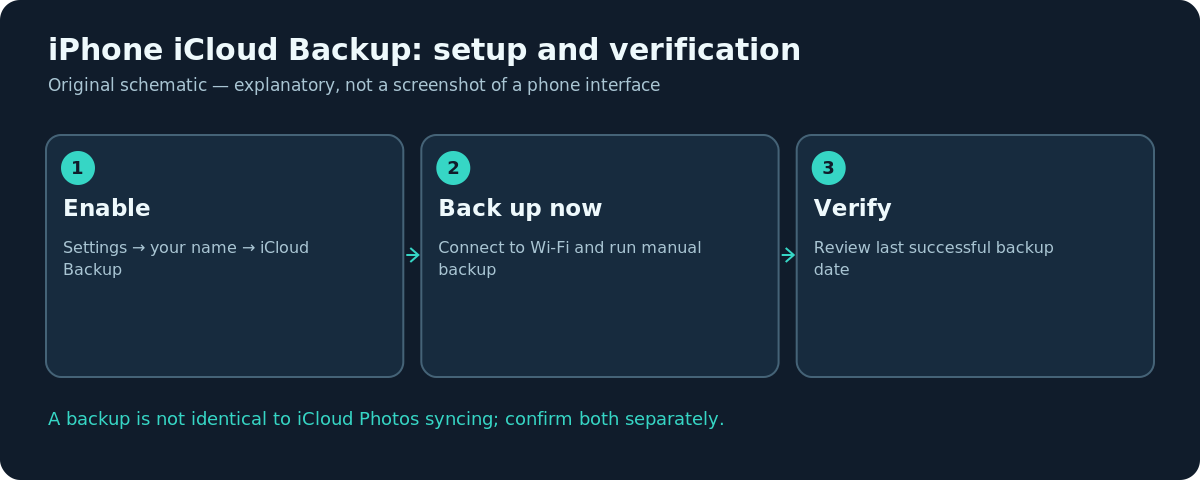
A slider in the On position is not evidence that the latest photos, messages or settings are safely backed up. The status and last-successful date are the practical checks. If you are migrating to a new phone, verify the backup before you erase, trade in or hand over the old one.
What iCloud Backup does and does not include
Apple explains that iCloud Backup stores information and settings that do not already regularly sync to iCloud. Examples include device settings, Home Screen layout and app organization, with app data varying by the app. Other categories—such as iCloud Photos or Contacts when their sync features are enabled—can live in iCloud through continuous synchronization rather than being duplicated in the device backup.
This distinction matters when recovering a lost iPhone. A successful backup does not mean every item you ever viewed in an app is guaranteed to return. Some apps manage their own cloud accounts or do not include all data in a device backup. For important files, inspect the app’s own export or backup method as well as Apple’s device backup status.
Check the last backup and available space
Return to Settings → [your name] → iCloud → iCloud Backup and read the reported date and time of the last successful backup. Make sure it is recent enough for your needs. If the iPhone says there is insufficient space, review the iCloud storage plan and what is using storage before paying for more. The correct decision depends on whether older backups and cloud content can be removed safely.
Be especially careful with iCloud Photos. Photos synced to iCloud are managed as a synchronized library. Deleting images inside that library to make space can remove them from other synced devices, not merely from a redundant backup. Do not use deletion as a storage fix until you understand where the original is stored and whether you have an independent copy.
Make automatic backups more reliable
Daily automatic backup is designed for a common overnight routine: connect to Wi-Fi, plug into power and lock the iPhone. If you regularly charge only at work or use mobile data without Wi-Fi, your schedule may not satisfy the standard conditions. Choose a regular period when the phone can remain on a charger and trusted wireless network.
An older backup date can also be caused by weak Wi-Fi, insufficient iCloud storage or account prompts that require attention. A manual Back Up Now run can show whether backup is functioning. If it fails, read the specific message before trying random resets. Signing out of iCloud or deleting an older backup without understanding the consequences is not a first-line troubleshooting step.
Alternative: back up to a computer
Apple also supports computer backups. On a Mac, the backup may be managed in Finder; on Windows, the Apple Devices app provides a local-device management route. A computer backup can provide an additional recovery option, especially when you want a second copy that is not dependent on iCloud space or connectivity. Follow Apple’s instructions for the computer and choose encrypted backup if you need data categories that depend on encryption.
It is often sensible to keep both: a current iCloud backup for convenience and a properly secured computer backup before a major device change. Do not assume that copying visible photographs to a computer is equivalent to a full iPhone backup with app settings and data.
Troubleshooting
- Back Up Now is unavailable: Check account sign-in, network, backup settings and any device-management restrictions.
- Not enough iCloud storage: Review plan capacity and existing content; do not casually delete synced files or backups you may need.
- Backup stops unexpectedly: Charge the phone, use stable Wi-Fi and retry; record any exact error message.
- Last backup is several days old: Verify the overnight power/locked/Wi-Fi conditions and perform a manual run.
- New phone does not show the expected backup: Check which Apple Account and backup date were used, then follow Apple’s supported restore flow.
Frequently asked questions
Does iCloud Backup run when I am asleep?
It can run automatically when the supported conditions—locked, charging and Wi-Fi—are met. Do not rely on bedtime alone.
Is iCloud Photos the same as iCloud Backup?
No. Photos may be synced separately through iCloud Photos; device backup focuses on data and settings not regularly synchronized.
Do I need iCloud+ to make a backup?
Not always. What matters is having sufficient available iCloud space. The plan and device data determine whether an upgrade is needed.
Can I use a Windows PC instead?
Yes. Apple provides a computer-backup method using its Windows device-management software; it is a different backup destination from iCloud.
Sources and further reading
- Back up iPhone — Apple iPhone User Guide (iOS 27).
Use the checklists as you go, and confirm the result before moving on to a more involved repair.