How to Connect a Laptop to a Phone Hotspot
Turn on an iPhone or Android hotspot, join it from Windows or Mac and avoid common data, band and tethering failures.
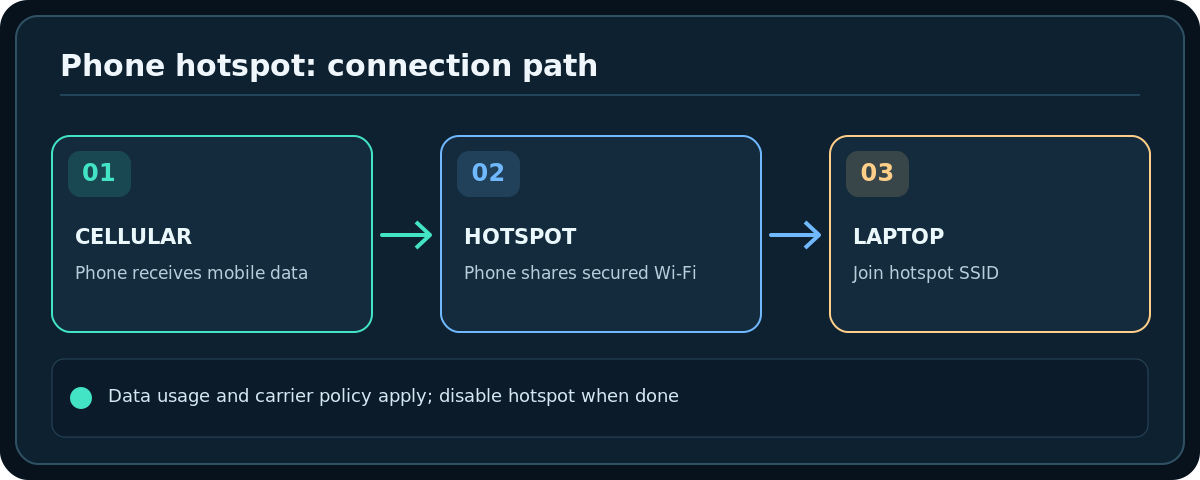
Quick answer: Turn on Personal Hotspot on your iPhone, or Hotspot / Mobile Hotspot on your Android phone, then use your laptop’s Wi-Fi menu to join the phone’s hotspot name and enter its hotspot password. On iPhone, enable Settings → Personal Hotspot → Allow Others to Join; on many Samsung phones, go to Settings → Connections → Mobile Hotspot and Tethering. A hotspot usually consumes cellular data and battery.
This is a temporary connection when home internet is down or you are traveling. Your cellular provider may charge for tethering or cap hotspot data. Keep the hotspot secured with a password; the phone’s hotspot password is distinct from any home router credentials.
On an iPhone: turn on Personal Hotspot
- Confirm mobile data is working on the iPhone and your carrier supports Personal Hotspot. If the menu does not appear, contact the carrier before changing unrelated settings.
- Open Settings → Personal Hotspot (on some configurations Settings → Mobile/Cellular → Personal Hotspot).
- Switch Allow Others to Join on. Check the displayed Wi-Fi Password and set a strong password if needed; Apple’s guidance specifies at least eight characters for the hotspot password.
- Keep the iPhone near the laptop. On the laptop, open the Wi-Fi list and look for the phone’s hotspot name.
- Select the name, type the hotspot password and wait for the laptop to connect. Open a page to confirm the connection uses the phone’s internet.
- When finished, turn off Allow Others to Join to reduce unintended connections and unnecessary cellular usage.
On Android: enable a Wi-Fi hotspot
- Check that the mobile connection works and tethering is included in your carrier plan.
- On a Google Pixel, open Settings → Network & internet → Hotspot & tethering → Wi-Fi hotspot, or use the Hotspot Quick Settings tile and its configuration page.
- On a Samsung Galaxy, open Settings → Connections → Mobile Hotspot and Tethering → Mobile Hotspot. Brand, OS version and carrier may change the words and controls.
- Turn the feature on and check the hotspot network name, password and security settings. Prefer a password-protected WPA2/WPA3-compatible option where available, not an open network.
- On your laptop, join that hotspot exactly as you would join a normal Wi-Fi network. Confirm internet access, then switch the hotspot off when finished.
Windows and Mac laptop connection steps
Windows 11: Select the taskbar network/sound/battery area, open available Wi-Fi connections, choose the hotspot SSID, select Connect and type the hotspot password. Windows 10 uses a similar Wi-Fi network selection screen, though the taskbar layout differs.
Mac: Choose Wi-Fi from the menu bar or the system Wi-Fi settings, select the hotspot name and enter its password when asked. Apple-to-Apple Instant Hotspot may reduce password entry when eligible devices share Apple Account/Family Sharing arrangements, but it does not replace general manual hotspot setup for Windows laptops.
If the laptop stays connected to an old Wi-Fi that has no internet, disconnect that network or select the hotspot manually. Do not disable unrelated security tools purely to make the hotspot appear.
If the hotspot does not appear
- Keep the phone unlocked and hotspot settings visible during the first connection if the phone’s instructions request it.
- Confirm the hotspot is enabled, not merely that mobile data is enabled. A phone can have mobile internet without broadcasting any Wi-Fi network.
- Verify the laptop supports the band the hotspot is using. Apple’s Maximize Compatibility option on supported iPhones can improve connections for some older devices, potentially reducing hotspot performance.
- Move the phone closer and rescan on the laptop. If a Samsung hotspot is configured as a hidden network, use an available visible-network setting where appropriate.
- Check carrier restrictions, VPN settings, power saving and any automatic hotspot timeout; each can interfere on particular devices.
Alternatives: USB and Bluetooth tethering
For a reliable wired fallback, some Android phones can share internet over USB tethering to supported laptops. Google notes that Mac computers do not support Android USB tethering through its generic instructions. iPhone USB hotspot on Windows may require the Apple Devices app or iTunes; use Apple’s official guide and trust prompts rather than unfamiliar driver downloads.
Bluetooth tethering can work on supported phone/computer combinations, but is generally less suitable for high-throughput tasks and can have compatibility limits. Verify the documented pairing workflow for your exact devices.
Avoid unexpected charges and disruptions
A laptop may start syncing photos, downloading operating-system updates or backing up files as soon as the hotspot connects. If your plan is metered, configure the laptop connection as metered where supported, pause large transfers and watch carrier data usage. Keep the phone charged in a ventilated location; sharing data can heat and drain it. Do not leave a personal hotspot running unattended in a public area.
Troubleshooting
The laptop connects but webpages do not load
Test mobile internet directly on the phone. If the phone itself has no cellular connection, the hotspot cannot supply it. Check plan/tethering permission and restart the hotspot before trying larger laptop network resets.
My phone overheats or battery drains quickly
Reduce connected devices and heavy downloads, move it out of direct sunlight and charge safely. Stop tethering if device temperature warnings appear.
The hotspot password is correct but login fails
Confirm you selected the phone’s current SSID, not a saved older hotspot. Recheck punctuation and security/band compatibility; change and re-enter a new hotspot password if necessary.
Frequently asked questions
Does laptop hotspot use Wi-Fi or mobile data?
The laptop uses Wi-Fi to reach the phone, while the phone normally uses its cellular connection to reach the internet. Certain Android phones can share an existing Wi-Fi connection, depending on the model.
Can I leave the hotspot on all day?
You can on supported plans and devices, but expect substantial battery and data use. A dedicated supported broadband connection is usually better for permanent service.
Is a hotspot the same as my home’s guest network?
No. A phone hotspot is a separate internet-sharing network. Router guest Wi-Fi normally shares the home’s broadband while controlling local access to private devices.
Sources & Further Reading
- Apple — Connect to Personal Hotspot (accessed 2026-10-27)
- Apple — Share your internet connection from iPhone (accessed 2026-10-27)
- Google — Android tethering and hotspot (accessed 2026-10-27)
- Samsung — Use a mobile hotspot on Galaxy (accessed 2026-10-27)
- Microsoft — Connect Wi-Fi on Windows (accessed 2026-10-27)
Use the checklists as you go, and confirm the result before moving on to a more involved repair.