How to Secure a Home Router
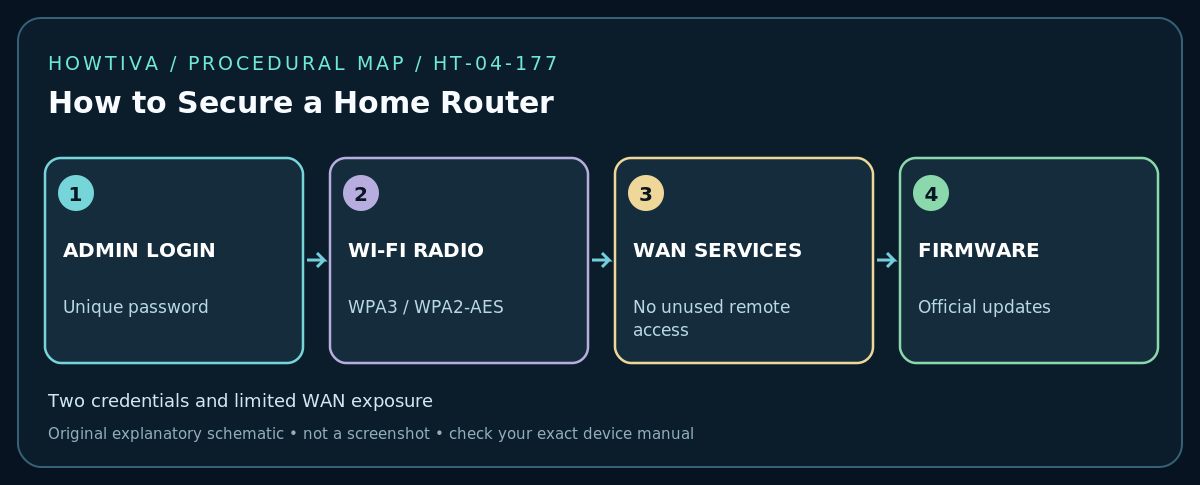
Harden your home router with WPA3 or WPA2-AES, a separate administrator password, safe firmware updates and reduced remote access.
Quick answer: Sign in to the router’s management app or local administration page, set a unique administrator password, enable WPA3-Personal (or WPA2-AES where required), install supported firmware updates, and turn off remote administration that you do not use. Before changing anything, record the current network name and settings, and confirm that you control this router. A secure wireless password and a secure router-admin password are two different credentials.
Before you open router settings
- Identify the device that actually routes your internet traffic. An ISP gateway, a separate router and mesh nodes may all appear in your home; make changes on the administrator-controlled device, not on an unfamiliar upstream box.
- Connect from your own network, preferably over Ethernet if changing wireless security. Check the router label, official application or manual for its management address. Never follow unsolicited sign-in links claiming to be your router.
- Make sure you have the legitimate administrator login. If the ISP manages the gateway, ask the ISP which options you can safely change. Note the current Wi-Fi SSID, encryption type and whether guest or IoT networks exist.
- Identify connected essential equipment: home-work VPN, printer, camera, doorbell, smart locks, medical and safety devices. Changing Wi-Fi credentials can disconnect them, so plan a maintenance window.
Step 1: Protect the management login
Sign in through the manufacturer’s official app or your verified local router interface. Locate an area labeled Administration, System, Account or Router Password. Set a long, unique administrator password and store it in a password manager. If the product supports changing its default administrator username, change that too. Do not use the Wi-Fi password as the administrator password. If you use a vendor cloud account to administer the router, enable its supported multi-factor authentication and review who has account access.
Do not publish screenshots that reveal serial numbers, WAN IP addresses or QR codes with wireless credentials. If a setting is unclear, check the exact model manual rather than copying an unrelated brand’s menu labels.
Step 2: Set wireless encryption and check every SSID
Open Wireless / Wi-Fi Security. Use WPA3-Personal when all required devices support it, or WPA2-Personal (AES) when compatibility requires it. Some products offer a WPA2/WPA3 transition mode; check the device manual and test older clients after applying. Avoid WEP, original WPA and TKIP-only configurations. Use a unique, long Wi-Fi passphrase; record it securely before changing it. Review every broadcast SSID, including guest, IoT, secondary bands and old mesh names, not only the primary network.
Step 3: Reduce exposed management and convenience features
Find settings labeled Remote Management, Web Access from WAN, WPS and UPnP. FTC consumer guidance recommends switching off remote management, WPS and UPnP where not needed. First understand whether your household relies on a feature: an existing game-console port mapping or home automation service might be affected by disabling UPnP. Prefer manufacturer-supported remote access with strong authentication if remote management is genuinely required. Disable old unused guest SSIDs and remove unknown administrative accounts or remote-access integrations.
Step 4: Keep firmware and device ownership current
Check the current firmware version in the router app or system page. Use the manufacturer’s automatic-update feature where supported or follow its official update instructions for your exact hardware revision and region. Never upload a firmware file for a similar-looking model. Back up settings when supported, and keep the router powered throughout installation. If the device is no longer supported and has only obsolete security modes, plan replacement instead of guessing at third-party firmware.
Step 5: Test what changed
Reconnect a phone and laptop using the intended Wi-Fi name and password. Confirm ordinary browsing, local printer access where intended, essential smart-home operation and guest-network isolation. Check whether remote administration from the public internet remains disabled. Save a short record of settings changed, firmware version, and date, without writing passwords into that record.
Troubleshooting and safe rollback
- Locked out of administration: Check the password manager, verified account recovery, or ISP support. Do not factory-reset a router until you understand what ISP credentials, VLAN settings, phone service or configuration it could erase.
- An older device no longer connects: Confirm support for WPA3 and 5/6 GHz bands. If necessary, use a narrowly scoped WPA2-AES/2.4-GHz IoT network rather than weakening the entire home network.
- Printer or casting disappears: Guest isolation, subnet separation or mDNS discovery rules may block device discovery; keep intentionally shared devices on an approved network and consult vendor instructions.
- A security toggle is missing: ISP-provisioned gateways and some mesh products do not expose every option. Document the limitation and ask the vendor about firmware or managed alternatives.
- UPnP removal breaks a service: Use narrowly defined manually configured forwarding only when needed and only when you understand the exposure. Never forward the router’s administration interface to the internet.
Frequently asked questions
Is hiding my Wi-Fi name a meaningful security control?
Not by itself. Network names can still be exposed during normal wireless activity. Correct encryption, strong passwords, updates and restricted administration matter far more.
Should I disable internet access for every smart device?
Only where supported and practical. Some devices need cloud access for alerts or setup. Determine the functional consequence before applying an isolation or block rule.
Do I need to factory-reset to become secure?
Usually not. Resetting deletes configuration and may disrupt internet or telephone service. Begin with documented settings and firmware updates on a device you own or administer.
Sources & Further Reading
- Federal Trade Commission — How To Secure Your Home Wi-Fi Network (checked 2026-10-27).
- ASUS — What is Guest Network Pro? (checked 2026-10-27).
Use the checklists as you go, and confirm the result before moving on to a more involved repair.