How to Reset a Smart Plug Safely
Distinguish power cycling, soft resets and factory resets; protect appliances and settings before resetting smart plugs.
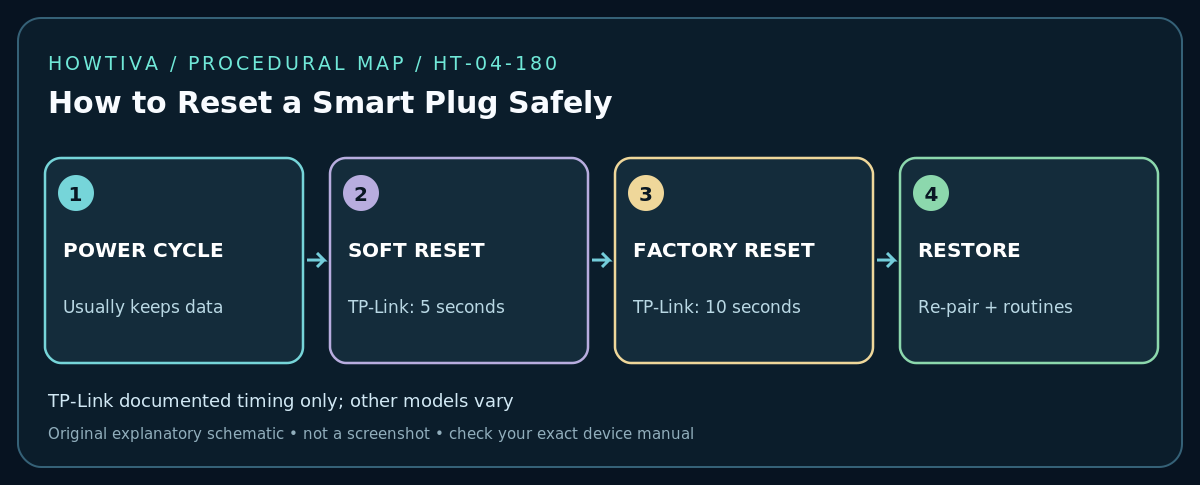
Quick answer: First try a normal power-cycle or the plug’s documented soft reset. Use a factory reset only if you intend to erase its Wi-Fi pairing, schedules and app configuration. For supported TP-Link Tapo/Kasa models, official guidance distinguishes a roughly five-second hold for a settings-preserving soft reset from a ten-second hold for factory reset; these times do not apply to every brand or model.
Safety before touching the plug
Identify the plug’s manufacturer, exact model and hardware revision. Disconnect high-power, heating, medical, aquarium, refrigeration or safety-critical equipment from the plug before reset work. Check the plug’s rated current and country-specific electrical limits. Do not open its casing, press objects into electrical contacts or handle it with wet hands. If it is hot, damaged or smells burnt, stop using it and contact qualified support. A smart plug must never be considered a substitute for an approved safety switch.
A scheduled power interruption can cause data loss or equipment damage. Before beginning, tell anyone else who relies on a connected appliance. If the plug is installed where it is unsafe to reach, do not try to hold its button while straining against a live electrical socket.
Step 1: Decide which kind of reset you need
- App restart or power cycle: To recover from a temporary hang, use the approved in-app restart where available, or switch off power safely, wait briefly and restore power. This does not normally erase your smart-home configuration.
- Soft/network reset: Some vendors offer a method that clears a failed connection or resets a network mode while keeping other data. Read your exact device guide for which settings survive.
- Factory reset: Erases the device’s saved setup and usually requires you to add it again. Depending on platform, automations, cloud bindings and groups may also need attention.
Step 2: Try the least destructive supported option
Check whether the plug still responds to its manual on/off button. If the load does not respond but the indicator changes, unplug the appliance and test only with a safe low-power load following the vendor instructions. Check that your router is online and that the plug was not blocked by new router credentials, an isolated guest network or a changed 2.4-GHz SSID. Do not reset when the real issue is a power outage or cloud-service interruption.
For TP-Link Tapo/Kasa models covered by the official reset document, a soft-reset press-and-hold lasts five seconds, while factory reset lasts ten seconds. Verify that your specific model lists those behaviors before holding its button; other brands use other durations, button sequences or blink patterns. Watch the light indicators as described in the model manual, not a generic photo online.
Step 3: Factory-reset only when justified
Record the current device name, schedules, groups and integrations. If you are giving away a plug, remove it from your account as instructed by the manufacturer before passing ownership along. For a device that is online, the official app may provide a Remove/Reset command. TP-Link notes that its relevant app-based reset path requires the plug to be online. If the app path is missing or offline, consult the hardware procedure for that precise product. Never claim that deleting a phone app will reset a physical device.
Step 4: Set up and verify again
Reconnect the plug to the intended supported Wi-Fi network using its official app. For 2.4-GHz-only products, select a compatible network and supported encryption. Confirm manual control first, then re-create only the necessary schedules and voice-assistant integrations. Test one planned on/off event with an expendable, low-power lamp, not a heater or refrigerator. Check time-zone settings before trusting automated schedules.
Troubleshooting
- LED never enters pairing state: Re-read the model-specific button behavior; try an ordinary power cycle first, inspect the supply and avoid repeated long holds that could erase settings.
- App says already registered: Use the vendor’s legitimate account recovery or ownership transfer process; do not attempt unofficial device takeover.
- Plug connects, appliance stays off: Many appliances do not automatically restart after mains power is restored. Use the appliance’s own controls and safety instructions.
- Schedule disappears after reset: This is expected on many platforms. Restore schedules and group membership deliberately.
- Trips breaker or grows hot: Unplug if safe and stop using. Do not reset it to mask an electrical fault.
Frequently asked questions
Will a factory reset reduce my electricity use?
Not directly. It removes configuration; savings depend on actual scheduling and the connected appliance’s behavior.
Is unplugging the same as factory reset?
No. Interrupting power and clearing stored credentials are different operations. Confirm the manufacturer’s exact definition of reset.
Sources & Further Reading
- TP-Link — How to Reset a Tapo or Kasa Smart Plug (checked 2026-10-27).
- TP-Link — What to Do If Your Tapo or Kasa Smart Plug or Switch Won’t Control Your Appliances (checked 2026-10-27).
Use the checklists as you go, and confirm the result before moving on to a more involved repair.