How to Fix Audio Delay on Bluetooth Headphones
Diagnose lip-sync direction, source, Bluetooth processing and applicable TV sync controls before adjusting delay.
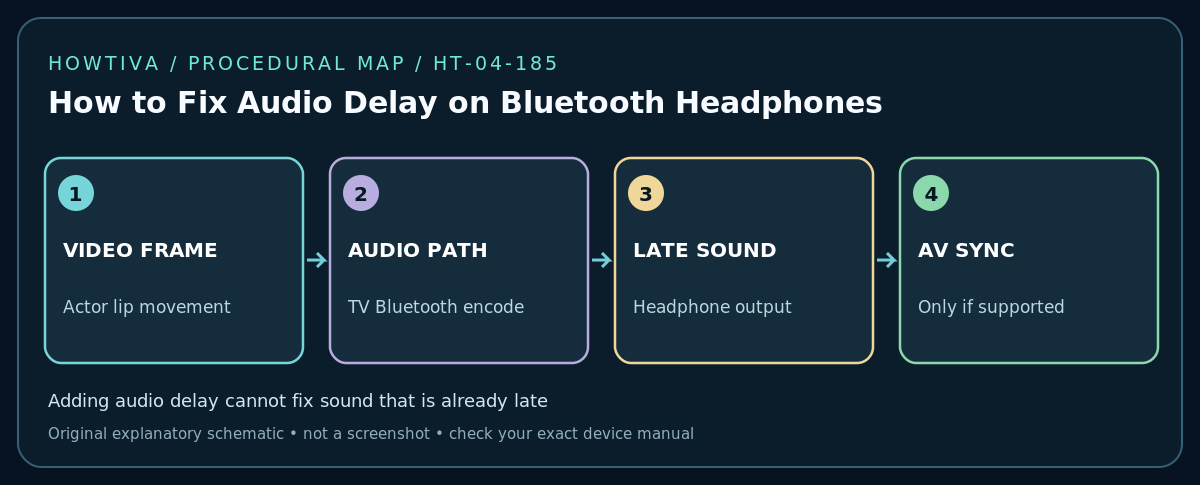
Quick answer: If Bluetooth headphones play dialogue after the actor’s lips move, compare the same scene with the TV’s internal speakers first. If only Bluetooth is late, investigate the wireless audio path and headset compatibility. Use the TV’s AV Sync, Match Screen and Sound or audio-delay control only when it applies to the chosen output—some settings cannot correct Bluetooth delay, and adding extra audio delay may make already-late sound worse.
Understand the direction of the delay
A lip-sync problem can mean audio plays after the picture or before it. The correct adjustment depends on the direction. A basic TV audio-delay slider typically postpones sound; that can help when audio is too early but make late Bluetooth audio even later. Some TVs instead allow video delay or an audio-video synchronization compensation feature. Never advise blindly increasing an offset without first measuring which side leads.
Step 1: Isolate the affected source
Use a familiar clip with clear lip movement. Compare the TV’s internal speakers with the Bluetooth headphones at a moderate volume. Repeat using a second source such as an antenna channel, built-in app and HDMI device where available. Record results: internal speaker aligned, Bluetooth late, or both wrong. If one video app is the only offender, app processing and streaming issues are more likely than the Bluetooth link alone.
Step 2: Identify the output chain
Find which device produces the picture and which produces sound. A set-top box routed through a soundbar, TV Bluetooth to headphones and an HDMI eARC sound system have different synchronization controls. Check whether your TV supports a headphone-specific compensation feature. If the headphones use a separate Bluetooth transmitter attached to optical or analog output, investigate that transmitter’s codecs, pairing and low-latency capabilities rather than only TV menus.
Step 3: Locate sync settings without inventing a universal fix
LG’s 2026 guidance lists Settings → All Settings → Sound → Advanced Settings → Match Screen and Sound on compatible newer webOS versions and older AV Sync Adjustment routes. LG also warns specific adjustments apply only to certain outputs and model classes; do not assume these settings work for Bluetooth headphones. On Samsung and other TVs, look for Audio Delay, Digital Output Audio Delay or AV Sync, then consult the exact model help. Note the original value before adjustment so it can be restored.
Step 4: Make a small, controlled change
If your TV clearly allows a setting for the active output, try one small adjustment in the direction documented by the manufacturer. Replay the same dialogue clip and compare. If making sound later increases the mismatch, restore the original value. Some platforms include bypass or low-latency options; test one at a time. Avoid changing all audio-processing modes, output formats and HDMI options simultaneously, or you won’t know what fixed the symptom.
Step 5: Reduce wireless processing when possible
Keep headphones within range and minimize competing Bluetooth connections. Where supported, try disabling unnecessary surround or post-processing effects, switching to a documented low-latency listening mode, or using a matched transmitter/headphone pair designed for low-latency audio. Bluetooth codec compatibility requires both ends to support the codec; a logo on the headphone alone does not guarantee the TV uses it. Consider wired headphones if accurate timing is essential.
Troubleshooting
- Audio late only over Bluetooth: Focus on codec/processing and device pairing, not a generic TV-speaker-delay slider.
- Audio early everywhere: A supported audio delay may help; follow manufacturer’s direction and test small offsets.
- One streaming app is wrong: Check that app, program and network; compare a different source before changing global sync.
- Only HDMI input is wrong: Check the external source and audio processing chain, including soundbar/eARC settings if used.
- TV offers no relevant sync adjustment: Do not force unsupported service menus; consider wired output or vendor-recommended low-latency hardware.
- Delay changes with each episode: Look for inconsistent stream encoding and app faults rather than a permanent static offset.
Alternative: simplify the audio path
Temporarily disconnect unnecessary external processors and test plain TV audio. Restore each device one at a time while observing synchronization. A dedicated wireless headphone kit with its own transmitter may outperform a generic Bluetooth setup on some TVs, but its suitability must be checked against the TV’s supported audio outputs.
Frequently asked questions
Will faster home internet eliminate Bluetooth latency?
Not necessarily. Internet buffering and Bluetooth audio encoding are different stages; local wireless audio delay can remain even with a fast internet service.
Is a 200 ms delay slider always the answer?
No. Direction matters, and the slider may not affect Bluetooth at all. First identify whether sound leads or lags the video.
Sources & Further Reading
- LG — How to Sync the Picture and Sound on Your LG TV (checked 2026-10-27).
- LG — Troubleshooting Audio/Video Sync Issues (checked 2026-10-27).
- Samsung — Pair Bluetooth headphones to your Samsung TV (checked 2026-10-27).
Use the checklists as you go, and confirm the result before moving on to a more involved repair.