How to Compress a PDFWithout Making Text Unreadable
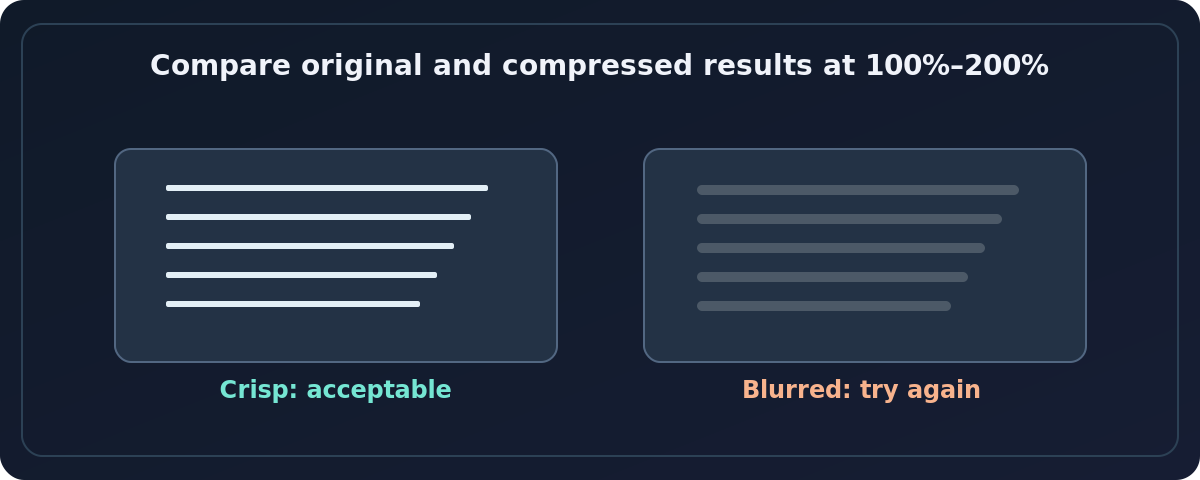
To compress a PDF while keeping its text readable, first make a copy, then use a PDF application's reduced-size or optimization feature and compare the result at 100% and 200% zoom.
Quick answer: To compress a PDF while keeping its text readable, first make a copy, then use a PDF application’s reduced-size or optimization feature and compare the result at 100% and 200% zoom. In Acrobat desktop, Adobe documents Save as Other → Reduced Size PDF; on a Mac, Preview offers File → Export → Quartz Filter → Reduce File Size. For scanned PDFs, avoid aggressively lowering image resolution: the letters are part of the image and can become blurry.
There is no universal best quality slider. The ideal settings depend on whether your PDF contains vector text, photos, color scans, small diagrams or screenshots. An email attachment and a print-ready contract have different acceptable compromises. Adobe and Apple both make clear that compression may trade image detail for smaller size.
Start by identifying what’s making the PDF large
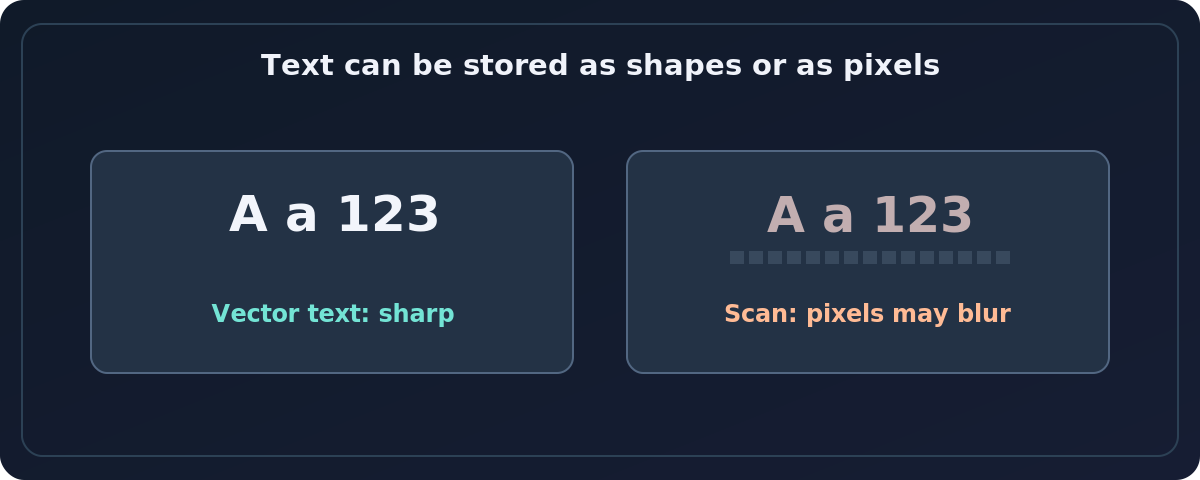
Open the PDF and zoom in on a paragraph. If the letters remain crisp at high zoom, much of that content may be vector text. If each letter looks like enlarged pixels, the page may be a scanned image. Many large PDFs also contain oversized photos, duplicated backgrounds or high-resolution graphics. The first optimization target is often images rather than selectable text.
Write down the current file size and make a copy, e.g. report-original.pdf and report-smaller.pdf. Check the number of pages and whether the original has searchable text, forms, signatures or bookmarks. You will use that baseline to detect damage after compression.
Method 1: Reduce PDF file size in Adobe Acrobat
Adobe’s recent Acrobat desktop documentation provides a basic reduced-size command. The interface differs between Windows and macOS:
- Open the PDF in an edition of Acrobat that includes the required PDF optimization command.
- On Windows, choose Menu → Save as Other → Reduced Size PDF. On macOS, choose File → Save as Other → Reduced Size PDF.
- Select the compatibility target carefully. An older target may favor support for legacy readers, while a newer PDF feature can require a newer viewer.
- Select OK, choose a new filename and save the output; keep the original untouched.
- Compare the sizes. Open the new file and inspect fine text, diagrams and images—not just the cover page.
Paid Acrobat plans and product editions vary. Do not assume Reduced Size PDF is available in the free Reader app. Adobe’s advanced PDF Optimizer offers more targeted control, such as image downsampling and compression, but it may not be present in every subscription. Check the app’s actual plan before following advanced commands.
Method 2: Compress a PDF in Preview on Mac
- Open the PDF in Preview and choose File → Export.
- In the export dialog, find Quartz Filter and select Reduce File Size.
- Save with a different name to protect the original.
- Reopen the compressed PDF and inspect small text, scanned signatures, charts, table borders and photographs.
Apple expressly warns that a compressed PDF may have lower quality than its source and that results depend on the chosen options. If the outcome is too blurry, discard that compressed copy and try a different workflow. Depending on your macOS Preview version, export options may also allow screen image optimization or JPEG image conversion. Do not assume all versions expose identical checkboxes.
How to choose the safest compression approach
PDFs created from Word or another text editor
If you still have the original document, export it again using appropriately sized images. That can yield a cleaner file than repeatedly recompressing an existing PDF. Keep text as text whenever possible. Avoid turning whole pages into JPEG pictures just to reduce the file size: the result may stop being searchable and may become difficult to read when enlarged.
Scanned contracts, invoices and forms
For scans, text is often part of a bitmap image. Aggressive downsampling or low-quality JPEG settings can destroy thin letter strokes and decimal points. Test the smallest printed line, a number in a table and the signature area. A readable scan at ordinary zoom is not necessarily legible when printed or examined with assistive software.
PDFs with photos and presentation graphics
Photos often tolerate some compression better than small text. If you have advanced image settings, adjust the photographic image quality gradually while preserving flat illustrations and fine lines. Adobe documents downsampling and different image-compression choices; it also warns that quality settings for lossy codecs permanently discard some pixel data. Use separate settings for monochrome scans, screenshots and photos when the software permits.
A reliable readability test
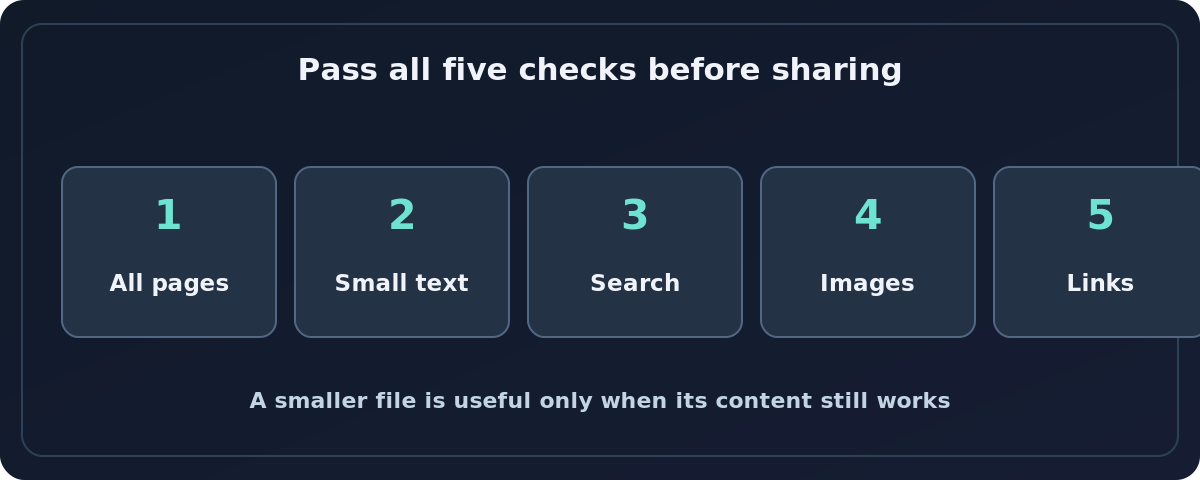
Compare old and new versions using this checklist:
- Page count: Every expected page should remain in the smaller file.
- Text: Read the smallest body text, superscripts, footnotes and table totals at normal viewing size and again at 200% zoom.
- Search: Search for a specific phrase or select a sentence in both PDFs. If searchable text disappeared, investigate whether pages were rasterized.
- Images: Look for blocky diagrams, blurred QR codes, smeared numbers and barely visible annotations.
- Links and forms: Click a safe internal link, and inspect any critical fillable fields or document attachments.
- Size: Compare the saved byte sizes. If the reduction is tiny but quality suffered, keep the original or try a different setting.
For records that need to remain legally or historically exact, preserve the untouched original. Compression does not substitute for archival storage or approved document retention.
What to do when compression goes wrong
The PDF became blurry
Return to the original and use a less aggressive image setting. If using Preview’s single Reduce File Size filter, try a more controllable optimizer or re-export from the source document instead.
The compressed PDF is barely smaller
The PDF may already be efficiently encoded, or its size may come from embedded fonts and vector content rather than oversized images. Further lossy compression may bring little benefit. Do not flatten pages just to hit an arbitrary email size limit.
The text looks sharp but cannot be selected
The PDF may contain a rasterized page or scan image. Check the original. Compression cannot automatically restore an OCR text layer; an approved OCR workflow may be needed afterward, followed by careful proofreading.
Fonts changed or symbols vanished
An optimizer can affect fonts if advanced settings unembed them. Adobe warns that unembedded fonts may be substituted on another system. Avoid removing fonts when precise glyphs, math or non-Latin text matter.
The file is still too big to email
Consider sending a secure cloud link or splitting an approved copy into logical sections rather than repeatedly destroying image quality. Match your organization’s document-sharing and access policies.
Frequently asked questions
Does compressing a PDF make text blurry?
It can, especially when the text is a scanned image. Vector text is more resilient, but any result needs checking because optimization settings and rasterization vary.
What is the best DPI for a scanned PDF?
There is no one setting for all scans. Small type, photos, archival quality and printing requirements differ. Begin with a readable original, reduce resolution cautiously and inspect the output rather than treating one DPI value as a universal rule.
Can I compress a PDF for free on a Mac?
Yes. Preview has File → Export → Quartz Filter → Reduce File Size, but Apple warns that image quality can decrease.
Will compression make a PDF editable?
No. Size optimization and OCR or text editing are different processes. A compressed scanned PDF can remain an image-only document.
Sources and further reading
- Adobe Help: Reduce the file size of a PDF (checked 2026-10-27).
- Apple Support: Reduce the size of a PDF in Preview on Mac (checked 2026-10-27).
- Adobe Help: PDF optimizer settings (checked 2026-10-27).
- Adobe Help: Adobe PDF settings overview (checked 2026-10-27).
Use the checklists as you go, and confirm the result before moving on to a more involved repair.