How to Extract Images from a PDF
In an Acrobat edition that provides PDF export, open the PDF, choose Convert (or All tools → Export a PDF), select an image output format, and enable Export All Images in the conversion settings.
Quick answer: In an Acrobat edition that provides PDF export, open the PDF, choose Convert (or All tools → Export a PDF), select an image output format, and enable Export All Images in the conversion settings. That option extracts embedded raster images as separate image files. If you skip it, Acrobat may export each PDF page as one picture instead.
This distinction matters. A PDF may contain a photograph, a vector logo, text, backgrounds and several layers. An image extracted from the PDF is not necessarily the original camera file: PDF creation may have compressed, cropped or downsampled it. Check the output’s pixel dimensions before assuming it is high resolution.
First, choose the outcome you actually need
- Just the photos or other embedded raster pictures: use Acrobat’s Export All Images option.
- An image of a complete PDF page: export pages as JPEG, PNG or another supported page-image format; this keeps surrounding text and shapes visible in the page rendering.
- A clean vector logo: image extraction will not automatically recover vector objects, because Adobe says its image-extraction feature targets raster images rather than vector objects.
- A single visual for reference: if extraction is unavailable, a screenshot may be sufficient, but screen-resolution output is not equivalent to an embedded asset.
Method 1: Export embedded raster images with Acrobat
- Make a local copy of the PDF and open it in Adobe Acrobat. Check that your signed-in edition offers the relevant export command.
- Select Convert in the top toolbar or All tools → Export a PDF, depending on the interface.
- Select an image file format, such as JPEG or PNG, appropriate to the content. PNG works well for flat graphics and transparency when supported; JPEG is generally suited to photographic output.
- Open the settings. Select Export All Images. If the tool offers a minimum-size filter, choose a setting that does not inadvertently exclude small but needed pictures; Adobe documents a No Limit choice.
- Start conversion and choose an output folder. If multiple images share similar filenames, inspect each file instead of assuming that numbering matches the page sequence.
- Open a few exported files. Check resolution, crop, orientation, colors and whether expected graphics are absent.
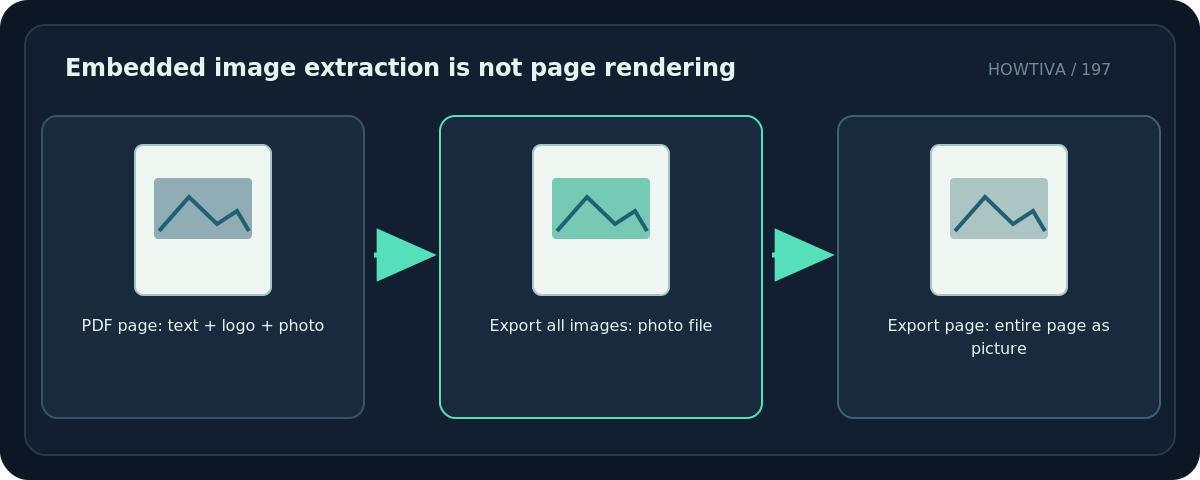
Adobe notes that this workflow exports raster images, not vector objects. Depending on how the source PDF was made, backgrounds and logos may have been flattened together, and a single picture may be stored as several pieces. This is a format constraint, not necessarily an export failure.
Method 2: Save a full PDF page as an image
Sometimes the goal is an image of a chart with its axis labels, or a presentation slide with all its text, rather than the photo embedded inside it. In that case:
- Open Acrobat’s PDF conversion/export view.
- Choose an image format such as JPEG or PNG and leave Export All Images disabled.
- Convert the PDF. Acrobat describes the default as exporting pages to the chosen image format.
- Find the page you need among the output images and crop only if the surrounding content is genuinely unnecessary.
- Inspect text readability at 100% zoom; if letters are fuzzy, increase output resolution where the app offers that setting and export again.
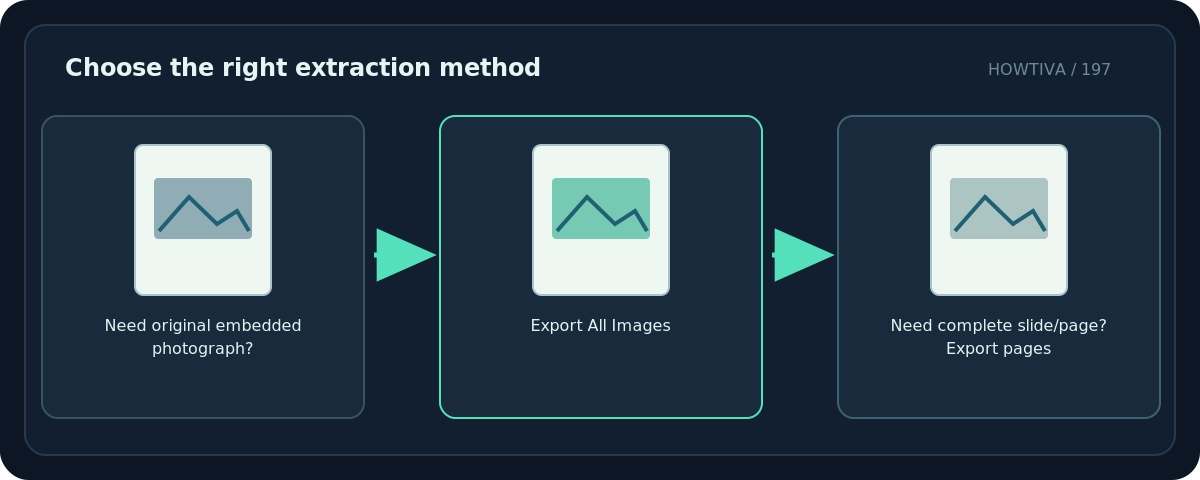
The resulting page rendering includes the composition seen on the page. It is not a lossless copy of each individual embedded image. Text and vector shapes become pixels, which limits subsequent enlargement.
A no-upload alternative when extraction is unavailable
For a non-sensitive document, you can enlarge the required page in a viewer, capture the visible region with your device’s screenshot tool and crop to the image. This is a fallback for reference or casual reuse only. It may exclude off-screen image areas, lose fine detail or pick up the viewer background. Do not describe it as recovering an original embedded asset.
For confidential files, avoid unvetted online PDF-to-image converters. PDF pages can contain invoices, IDs, names, embedded comments and other private information. Prefer approved local software and honor document access restrictions.
Troubleshooting common extraction surprises
I got 40 pictures instead of one. Export All Images extracted every eligible raster asset, including smaller icons and backgrounds. Sort by dimensions and preview the files; use a sensible minimum-size filter next time.
My logo is missing. It may be a vector shape rather than a raster image. Exporting the full page can preserve its appearance, but it turns the page into a bitmap.
The photo is smaller than expected. The PDF may already store a compressed or cropped version. Extraction cannot recreate pixels that were never embedded.
The page looks distorted. Confirm whether you exported images or pages and whether the image viewer is stretching the output. Try another format; check the source PDF at native size.
Convert is missing. Your Acrobat edition or subscription may not include unrestricted export. Check the product’s current features before paying for a conversion service.
Before publishing or reusing an image
Extracting an image does not grant copyright or commercial reuse rights. Verify your permission, license, attribution obligations and whether people’s identities or sensitive details need protection. Keep a record of the source document and page.
Frequently asked questions
Will the exported photo have the same quality as the original?
Not guaranteed. It may reflect compression or resizing already applied when the PDF was made.
Can I extract vector logos as original SVGs using Export All Images?
No. Adobe specifically distinguishes raster-image extraction from vector content.
Should I use JPEG or PNG?
Use JPEG for typical photos and PNG for line art or transparency where available; inspect output quality rather than relying only on the extension.
Sources & Further Reading
- Adobe — Export images or selections from a PDF — Export All Images workflow; raster vs vector; disabling default exports.
- Adobe — Supported file formats for PDF conversion — File type context and supported conversion formats.
Use the checklists as you go, and confirm the result before moving on to a more involved repair.