How to Redact Sensitive Information in a PDF Correctly
In Adobe Acrobat Pro, use All tools → Redact a PDF → Redact text and images, mark the private information, then select Apply.
Quick answer: In Adobe Acrobat Pro, use All tools → Redact a PDF → Redact text and images, mark the private information, then select Apply. Enable the option to sanitize/remove hidden information where appropriate, continue, and save a new redacted PDF. Finally, attempt to search, select and copy the removed text in the exported file. Do not hide sensitive data with a black drawing rectangle, highlighter or crop.
A PDF can contain text, raster images, annotations, attachments, layers and metadata. A black overlay changes appearance but may leave the original text underneath. Cropping can conceal part of a page without removing the underlying content. Correct redaction must remove the information, not merely obscure it on screen.
Before you redact: define the sensitive content
- Identify names, personal identifiers, account numbers, addresses and other information that must be removed.
- Include repeated occurrences, such as headers, footers, attachments, notes or separate pages.
- Determine whether whole images or only parts of an image require removal.
- Keep a protected original for audit purposes, then work on a duplicate; proper redaction is deliberately irreversible.
- Confirm that the organization or jurisdiction allows release of the remaining document. A technical redaction does not decide what information may legally be disclosed.
Method: Permanently redact visible text and images in Acrobat Pro
- Open the duplicate in Adobe Acrobat Pro and choose All tools → Redact a PDF.
- Select Redact text and images. Drag over the exact text or image areas that must be removed; do not mark more information than necessary.
- Inspect every marked region at high zoom. Check that letters near the edges, account prefixes and signatures are fully selected where required.
- Choose Apply. Until you apply the redaction, markings are not the same as permanently removed content.
- In the application dialog, enable sanitize/remove hidden information when appropriate and choose Continue.
- Save the new file under a clearly differentiated name such as
report-redacted.pdf. Preserve the untouched original under restricted access.
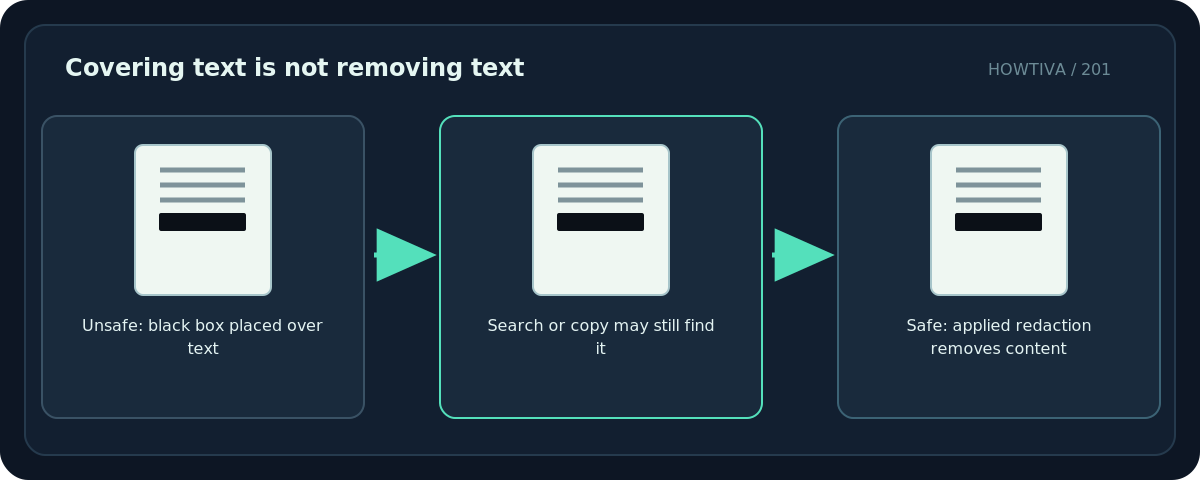
Adobe specifies Acrobat Pro for these permanent redaction features. Do not assume free Reader’s drawing or commenting tools can securely remove content. If your edition cannot apply redactions, stop and obtain an approved redaction workflow; do not fake the effect with opaque shapes.
Remove hidden data separately
Adobe’s Sanitize document feature addresses information outside the visible page, including metadata, comments, hidden layers, embedded content and other non-visible objects. Redacting a paragraph on the page does not by itself guarantee that every copy of the same information elsewhere in the file disappears.
Use All tools → Redact a PDF → Sanitize document and the relevant remove-all or selective-removal option, following your retention obligations. Sanitization can remove material that is needed for review or auditing; decide what must be preserved in the restricted original and what may exist in the public copy.
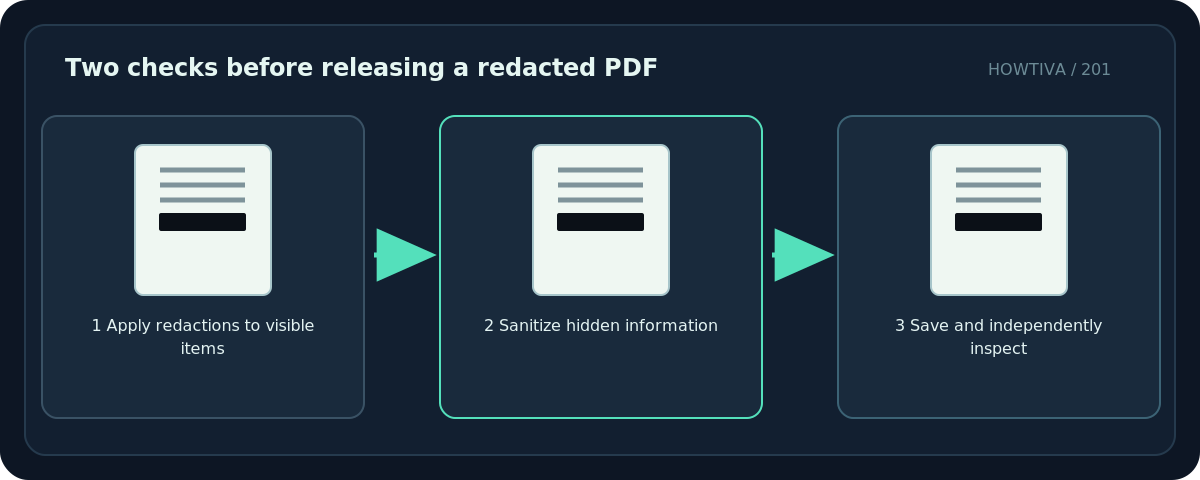
Verify redaction in the saved output—not just the edit view
- Close Acrobat and open the redacted output in a fresh PDF viewer session.
- Search for the removed names and number strings, including a distinctive partial substring. No sensitive match should remain.
- Try selecting and copying text where the removed content used to appear. Pasting into a plain-text editor should not reveal the data.
- Inspect thumbnails and all pages for missed repeats. Confirm that redaction boxes are applied, not just marked for future action.
- Inspect document properties, attachments, comments, form values and accessible text according to the approved review process.
- Consider independent review before releasing high-risk files. Automated or manual checking cannot prove absolute removal of every conceivable leak without a defined threat model.
What not to do
- Black rectangle: It may sit on top of intact copyable text.
- Highlight in black: A PDF annotation may be removable, while underlying data remains.
- Crop to hide content: Content can survive outside the visible crop region.
- Screenshot conversion alone: Rasterizing may reduce some text access but can lose quality, accessibility, auditability and still leave sensitive pixels or metadata. It is not a reliable redaction policy.
- Online tools of unknown ownership: A sensitive document could be uploaded outside authorized systems.
Troubleshooting
Search still finds the removed name. The redaction may not have been applied, another occurrence remains, or hidden data still contains the string. Recheck and sanitize an updated copy before release.
Parts of a table disappeared. Restore from the restricted original and reapply a narrower selection. Applied redactions cannot safely be reversed from the public output.
Only a black outline appears. The content may be merely marked for redaction, not yet applied. Follow the tool’s Apply stage and test the result.
The file has a digital signature. Redaction changes document content and can invalidate signatures; handle signed originals under a separate authorization process.
Frequently asked questions
Is drawing a black box over text sufficient?
No. The original text may remain copyable or extractable. Use an actual content-removal redaction tool.
Do I also need to remove metadata?
Often yes, depending on what the document contains and the disclosure requirements. Sanitization handles many hidden-data categories separately.
Can I redact safely in free Acrobat Reader?
Do not rely on Reader’s annotation tools for permanent removal. Use a validated redaction-capable editor and verify the output.
Sources & Further Reading
- Adobe — Redact sensitive content in Acrobat Pro — Mark, apply, sanitize and save redacted file.
- Adobe — About redaction and sanitization — Visible redaction distinct from metadata and hidden information.
- Adobe — Sanitize PDFs and remove hidden content — Hidden data sanitation and selective removal.
- Adobe — Search and redact text — Pattern searching/redaction application.
Use the checklists as you go, and confirm the result before moving on to a more involved repair.