How to Free Up Storage on an iPhone
Open Settings → General → iPhone Storage and act on verified large categories before deleting data.
Quick answer: Open Settings → General → iPhone Storage and wait for the usage breakdown. Start with Apple’s recommendations and the largest items you recognize. Offload App removes an app but keeps its documents and data; Delete App also removes associated app data. For a large Photos library, consider Optimize iPhone Storage with iCloud Photos instead of deleting originals you still need.
This guide follows Apple’s October 2026 storage support information and recent iOS instructions. The exact savings depend on your phone, apps, photos and downloaded content; no honest guide can promise a specific number of gigabytes. Before bulk deletion, check that you have a trusted backup of anything important. Device storage and iCloud storage are two different capacities.
Find what is using space
- Open Settings → General → iPhone Storage.
- Let the usage calculation finish. The chart and app list show which categories are taking up space.
- Read the recommendations. Apple may suggest reviewing large attachments or unused apps, depending on your iPhone and software.
- Tap a large app to see its specific storage details and available actions.
- Note the free space before making changes. This gives you a real way to measure whether a cleanup step helped.
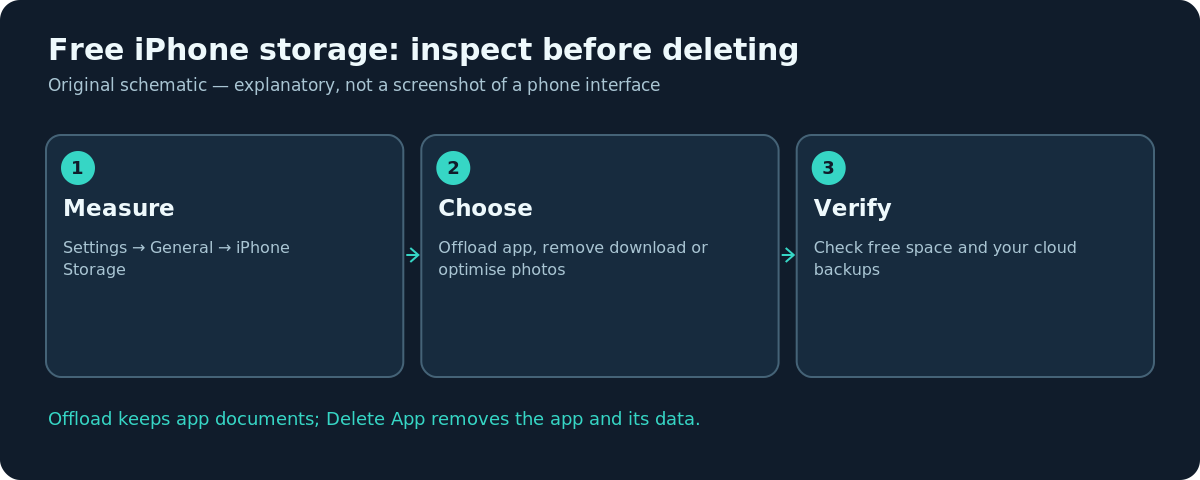
Do not choose the largest category blindly. For example, Photos may be large because it contains family videos you cannot replace. An unfamiliar app may hold original recordings, saved documents or offline maps. Start with items that you can safely re-download or regenerate.
Offload an app instead of deleting its data
On the iPhone Storage screen, open an app and look for Offload App. Apple explains that offloading frees space used by the app itself while keeping its documents and data. You can reinstall the app later, subject to app availability and current compatibility. This is often less disruptive than deleting it outright.
Delete App removes both the app and its related data. Do not choose it if the app has local-only files, game saves or media you have not backed up. Some apps can also delete selected downloads within the app, which may preserve the rest of its content. Check the app’s own storage settings for a smaller, targeted cleanup option.
Review downloads before touching personal photos
Offline movies, playlists, podcast episodes, large documents and cached media can occupy significant space. Open the relevant app to remove downloaded copies you no longer need, not your underlying online account or purchased library. In Files, inspect On My iPhone and Downloads folders for old archives and large PDFs. Make sure a file exists elsewhere before deleting the only local copy.
Messaging attachments can also grow over time. Review large files in the messaging app or an iPhone Storage recommendation where offered. Do not purge an entire conversation without checking whether photos, shared documents or records you need are stored there. If you export an attachment, reopen the exported copy before removing the message original.
Optimize storage with iCloud Photos
If you use iCloud Photos, Apple’s Optimize iPhone Storage setting keeps full-resolution originals in iCloud while retaining space-saving versions on the device as needed. On iOS 27, Apple’s current guidance points to Settings → [your name] → iCloud → Photos → iPhone Storage → Optimize Storage. On iOS 26 or earlier, the menu may present Optimize Storage directly without the extra iPhone Storage selection.
This only makes sense after confirming that iCloud Photos is enabled, syncing properly and has sufficient cloud space. It is also not an offline guarantee: if you need a full-resolution image while travelling without service, the optimized version may need to download. Keep a separate backup for irreplaceable photos rather than relying solely on syncing.
Understand why deleting a photo can be risky
An iCloud Photos library is a synchronized library. Deleting an image inside Photos can remove it from devices linked to that same iCloud Photos library, subject to Apple’s recovery and Recently Deleted behavior. Freeing iPhone space by deleting images is not the same as choosing Optimize Storage. Before bulk deletions, export originals you intend to keep to another protected destination and verify those exports.
If you delete an important item accidentally, inspect the Recently Deleted collection promptly rather than repeatedly toggling iCloud Photos settings. Availability and retention rules may vary; don’t build your backup strategy on being able to recover a deleted photo later.
Storage and cache: what not to promise
Apple says iOS can remove some temporary and re-downloadable content when storage is low. The size of System Data and cache areas can change with normal use. There is no universal, safe, one-tap ‘clear all iPhone cache’ switch. Be wary of utilities that promise enormous instant savings without explaining what they delete or what private files they access.
Restarting may resolve a temporary display or app problem, but it is not a reliable storage optimization method by itself. Prefer Apple’s storage recommendations and app-specific downloaded-content controls over undocumented maintenance tricks.
Check results and prepare for future use
Return to Settings → General → iPhone Storage after cleanup and compare the available space. Some totals take time to recalculate. Reopen apps you rely on and make sure their data remains. If you cleared downloads, test whether a needed file can be downloaded again over the network. Keep a small free-space buffer so updates and camera recordings do not fail at the worst moment.
If free space is still critically low after reviewing safe options, move media to another protected storage destination or assess a storage plan that fits your actual usage. An iCloud storage upgrade does not increase the physical capacity of the iPhone; it only expands cloud storage.
Troubleshooting
- Storage calculation is stuck: Reopen Settings after some time and ensure the phone is functioning normally; don’t delete anything based on a partial reading.
- Offload App not available: Some apps or device-management policies may limit the option; use the controls actually offered.
- Optimized photos do not save space immediately: Allow sync and optimization time, review connectivity and available iCloud storage.
- Space still appears full after deleting media: Check Recently Deleted, app downloads and whether the storage chart needs time to refresh.
- Accidentally removed a file: Check the app’s recovery features and backups immediately, before new activity overwrites recoverable copies.
Frequently asked questions
Does buying more iCloud storage increase iPhone capacity?
No. iCloud is cloud storage; Optimize Storage can reduce certain local copies, but the phone’s built-in capacity does not change.
Will Offload App delete my files?
Apple says it preserves the app’s documents and data while removing the app binary. Still verify critical app-specific material before changes.
Why is System Data so large?
It can include caches and system resources that iOS manages. There is no universal guaranteed safe manual purge.
Should I delete all my photos to make space?
Not as a first step. Check backups, exports and iCloud Photos synchronization; consider optimization instead of risky bulk deletion.
Sources and further reading
- How to check the storage on your iPhone and iPad — Apple Support.
- Set up and use iCloud Photos — Apple Support.
Use the checklists as you go, and confirm the result before moving on to a more involved repair.