How to Add a Signature Line in Word
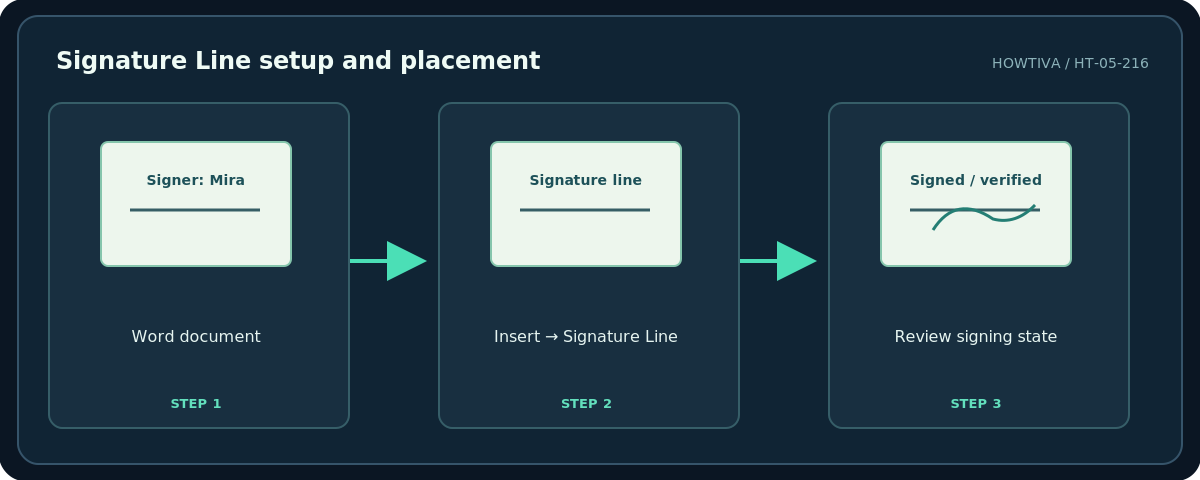
In Word for Windows desktop, place the cursor where the signer should sign, then use Insert → Signature Line (in the Text group, sometimes called Microsoft Office Signature Line).
Quick answer: In Word for Windows desktop, place the cursor where the signer should sign, then use Insert → Signature Line (in the Text group, sometimes called Microsoft Office Signature Line). Enter the proposed signer details and select OK. If all you need is a blank printable line or a line that does not shift when typed into, use a one-cell table with only its bottom border. A signature line does not by itself prove anyone has signed the document.
Choose your approach before editing. A printed form can have a simple line. A fill-in document needs a line that will not slide when the recipient types. A document whose signer must be authenticated needs a supported digital-signature process and, often, a certificate. The appearance of handwriting alone is not cryptographic proof.
Method 1: Insert a Word signature line on Windows desktop
- Open a copy of the final Word document, not your only master. Make sure the insertion point is on a blank line near the intended signature block.
- Select Insert on the ribbon. In the Text group, select Signature Line or Microsoft Office Signature Line. Depending on ribbon width, open the Text menu to find it.
- In Signature Setup, enter the proposed signer’s name and optionally title, email address, and an instruction such as “Review the full agreement before signing.”
- Decide whether to show a sign date and allow the signer to add a comment, if those options appear. Select OK.
- Save as a new Word file. Preview the full page and check whether the line stays with the terms or approval paragraph it relates to.
- Send the file through a signing process appropriate to the document. A recipient can generally right-click the signature line and choose Sign in a compatible Windows desktop Word, but certificates and organizational policy affect whether a digital signature can be completed.
What happens when someone signs?
Microsoft describes a visible signature combined with a digital signature for its Office signature-line workflow. Certificates and identity verification have separate requirements. Signing can make the Office document read-only until the signature is removed or invalidated by edits. Do not promise that this mechanism automatically satisfies a particular country’s electronic-signature law or a counterparty’s requirements.
Method 2: Create a line for a document people will type into
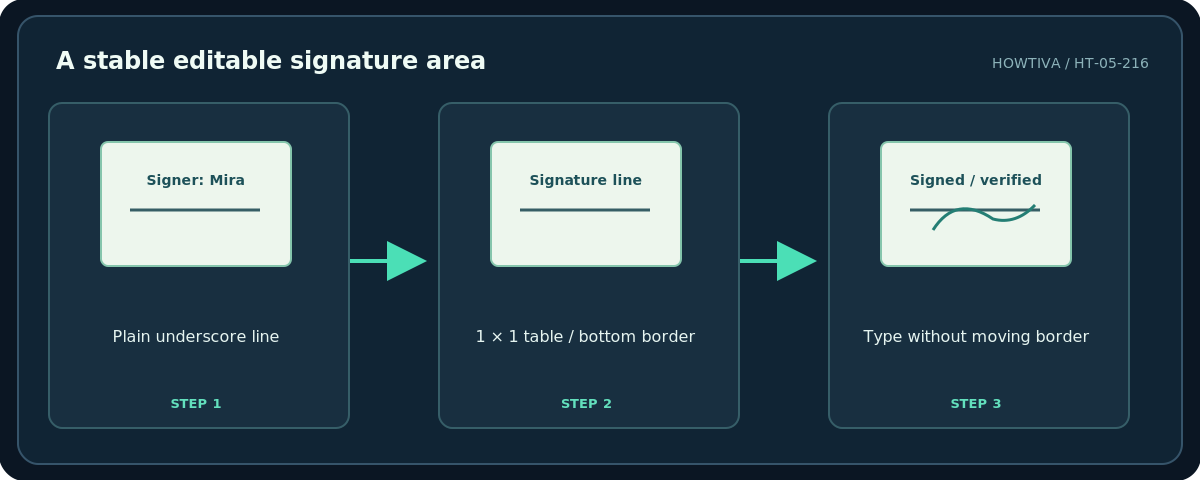
- Position the cursor below the form label, then use Insert → Table to insert a 1 × 1 table, or a 1 × 2 table if you want “Signature” beside the line.
- Resize the cell to a reasonable width. Select the table and open the table Borders options.
- Remove all borders, then apply only the Bottom Border to the signature cell. If the label is in a different cell, do not apply a border to that label.
- Add “Printed name,” “Date,” and “Position” as separate fields as needed. Keep enough room for long names and handwriting if it will be printed.
- Type into a test copy. The bottom border should remain attached to the cell rather than disappearing like underlined spaces can.
Method 3: A printable blank line or reusable graphic
For a paper form in Word for Windows, Microsoft documents turning on underline with Ctrl+U, pressing Tab one or more times, then turning underline off. A table border generally behaves better for a form people edit. You can also insert a cropped image of an authorized handwritten signature using Insert → Pictures; treat it as a picture, not as a verified digital signature. Anyone able to copy that image may be able to reuse it.
Troubleshooting and platform differences
Signature Line is missing. The dedicated digital-signature-line steps are documented for desktop Word for Windows. Word for the web or Mac may not expose the same command. Use a table border for the visual line or a trusted signing service; do not assume the missing menu can be unlocked by a free setting.
Text moves the line. Replace underscores with the single-cell bottom-border approach. Keep the label and line together in a table row and inspect the exported PDF.
The recipient cannot sign. Check whether the file is an editable .docx, whether signing is supported on the recipient’s platform, and whether a suitable signing identity is available. A pasted image cannot fix certificate requirements.
The line is not visible in the PDF. Verify the correct border was set on the correct cell, and use Word’s PDF export or print preview to inspect the final output.
Frequently asked questions
Is a Word signature line the same as an electronic signature?
No. It is a location and optionally a digital-signature control. Whether a legally meaningful signature was applied depends on how the document was signed and verified.
Can I simply type my name?
You can type a name onto a form if permitted, but whether that constitutes an accepted signature depends on the workflow, recipient and applicable law.
Can I reuse a signature block?
Yes. Microsoft documents selecting a block and saving it with Insert → Quick Parts → AutoText in compatible desktop Word. Review the block before each use.
Sources & Further Reading
- Microsoft — Add a signature line — Printable lines, table borders, signature image and desktop Word scope.
- Microsoft — Add or remove a digital signature for Microsoft 365 files — Insert Signature Line workflow; signing and certificate implications.
Use the checklists as you go, and confirm the result before moving on to a more involved repair.