How to Create a Printable Checklist in Google Docs
Open Google Docs on a computer, create a document, type one action per line, select the lines and apply the Checklist list style from the toolbar or Format → Bullets & numbering → Checklist.
Quick answer: Open Google Docs on a computer, create a document, type one action per line, select the lines and apply the Checklist list style from the toolbar or Format → Bullets & numbering → Checklist. For paper use, choose an unchecked layout, switch to a page-based view if needed and select File → Print. Always inspect the print preview before printing or saving as PDF; Google Docs’ pageless format may reflow unexpectedly.
A useful printed checklist has tasks that can actually be completed, boxes big enough for a pen, logical sections and space for signatures or dates if necessary. It does not need a workflow automation tool, a spreadsheet or task-assignment privileges. Google Docs supports interactive checklists, but this guide prioritizes printing readable blank checkboxes for home, office and travel uses.
Step 1: Structure the document for paper
- At docs.google.com, choose a blank document and give it a descriptive name, for example
Move-out inspection checklist. - Insert a clear page title and, if helpful, a line for date, person responsible and location. Avoid putting confidential account data on a checklist that will be left in a shared space.
- Add short group headings such as
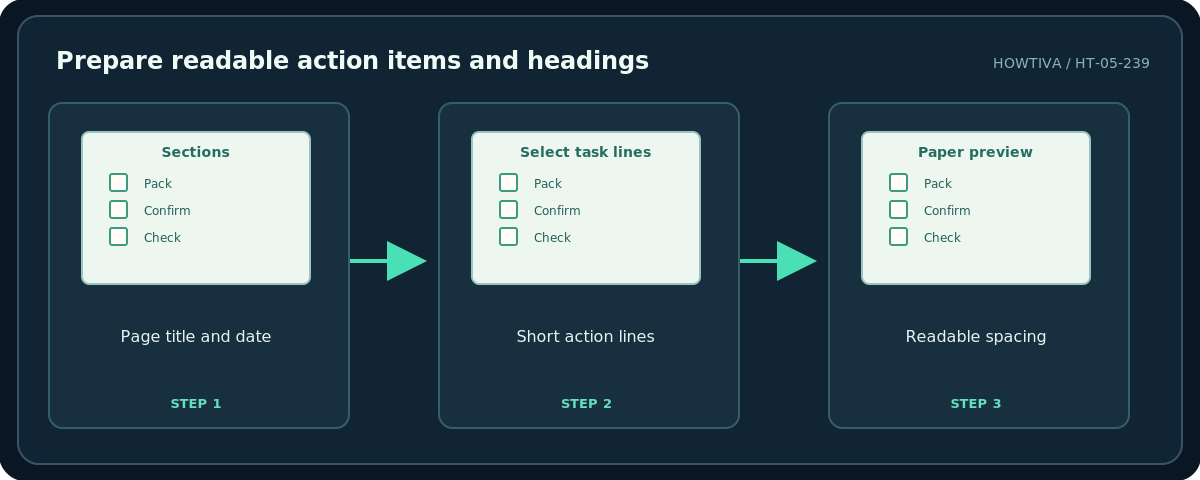
Before leaving,At the destination, andAfter returning. Use proper Heading styles where practical for accessibility; headings are not checklist items. - Write one verb-led action per line, such as
Confirm booking details,Pack medication, orLock windows. Avoid an item likeDo everythingthat cannot be judged complete. - Select just the task lines, leaving section headings unselected. Apply consistent font size and spacing that are legible when printed in black and white.
Step 2: Insert real checklist bullets
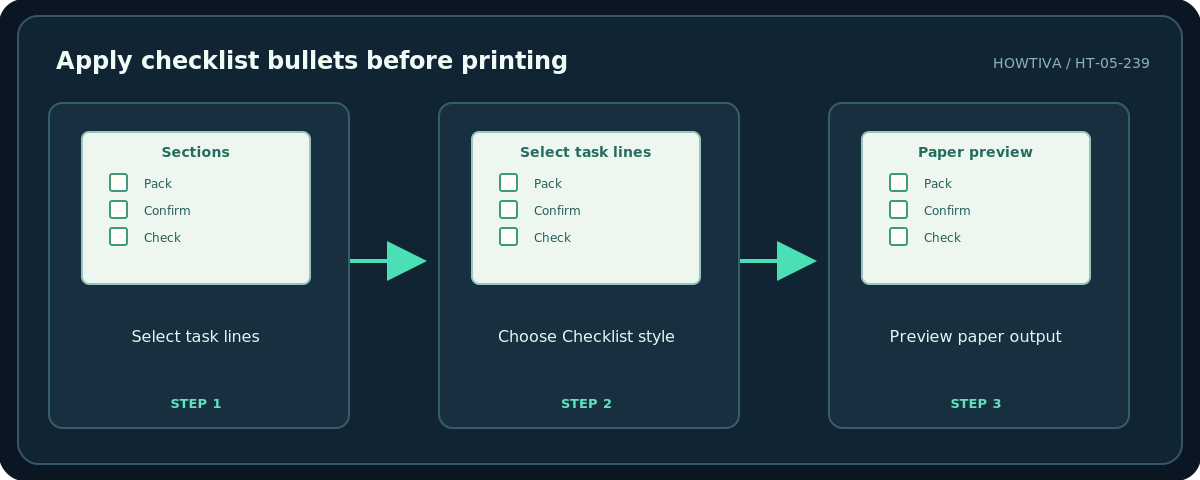
With the task lines selected, use the Checklist control in the Google Docs toolbar; if hidden, look under More. Alternatively choose Format → Bullets & numbering → Checklist and choose a checklist variant. Google documents choices with or without strikethrough for completed items. For a printed blank checklist, keep all items unchecked and prefer a style that will not unexpectedly strike out completed text in a digital version.
Press Enter for another item at the same level. Use Tab if you intentionally need a subtask, and return to the main level using the supported list keyboard behavior (Google documents pressing Enter twice). Keep nesting shallow: deeply indented boxes can become too small or awkward to scan on paper.
Do not replace the items with a screenshot of checkboxes: screenshots may print blurred, cannot be edited as text and often have poor accessibility. A checklist list remains editable text. If you need a named sign-off, include a separate blank line; checked boxes alone may not satisfy regulated sign-off requirements.
Step 3: Preview and print without losing layout
Choose a page-based document layout before finalizing margins. If you used a pageless document, Google warns that printing can change the preview: images may fit the page width, and wide tables can be squeezed. Adjust page size, orientation and margins for the target paper, usually A4 or Letter as appropriate.
Select File → Print in Google Docs, inspect all pages, check that boxes and labels have not separated across page breaks, and choose a printer or save a PDF through the available browser/print interface. Google’s own printing steps differ between Chrome and Firefox/Safari: those browsers may download a PDF first for printing. The print output, not the editing canvas, is the final source of truth.
If multiple people will mark up the same printed checklist, add extra spacing between rows and a visible place for initials. A two-column compact checklist can save paper, but avoid it if the items become unreadable. Preview duplex settings before using both sides of a page.
Reusable templates and alternatives
Duplicate a master copy: Keep an untouched version and use File → Make a copy when starting a new inspection. Google Sheets: If you need counted completion values, shared status filters or conditional formatting, a Sheets checkbox column is more appropriate—but the spreadsheet checkbox command differs from the Google Docs checklist list. Simple text boxes: In an environment where the Docs checklist control is unavailable, use a plain bullet character or a small symbol for paper-only tasks, then verify print appearance; do not imply it is an interactive checkbox.
Troubleshooting
There is no Checklist button: Look under toolbar More or under Format → Bullets & numbering; verify you are editing a Google Doc, not previewing a PDF. A checked item turns crossed-out: Change the checklist variant to the non-strikethrough style if that better suits your workflow. Boxes are clipped: Switch to pages format, remove excessive indent and inspect margins in the preview. Everything prints in tiny text: Increase font size or reduce columns. A list becomes inconsistent: Select the problem group and reapply the same Checklist formatting rather than mixing multiple list types.
Frequently asked questions
Will clicking a Docs checklist mark it complete?
Yes, in an editable Docs checklist, but a printed checklist must be ticked with a pen; printing does not preserve digital interactivity.
Do I need Google Workspace to make a checklist?
Google’s standard Docs checklist formatting is documented separately from organization-only task assignment. Do not confuse the two capabilities.
Can I export the list to PDF?
Yes, you can use the print path or a suitable Download option and review the result before distributing it.
Sources & Further Reading
- Google Docs Editors Help — Add a numbered list, bulleted list, or checklist — Checklist controls, strikethrough styles and list nesting.
- Google Docs Editors Help — Print a file — Print command, browser differences and pageless reflow.
- Google Docs Editors Help — Assign tasks from Google Docs — Distinguishes checklist formatting from work-account task assignments.
Use the checklists as you go, and confirm the result before moving on to a more involved repair.