How to Back Up an Android Phone to Google
Settings → Google → All services → Backup, then Back up now; check Google Photos separately.
Quick answer: On a supported Android phone, open Settings → Google → All services → Backup. Check the selected Google Account, turn on device backup where available, and tap Back up now. Then open Google Photos → profile picture → Photos settings → Backup to verify photos and videos separately. A phone backup is not always a complete copy of every app, folder or media file.
Google’s Android Help says device backup can include apps and app data, call history, contacts, settings and SMS/MMS messages, but the precise data restored depends on the device, Android version and individual apps. Some work-managed phones cannot use the standard personal-device backup flow. Treat verification of important data as a separate step before selling or factory-resetting the old phone.
Create a Google device backup
- Connect to a stable network, preferably Wi-Fi, and charge the phone if its battery is low.
- Open Settings, tap Google, then All services. Under Backup and restore, choose Backup.
- Confirm the account storage or backup Google Account is the one you intend to use. Do not mix work and personal accounts unintentionally.
- Review the available categories and current backup status. Check whether device backup is enabled for this handset.
- Tap Back up now and keep the phone connected while the process runs.
- Return to the Backup screen and review the updated status. Google’s guidance notes that backup completion can take time; an in-progress indicator does not mean the backup is finished.
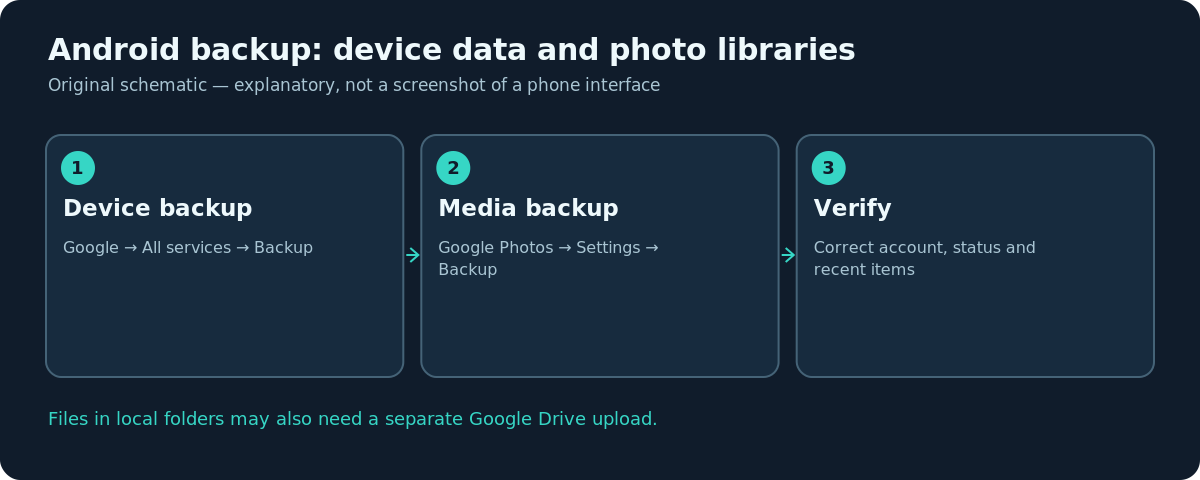
On some phones, manufacturers place backup settings under a different top-level menu. Use Settings search for Backup if you cannot follow the exact Google route. Do not select Factory reset while looking for a backup option; those are opposite operations.
Check which data is included
Google’s standard Android backup covers several categories of system and app data. However, Google explicitly warns that not all apps can back up or restore all settings and data. A banking app, a secure authenticator or a game may have its own migration method. Some apps deliberately require reauthentication on a new device. For these, open the app itself and follow its official transfer process before wiping the original phone.
Backups are attached to the Google Account and can have version constraints. Google notes that a backup from a higher Android version cannot necessarily be restored to a handset running a lower version. If you are changing to an older spare phone, check compatibility early rather than waiting until the original is gone.
Back up photos and videos separately
Open Google Photos, tap the profile picture, then Photos settings → Backup. Enable backup if you want your photo library saved to the chosen Google Account. Check the displayed account carefully, especially if you have multiple Gmail addresses. Some device folders such as screenshots or downloads may have separate backup switches rather than automatically joining your camera roll.
Google Photos shows images stored on the phone even when they have not yet uploaded. Therefore, seeing a photo in the Photos app does not prove it is backed up. Review the backup status and sign into photos.google.com with the same Google Account to confirm a few recent, important images appear remotely. Large videos may take longer to finish uploading than short photos.
Protect local documents and other files
Google device backup is not a blanket guarantee for PDF files, downloaded attachments or folders created by third-party apps. Inspect the Files app for your important documents and manually upload anything critical to a known Google Drive folder, or copy it to a secure computer. Make an inventory of app-specific folders you actually need; do not rely on folder names alone to infer cloud coverage.
If your phone uses a removable microSD card, check that separately. Some backup or restore processes do not include its contents. A simple second copy on a computer or external storage can protect against both phone failure and cloud-account access problems.
Prepare to restore on another Android phone
On the new device, sign in to the same Google Account and follow the setup and restore prompts. Available restore options depend on the manufacturer, Android version and whether the device has already completed initial setup. Check that contacts, messages, app access and recent photos appear before declaring success. Some apps may need fresh login credentials, two-factor authentication or manual data exports.
If a restore is incomplete, do not immediately wipe the old device. Compare which categories are missing, update software if appropriate and inspect both devices’ account settings. Keep the older phone intact until the important categories have been confirmed on the new one.
Troubleshooting
- Back up now is greyed out: Check account sign-in, network connectivity, battery and any management restrictions.
- Backup account is wrong: Use Backup’s Account storage option to select the intended Google Account.
- Photos are visible but not on the web: Inspect Google Photos Backup status and folder settings; they may still be local-only.
- A messaging app did not restore: Check that app’s supported migration method instead of assuming generic Android backup covers it fully.
- New phone runs older Android: Review Google’s Android-version restore restriction before further attempts.
Frequently asked questions
Does Android automatically back up WhatsApp chats?
Do not depend on generic device backup alone for WhatsApp. Follow WhatsApp’s own current chat backup or transfer process.
Will my camera photos always be in the system backup?
Verify Google Photos separately. Google’s guidance treats Photos media backup as an app-specific service.
Can a work phone be backed up to my personal Google Account?
Some managed or work-profile devices cannot use the normal personal backup flow. Follow your organization’s policy.
Is Back up now enough before a factory reset?
Only after completion and independent verification of critical photos, documents and app-specific data. Do not erase the old phone while a backup is pending.
Sources and further reading
- Back up or restore data on your Android device — Android Help.
- Back up photos & videos — Google Photos Help.
Use the checklists as you go, and confirm the result before moving on to a more involved repair.