How to Check Your Mac’s Storage and Memory
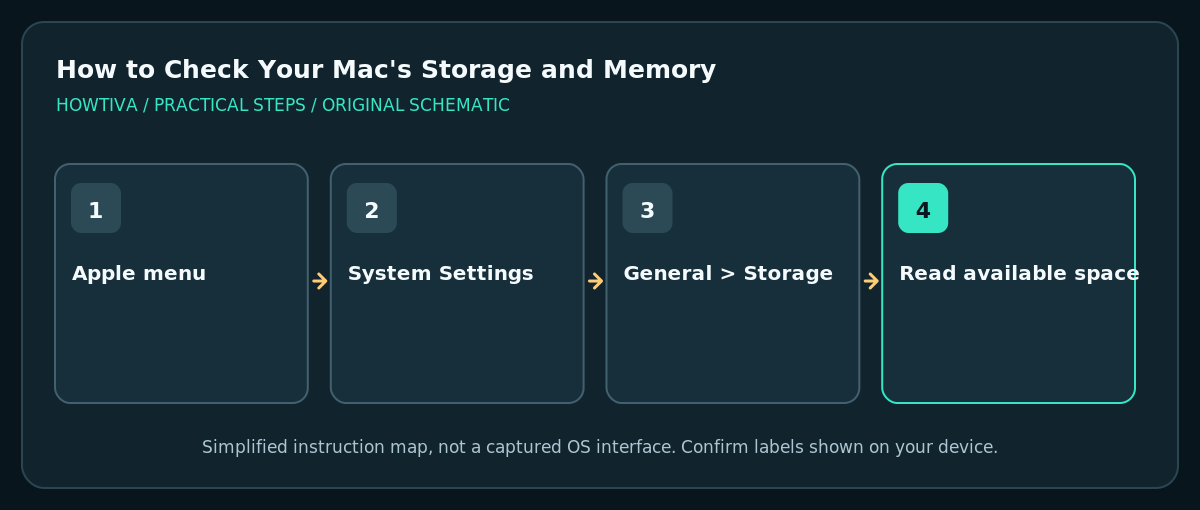
Choose Apple menu > System Settings > General > Storage to check disk capacity and available space. To identify your Mac and its installed memory, open Apple menu > About This Mac (or System Settings > General > About).
Quick answer: Choose Apple menu > System Settings > General > Storage to check disk capacity and available space. To identify your Mac and its installed memory, open Apple menu > About This Mac (or System Settings > General > About). For live RAM usage, open Activity Monitor > Memory.
Storage and memory answer different questions. Storage holds files and installed apps even when the Mac is off; RAM holds information while apps are running. A Mac can have plenty of free disk space and still run short of memory, or enough RAM but insufficient disk space for an update. This guide shows how to check both before buying external storage or troubleshooting performance.
Check available storage on your Mac
- Save open work. Choose the Apple menu in the top-left corner and open System Settings.
- Select General, then Storage. Allow the categories to finish calculating; their sizes can change as macOS analyzes files.
- Read the available space figure alongside the storage bar. Do not confuse the total drive capacity with the amount actually free.
- If you need details for disks or containers, select All Volumes where offered. An attached USB drive is a different volume from the internal startup disk.
- Before making changes, note whether the space is occupied by Applications, Documents, Photos, macOS or System Data. Some categories represent managed data and are not safe to delete manually.
If your Mac reports nearly full storage, review large personal downloads and files you recognize, then back them up before deleting. Moving a file into iCloud Drive may synchronize its deletion to other devices; cloud synchronization alone is not an independent backup. Avoid third-party apps promising to remove unknown System Data with a single click.
Find the model and installed memory capacity
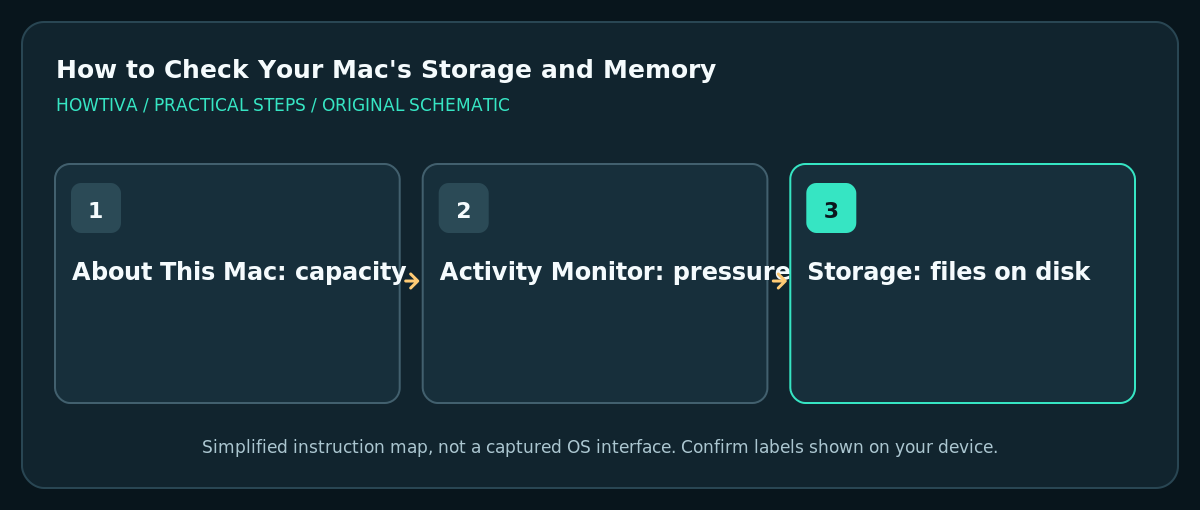
- Select Apple menu > About This Mac. Read the model, chip or processor and the reported memory capacity. The items shown differ between Apple silicon and Intel Macs.
- If the summary does not provide what you need, open System Settings > General > About, then use System Report for detailed hardware information.
- On supported Intel models, physical memory modules may appear in the hardware report; on Apple silicon, unified memory is integrated and should not be treated as user-replaceable RAM.
- Record the model identifier or serial number privately if you need service help. Do not publish serial numbers in screenshots or public support requests.
Check current memory pressure, not only the installed RAM
- Open Activity Monitor with Spotlight search, or find it in Applications > Utilities.
- Select the Memory tab. Review the Memory Pressure graph at the bottom of the window and the Memory column for apps.
- A sustained high-pressure graph can indicate the Mac is struggling to keep data in physical memory. Read the graph alongside swap usage and the applications actually running; a single large figure alone is not proof of a fault.
- If a specific app is consuming unusual memory, first save work and quit it normally. Update that app if repeated excessive memory use occurs.
- Restarting temporarily frees memory but does not increase the Mac’s installed capacity or fix an app that repeatedly uses too much.
Storage versus RAM: choose the correct remedy
- Storage almost full: archive large projects to a verified backup, uninstall unneeded apps through their supported methods, or use a suitable external drive.
- Memory pressure consistently high: close unnecessary heavy applications, reduce simultaneous workloads and check for app updates.
- Sudden low disk space: review recently imported video, downloads and application caches in Storage settings; do not delete system folders by guesswork.
- You need an upgrade: check the exact Mac model first. Many newer Macs have non-upgradable integrated memory or internal storage.
Troubleshooting
Storage categories never finish calculating
Wait for background indexing, restart if it remains stuck, and reopen Settings. Confirm the same number by looking at the drive’s Get Info window in Finder. Temporary category fluctuations do not automatically mean files disappeared.
The available space number looks wrong
Check whether you’re viewing the startup volume, a container or an external disk. The Finder free-space display and Storage recommendations can express purgeable space differently. Avoid assuming all purgeable space is instantly available for a large copy.
Activity Monitor shows large memory usage even when the Mac is responsive
macOS actively uses RAM for caches; focus on memory pressure and actual slowdown rather than trying to reach an arbitrary ‘free RAM’ number. Never force quit a process with an unfamiliar name solely because it uses memory.
Frequently asked questions
Is Mac storage the same as memory?
No. SSD or disk storage holds files; RAM is temporary working memory for running tasks.
Can an external SSD add RAM?
No. It adds file storage, not physical memory. Swap space is managed by macOS and is not a substitute for installing RAM on models where upgrades are possible.
Where can I find my exact macOS version?
Open System Settings > General > About and select the macOS version details, or use About This Mac.
Sources & Further Reading
- Apple — See used and available storage space — System Settings General Storage and All Volumes.
- Apple — Get system information about your Mac — About This Mac, hardware details and System Report.
- Apple — If your Mac runs slowly — Activity Monitor and memory-related slowdowns.
Use the checklists as you go, and confirm the result before moving on to a more involved repair.