How to Free Up Storage on a Mac
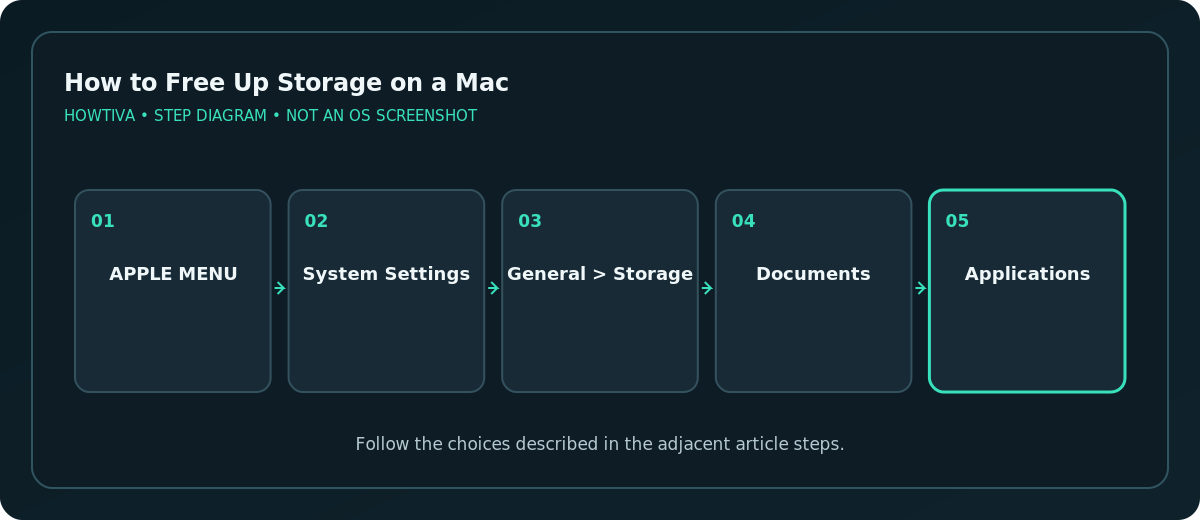
Open Apple menu > System Settings > General > Storage. Review recommended actions and the Documents, Applications, and other available categories.
Quick answer: Open Apple menu > System Settings > General > Storage. Review recommended actions and the Documents, Applications, and other available categories. Move or remove files you no longer need, then empty Trash only after reviewing it.
A nearly full Mac can have problems installing updates and handling large files. You do not have to buy a cleanup utility or delete hidden system data to begin. First identify large, expendable files and verify backups of anything important. Then choose whether to delete a file, move it to external storage, or retain it in iCloud without a permanent local copy.
Start with Mac Storage settings
- Choose the Apple menu > System Settings.
- Select General, then Storage. Give the chart time to calculate.
- Review the amount of available space and categories such as Applications, Documents, Photos, Mail and System Data. The exact categories vary.
- Open the Info control for a category when offered and sort items by size or look for large files.
- Choose only the files or apps you know you can safely remove. If a category is unclear, investigate before taking action.
An item can appear in a category without being independently deletable from that list. For Photos libraries and app-specific media, manage content through the original application rather than editing internal library folders.
Free up space in Downloads and old media
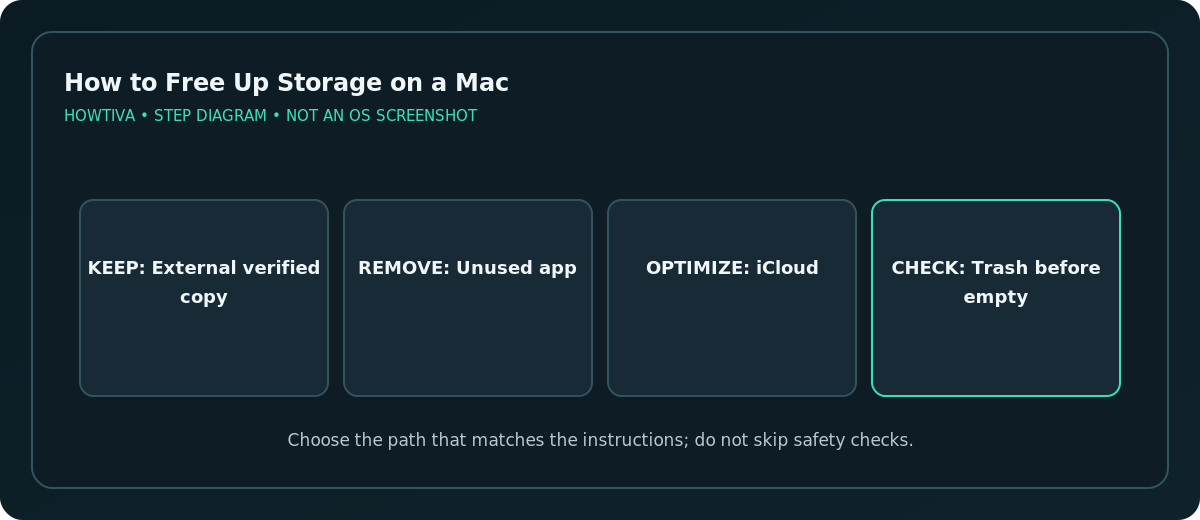
Open Finder > Downloads and sort by Size using List view. Review completed installers, duplicate archives, videos and exports. For a file you want to keep, move it to an external disk or another suitable location and open a copy to verify it. For a file you no longer need, move it to Trash. The file still consumes local space until you empty Trash; do so only after inspecting what is inside.
You may also find old TV downloads, podcasts, music files, local device backups, large messages attachments and creative-application assets. Apple documents several of these categories specifically. Avoid deleting unidentified “system” or “cache” files with broad shell commands: caches are not all disposable and can be recreated.
Remove unused applications the supported way
Quit an application before removing it. Check whether the software vendor provides a dedicated uninstaller, especially for applications with background components or extensions. Otherwise, find the app in the Applications folder, move it to Trash and empty Trash when you are sure. Some built-in macOS applications cannot be removed using Finder. Deleting an application may leave documents you created with it; do not assume every related file is gone.
Deleting an app does not cancel its paid subscription. Manage recurring billing separately through the subscription provider or the relevant Apple account settings.
Understand Optimize Storage and iCloud
macOS may offer Store in iCloud or other optimization suggestions. Optimization can keep some content online and bring it back when needed, potentially using iCloud storage capacity and a network connection. This is not equivalent to deleting your cloud copy. Conversely, deleting a file from a synced iCloud Drive folder may delete it across devices.
If you rely on offline access for travel or work, do not convert every document to on-demand access. Confirm that files you need remain local. Account storage limits and transfer speed also affect whether iCloud optimization is practical.
When Storage shows a large System Data category
System Data is a catch-all reporting category, not one safe-to-delete folder. Avoid manual deletion of snapshots, system folders or hidden caches based solely on a graph. macOS can reclaim certain temporary space automatically. Apple notes that Safe Mode can temporarily clear some system caches; it is a troubleshooting step, not a permanent storage strategy.
If space appears wrong after major file removal, wait for the estimate to refresh, restart normally if necessary and inspect Trash, other user accounts and connected volumes. Confirm that you are checking the startup disk rather than an external drive.
Troubleshooting specific problems
- An app is still running: Quit it, then use its official uninstaller or Finder steps. Restart if macOS says it is in use.
- Files are huge but you cannot locate them: Use Finder’s search criteria and review the Documents/large files category where available.
- iCloud shows an “online” item: Do not assume deleting it is a local-only operation. Identify the correct local-space option first.
- You moved items but gained no space: Empty Trash after verifying the contents; if the destination is on the same disk, a move may not reclaim any space.
- You have several user accounts: Other user home folders can occupy storage you cannot see from your own home folder.
Frequently asked questions
Is there a safe one-click “delete all System Data” button?
No. Use specific Apple-supported controls instead of attempting to wipe an umbrella storage category.
Does moving a file to iCloud always save local space?
Not instantly or automatically in every configuration. File optimization and local download status determine how much local storage is retained.
Does uninstalling an app stop its subscription?
No. App removal and subscription cancellation are separate actions.
Sources & Further Reading
- Apple — Free up storage space on Mac — Storage UI, downloads, app cleanup, iCloud, backups, Trash.
- Apple — Optimize storage space on your Mac — Optimization behavior and recommendations.
- Apple — Delete or uninstall apps on Mac — App uninstallation limits and subscription caveat.
Use the checklists as you go, and confirm the result before moving on to a more involved repair.