How to Connect a Printer to Wi-Fi
Connect a Wi-Fi printer using its wireless wizard or official setup app, then fix band and printer-discovery issues.
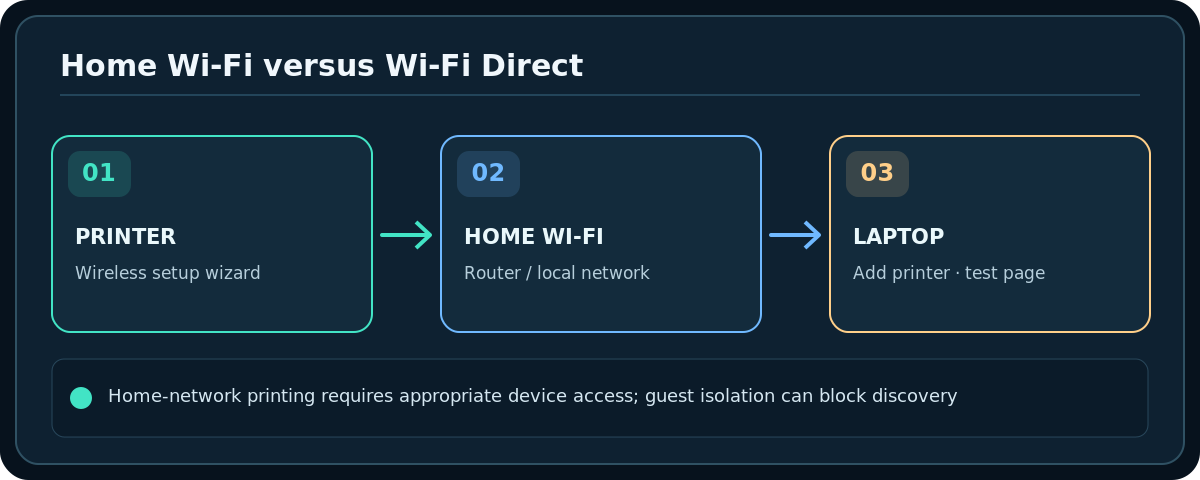
Quick answer: For a Wi-Fi-enabled printer, open its Wireless Setup Wizard or the manufacturer’s official setup app, select your home network name and supply the Wi-Fi password. On many touchscreen HP printers, the path is Setup / Network / Wireless → Wireless Setup Wizard. If the printer has no display, put it into the manufacturer-documented Wi-Fi setup mode and finish in the official app. Then add the printer on the computer and print a test page.
Do not confuse the printer’s Wi-Fi Direct signal with your home router’s Wi-Fi. Wi-Fi Direct is a device-to-device printing option, not necessarily an internet-connected installation. Network features vary greatly with make, model and firmware.
Prepare before you start
- Find your printer’s exact model number and confirm it supports Wi-Fi. Some models are USB-only, and certain enterprise printers need administrator-managed network configuration.
- Check your router’s network name, security mode and password. Look up whether the printer supports 2.4 GHz, 5 GHz or both; many older consumer printers require 2.4 GHz.
- Move the printer within reliable Wi-Fi range for setup. Do not block vents or use an unsafe power extension.
- If using the manufacturer’s app, install it from the official vendor site or your device’s app store; do not follow pop-up advertisements for paid drivers from unofficial sites.
- Check that your computer or phone can connect to the intended local Wi-Fi. Guest isolation can prevent discovery between client and printer even if both can access the internet.
Connect a touchscreen printer using the wireless wizard
- Turn the printer on and wait until it finishes any start-up maintenance. Open Setup, Network or Wireless from the printer’s display.
- Choose Wireless Setup Wizard or its model-specific equivalent. If you cannot find the wizard, look up that model’s supported connection methods.
- Select the exact Wi-Fi network (SSID) from the scan list. Where the printer only supports 2.4 GHz, choose the correct available compatible SSID.
- Enter the Wi-Fi password exactly, noting capitals and punctuation, then confirm. The printer may display a connected icon or print a network report.
- Install/add the printer on the computer or phone using the vendor’s instructions. Connection to Wi-Fi alone does not guarantee the print queue is configured.
- Print one small test document. Record the printer’s reported network name for future troubleshooting; do not publish network report details online.
Connect a printer without a screen
On supported HP models, the HP app can find a printer that is in Wi-Fi setup mode. HP documents model-specific ways to restore that mode, which can include hardware-button combinations. Use the instructions for your exact printer; a generic reset button combination may have other effects on another model.
On printers from Epson, Canon, Brother and others, look for Wireless Setup, Wi-Fi Setup, or an official companion app. Some offer WPS push-button setup if both printer and router support it. Prefer a supported push-button method rather than WPS PIN guessing, and do not enable router-wide features casually if the manufacturer warns against them.
For WPS push-button methods, the timing and button sequence depend on both devices. Avoid pressing the router’s physical Reset button instead of WPS: that can reset the router and disconnect every device.
Check the printer’s actual network connection
- Print a network configuration report or inspect the printer’s Wi-Fi status screen if available.
- Verify that it joined your home SSID, not an old router, mobile hotspot or its own Wi-Fi Direct network.
- Confirm your laptop and printer can communicate on the same permitted local network. Guest isolation, client isolation and workplace VLAN policies may block printer discovery.
- On your laptop, add the printer using the supported operating-system or vendor process. If automatic discovery fails, consult the printer’s official installation manual before typing an IP address.
- Print a small test page. If jobs are queued but never appear, check the selected printer, offline status and network address.
Troubleshooting
Printer cannot find the Wi-Fi network
Check band compatibility, hidden-SSID handling and distance. Some printers need WPA2 or a specific mode and do not support WPA3-only networks. Follow device documentation rather than broadly downgrading the home’s security.
Printer connects but my laptop says Offline
Make sure both devices are on the intended network and the printer is awake. Restart the print job, refresh the printer list and inspect any IP address change after a router restart. Avoid repeatedly installing duplicate print queues before checking the existing one.
The printer is on guest Wi-Fi
Guests may have internet access but no local-device access. Reconnect your printer to an appropriate trusted network or configure supported network printing without removing useful guest isolation.
I changed my router password or provider
The printer still remembers the old SSID/key. Use its supported reconnect/setup mode and enter the new details. Do not immediately perform a full printer factory reset; that can delete unrelated device settings.
Frequently asked questions
Is Wi-Fi Direct the same as joining my home network?
No. It can connect a phone or computer directly to the printer and may work even without a router, but that is a separate setup from regular network printing.
Can every printer use 5 GHz?
No. Confirm the actual model’s radio bands and security requirements.
Must I create an online account?
Requirements differ by manufacturer, model and feature. Follow official setup directions and look for supported local printing where applicable rather than assuming every printer has the same account rules.
Sources & Further Reading
- HP — HP printer setup (Wi-Fi network) (accessed 2026-10-27)
- HP — General Printer Settings (accessed 2026-10-27)
Use the checklists as you go, and confirm the result before moving on to a more involved repair.