How to Connect a Smart TV to Wi-Fi
Connect a Samsung, Roku or other smart TV to home Wi-Fi, diagnose missing networks and fix password or streaming issues.
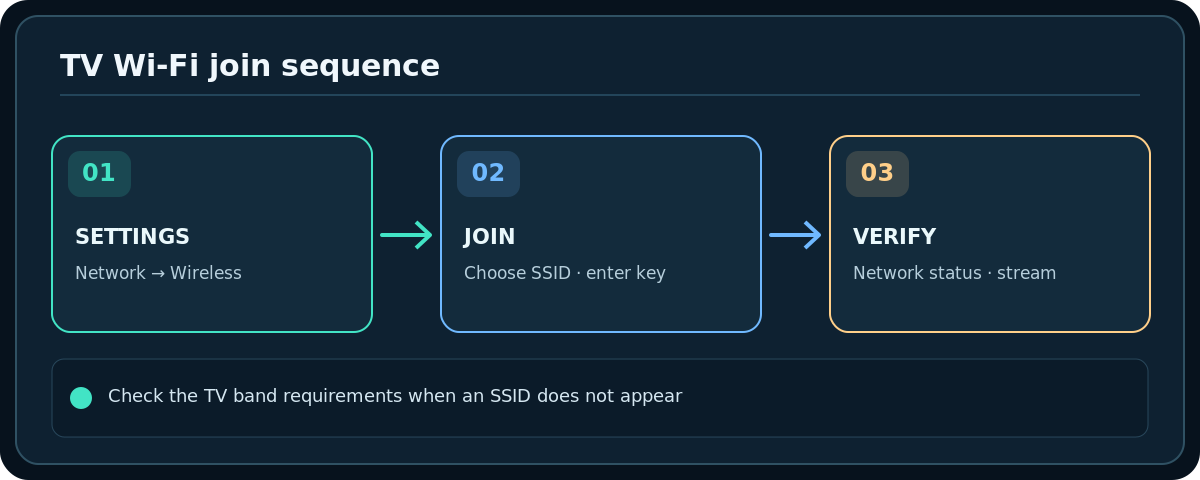
Quick answer: On your smart TV, open Settings → Network / Connection → Wi-Fi or Wireless, select your home Wi-Fi name, enter its password and wait for a connected-status confirmation. Menu labels vary: recent Samsung TVs commonly use All Settings → Connection → Network → Open Network Settings → Wireless, while Roku TVs use Settings → Network → Set up connection → Wireless. Test an app afterward to confirm internet service, not just Wi-Fi association.
Have the correct network name and Wi-Fi password ready. A TV model might support only 2.4 GHz, and an ISP/router may run a guest network that blocks local casting. Do not enter your router administrator password into the TV’s Wi-Fi join prompt.
Connect a TV to your home wireless network
- Turn on the TV and router. Make sure a phone can browse the internet over the intended Wi-Fi network; this checks that the home internet is broadly working.
- With the TV remote, go to Settings and open Network, Connection or Internet. Select Wireless or Wi-Fi, rather than a wired Ethernet mode.
- Wait for the scan to finish and select the correct SSID. Home routers can broadcast main, guest and band-specific names; choose the one you actually want the TV to use.
- Carefully type the network passphrase. The password is case-sensitive. Use Show password if the TV has that option and no one else can see the screen.
- Select Connect, Done or OK. Wait for the TV to confirm that it obtained a network connection.
- Open a streaming or update app. If the TV reports connected but the app fails, run the TV’s network status test to distinguish router connection from broader internet failure.
Samsung, Roku and other TV menu paths
Samsung: Recent support instructions show All Settings → Connection → Network → Open Network Settings → Wireless. Some older models show Settings → General → Network → Open Network Settings. Samsung documents that certain 2018 NU-series sets support only 2.4 GHz, an important check if only a 5 GHz SSID is broadcast.
Roku TV or Roku player: Press Home, open Settings → Network → Set up connection, select Wireless, choose your SSID and enter the password. If absent, Roku recommends using Scan again. During initial setup, the TV may install an update after it connects.
LG and other brands: Interfaces depend on webOS/Google TV/Fire TV generation and locale. Look for All Settings → Network → Wi-Fi Connection or the platform’s connection page, then follow the on-screen wizard. Verify against the exact model manual rather than expecting the Samsung screen labels.
If the network doesn’t appear
- Refresh the TV’s available-network list, then restart the network search without resetting the television.
- Test whether the TV sees any Wi-Fi network. If it sees others but not yours, investigate band compatibility, hidden SSID and router radio settings.
- Check the TV model’s supported 2.4/5 GHz bands. An older 2.4 GHz-only TV will not detect a 5 GHz-only network.
- Move the TV/router only if it is safe and practical. Dense cabinets and wall mounting can make reception worse; avoid stressing a wall-mounted TV or its cables.
- If the set has an Ethernet port, use a suitable cable to test connectivity independently of Wi-Fi. Ethernet support and menus differ by model.
If the TV says connected but streaming fails
Run the manufacturer’s Network Status or network diagnostics if offered. Try another app and a second home device; a single unavailable streaming service is not necessarily a Wi-Fi fault. Check automatic date/time, app updates and whether the TV has completed any required activation.
If the connection drops during video, try 5 GHz when signal is strong or 2.4 GHz where distance is the problem, as supported by the set. Check whether other household downloads saturate the connection. A wired connection can be more consistent for a stationary TV.
Troubleshooting
The password is rejected
Confirm that you selected the right SSID, not the neighbor’s similarly named one. Re-enter characters carefully. If your router’s passphrase was changed recently, the TV may still be trying an old saved credential; use the TV’s supported Forget/Delete saved network control, then reconnect.
Wi-Fi connects but casting or AirPlay is missing
Guest-network isolation or different local subnets can block discovery even when streaming apps work. Check the casting product’s specific network requirements. Avoid opening broad guest LAN access without considering the privacy effect.
A hotel login portal blocks the TV
Some TVs cannot complete captive-portal authentication. Ask the accommodation for supported TV access, use its official guest portal or another permitted device method. Do not bypass access controls.
I see only one or two signal bars
That suggests a marginal wireless link but is not a full diagnosis. Compare a nearby phone at the same location, run network diagnostics and consider safer placement or an Ethernet connection.
Frequently asked questions
Is the Wi-Fi password the same as my TV account password?
No. The Wi-Fi key connects to the local network; the TV platform and streaming apps may have separate accounts.
Can I use a phone hotspot instead?
Often yes if the TV supports its band and security settings, but streaming can use substantial cellular data and your carrier may limit tethering.
Will I need to reconnect after changing the router password?
Yes, usually. The TV’s saved old Wi-Fi credential may need replacing before it can connect again.
Sources & Further Reading
- Samsung — Connect your Samsung TV to the internet (accessed 2026-10-27)
- Samsung — TV will not find or connect to Wi-Fi (accessed 2026-10-27)
- Roku — Connect to Wi-Fi (accessed 2026-10-27)
Use the checklists as you go, and confirm the result before moving on to a more involved repair.