How to Set Up a Recovery Contact for an Apple Account
On an eligible iPhone or iPad, open Settings → [your name] → Sign-In & Security → Recovery Contacts → Add Recovery Contact, then choose someone you trust and complete Apple's prompts.
Quick answer: On an eligible iPhone or iPad, open Settings → [your name] → Sign-In & Security → Recovery Contacts → Add Recovery Contact, then choose someone you trust and complete Apple’s prompts. On a Mac, use System Settings → [your name] → Sign-In & Security → Recovery Contacts → Add Recovery Contact. Apple updated its official recovery-contact instructions in September 2026; use these paths rather than older “Password & Security” screenshots.
A recovery contact can help you prove that you own your Apple Account if you become locked out. They cannot access your account or see your information merely because you select them, and they cannot change your password themselves. They can provide an account recovery code when you request help, according to Apple’s supported recovery flow. Choose someone reliable who will recognize a genuine request from you.
Check Apple’s requirements first
- Make sure your Apple Account uses two-factor authentication and that eligible devices are running a sufficiently recent supported operating system. Apple’s support article lists software and account requirements; older versions might need updating.
- Confirm that the person you want to choose has an eligible Apple device and account that meet the requirements. Apple describes recovery contacts as age 13 or older and requiring two-factor authentication, with device software requirements.
- Your contact should be someone you know personally, can reach independently and will not ask you to disclose your password. You may choose an eligible family member or friend.
- Update and review your current phone numbers and trusted devices before proceeding. A recovery contact supplements, not replaces, your normal sign-in and recovery methods.
- For a managed or child account, availability can depend on its configuration. Respect family or organization settings instead of bypassing them.
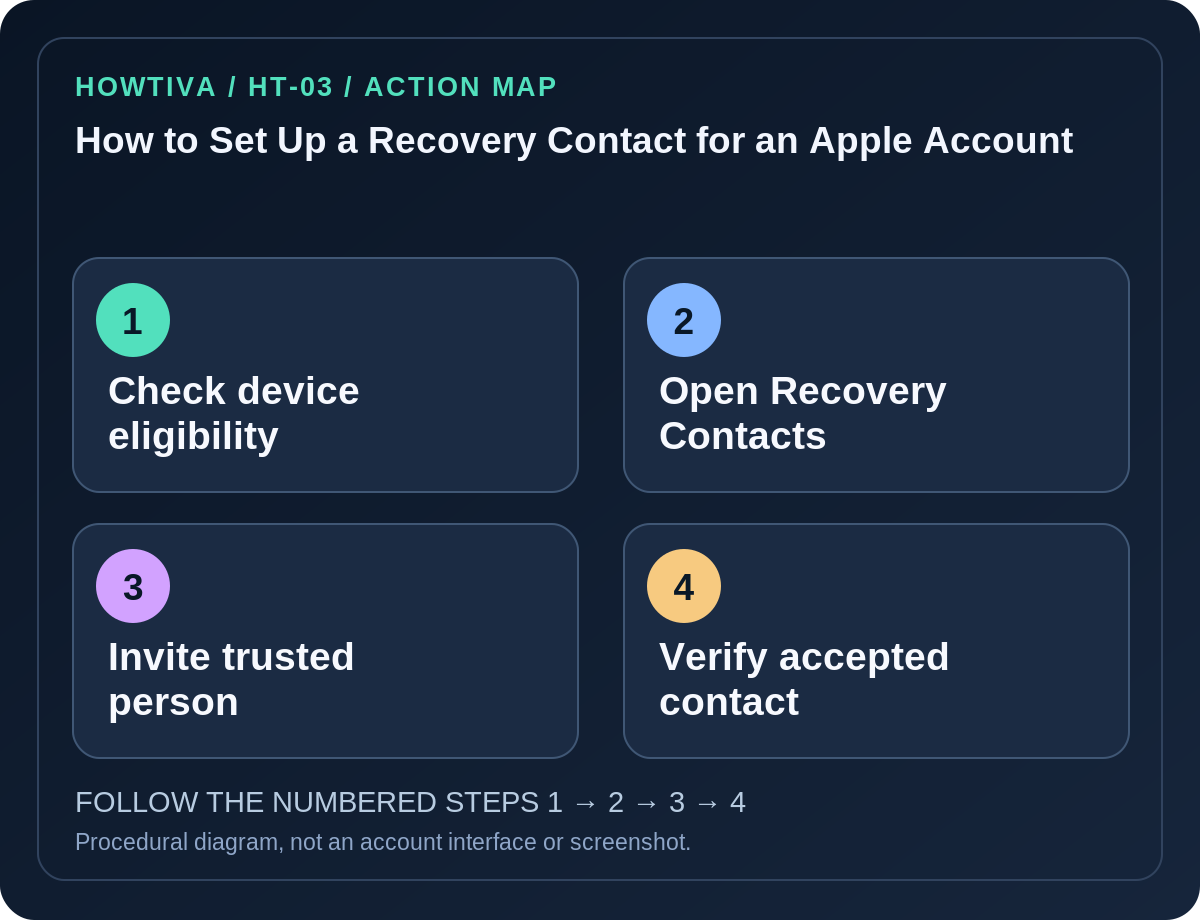
Add a recovery contact on iPhone or iPad
- Open Settings and tap your name at the top.
- Choose Sign-In & Security → Recovery Contacts.
- Tap Add Recovery Contact and follow the screen’s authentication prompt on your own trusted device.
- Select a suggested contact or choose Choose Someone Else. If using Family Sharing, Apple may offer family members prominently.
- Follow the invitation flow. Contacts may need to accept; Apple explains that an eligible family-sharing contact can be added automatically in some cases.
- Return to the Recovery Contacts screen to check whether the person is listed with the expected status. Do not treat an invitation you have merely sent as a confirmed usable backup.
Add a recovery contact on a Mac
- Open the Apple menu → System Settings.
- Select your name → Sign-In & Security → Recovery Contacts.
- Click Add Recovery Contact, choose the intended person and follow Apple’s prompts.
- Complete any invitation or acceptance flow and confirm the contact is visible in the account’s settings.
- If a Mac does not show the control, inspect software version and Apple Account status through official support instead of trying undocumented terminal commands.
What to tell your chosen contact
Explain that Apple Account recovery is an occasional security process and that they should confirm a request with you through a known voice call or another trusted channel. Ask them not to relay a recovery code to anyone claiming to be Apple support or impersonating you. They do not need to know your Apple password, device passcode or personal recovery key. You should also plan for what happens if their phone is lost or they are unavailable.
If you later use the contact for recovery, follow the official Apple Account recovery process; do not solicit private codes in group chats or through unverified web forms. A recovery contact is separate from Apple’s optional Recovery Key feature, which has different consequences if lost.
Troubleshooting
- Add Recovery Contact is missing: Check whether two-factor authentication, device software and account eligibility satisfy Apple’s requirements.
- Contact cannot be selected: They may not meet the age, account, two-factor or device prerequisites. Choose another eligible trusted person.
- Invitation not accepted: Reach out directly and ask them to review the actual notification from Apple. Avoid creating duplicate attempts based on fake texts.
- You changed relationships or contact details: Review and replace obsolete recovery contacts from your Apple Account security settings while you can still sign in.
- You are already locked out: You generally cannot rely on adding a new contact during lockout; use Apple’s legitimate recovery methods and existing trusted factors.
Frequently asked questions
Can my recovery contact read my iCloud photos? Not from being a recovery contact; the role helps with account recovery, not routine data access.
Does a recovery contact replace my trusted phone number? No. Maintain other recovery methods as well.
Can I add multiple contacts? Apple supports multiple recovery contacts subject to its current limits and eligibility rules; check the offered control before depending on a number.
Sources & Further Reading
- Set up a recovery contact for your Apple Account — Apple Support.
Use the checklists as you go, and confirm the result before moving on to a more involved repair.