How to Set Up an Out-of-Office Reply in Gmail
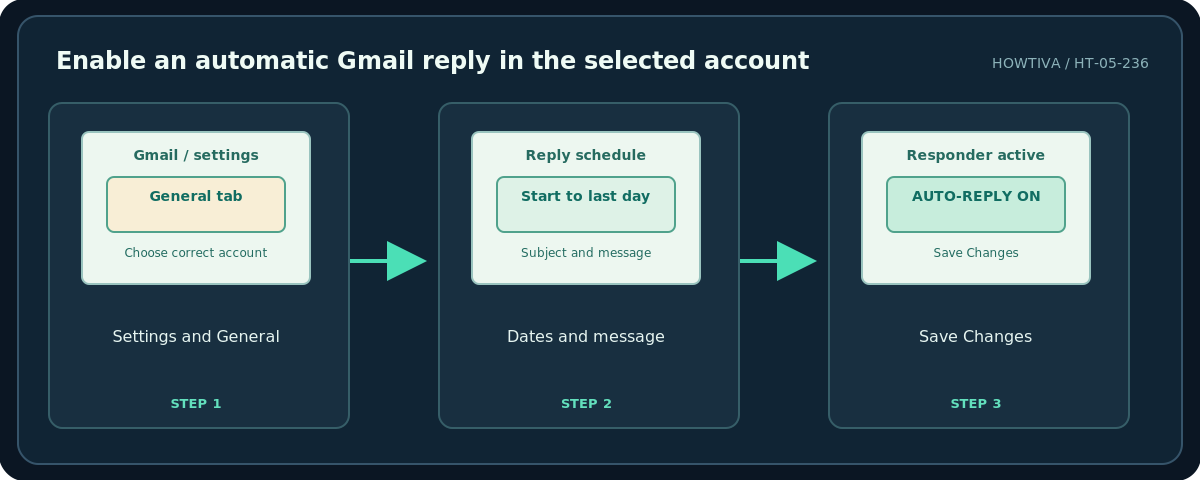
Open Gmail on a computer, select Settings (gear) → See all settings → General → Vacation responder, turn it on, enter a first day, optional last day, subject and message, then select Save Changes.
Quick answer: Open Gmail on a computer, select Settings (gear) → See all settings → General → Vacation responder, turn it on, enter a first day, optional last day, subject and message, then select Save Changes. On mobile, the same feature appears in the Gmail app settings, but the menu path differs between Android and iPhone. The automatic response is an email reply, not a calendar absence indicator.
Use an automatic response when you expect slower replies for travel, leave or a planned break. Before enabling it, decide what you are comfortable telling senders: an absence message can reveal your schedule or work coverage. A short, neutral message is often safer than sharing your precise location or private phone number. The following instructions use Gmail’s officially documented interfaces as of October 2026; an organization administrator may offer additional absence policies.
Step 1: Configure the responder on desktop
- Sign in to the correct Gmail account at gmail.com. Multiple accounts can be open; confirm the address before changing settings.
- Select the gear at the top right, choose See all settings, and stay on General.
- Scroll to Vacation responder and select Vacation responder on.
- Set First day. Set Last day if you know when you will return; otherwise remember to switch the responder off manually.
- Enter a clear Subject, such as
Away from email until Monday, and write a concise message with a realistic response expectation. Do not promise someone else will respond unless that arrangement exists. - Decide whether to limit responses to people in your contacts. If your organization offers internal-only options, check the account-specific wording before choosing.
- Scroll down and choose Save Changes. Look for the vacation-responder banner when you return to your inbox.
Step 2: Set up the same reply on a phone
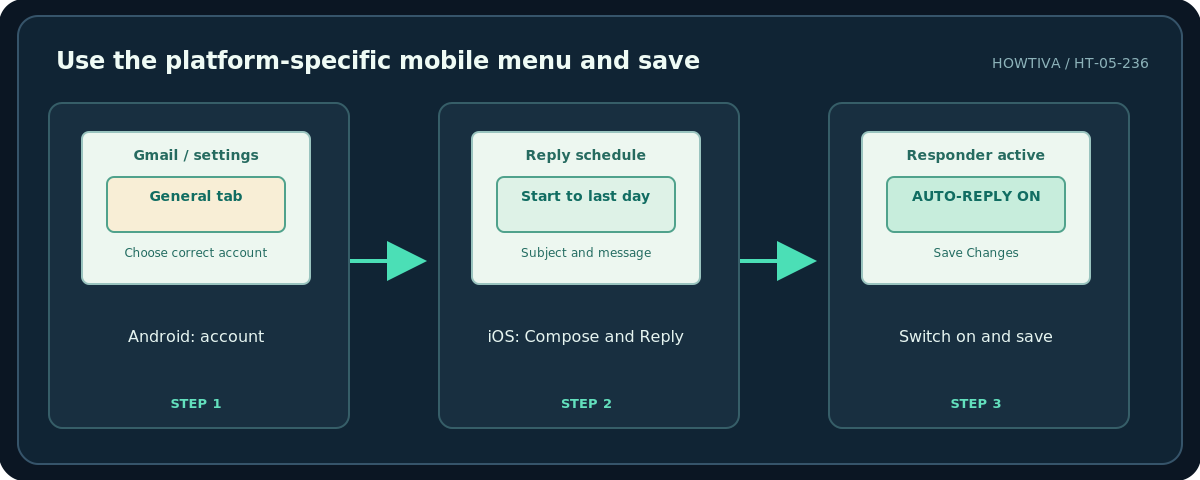
Android Gmail app: Open Gmail, tap Menu → Settings, select the account, tap Vacation responder, turn it on, enter the date range, subject and message, optionally restrict replies to contacts, then tap Done. If you have several accounts, repeat only for the account that actually needs the response.
iPhone or iPad Gmail app: Open Gmail and go to Menu → Settings → Compose and Reply → Vacation responder. Enable it, choose dates, subject and message, optionally select the contacts-only choice, and tap Save. Google documents different navigation for Android and iOS, so do not assume the paths are identical. If the option is missing, update the Gmail app and check you are using the Gmail app rather than Apple Mail or a third-party client.
Step 3: Understand who gets a response and when
According to Gmail Help, the vacation responder begins at 12:00 AM on the first day and runs through 11:59 PM on the last day, unless stopped sooner. Gmail usually responds to a sender’s first message, not every email. It may send another response if that person writes again after four days while the responder remains on, or if you edit the response. Messages categorized as spam and messages addressed to a mailing list you subscribe to do not receive this automatic reply. That means it should not be treated as a guaranteed acknowledgement channel.
An example message is: Thanks for your email. I am away from my inbox through [date] and will respond when I return. For time-sensitive matters, please contact [approved team address]. Replace placeholders before saving. Check that the alternative address is public, monitored and authorized; leaving it out is better than exposing another person’s private contact information.
Step 4: Turn it off or update the dates
On desktop, when the responder is active Gmail shows a banner across the inbox; select End now to stop. Alternatively return to Settings → See all settings → General → Vacation responder. On Android or iOS, return to the Vacation responder setting and disable it. If your trip changes, update the first/last day and message. Recheck the text after changing it because recipients can receive a fresh version.
Alternatives and related features
If you want to show coworkers that your calendar is unavailable, create a separate Google Calendar Out of office event where that feature is available; Gmail’s automated reply does not itself block meeting bookings. If a team inbox needs continuous coverage, use documented business delegation or a shared workflow instead of placing credentials in your absence message. For very short breaks, consider an email signature or manual status note rather than turning on automatic replies.
Troubleshooting
The response is not arriving in a test: It may not be sent repeatedly to the same sender, may be waiting for the start day, or the test email may have reached a mailing-list or spam route. Do not claim end-to-end confirmation from a single self-test. The banner disappeared: Check whether the end date passed or the responder was switched off. Wrong language or account: Confirm both the message text and the selected signed-in account. Too many private details: Rewrite the message and restrict its audience if appropriate. Mobile setting missing: Try desktop Gmail; menu labels and managed-account policies can differ.
Frequently asked questions
Does Gmail automatically decline meetings?
No. Gmail’s vacation responder replies to email. Calendar meeting availability is managed separately.
Can I send the response only to contacts?
Yes, the official Gmail instructions describe an optional contacts-only setting. Consider whether a business sender outside your contacts still needs a response.
Does every message trigger a response?
No. Gmail limits repeated replies and excludes certain messages such as spam and mailing-list mail.
Sources & Further Reading
- Gmail Help — Send an automatic reply when you are out of office (computer) — Desktop enable/disable steps; response windows, repeat sends and exclusions.
- Gmail Help — Vacation responder (Android) — Android account-specific menu and Done step.
- Gmail Help — Vacation responder (iOS) — iOS Compose and Reply menu and Save step.
Use the checklists as you go, and confirm the result before moving on to a more involved repair.