How to Fill Out a PDF Form
Open the PDF in Adobe Acrobat Reader or Acrobat and click an existing form field to type. If the document is a flat scan with no clickable fields, use All tools → Fill & Sign and place text over the blanks.
Quick answer: Open the PDF in Adobe Acrobat Reader or Acrobat and click an existing form field to type. If the document is a flat scan with no clickable fields, use All tools → Fill & Sign and place text over the blanks. On a Mac, Preview supports clickable PDF fields and a form-filling toolbar with a Text Box tool for non-interactive forms.
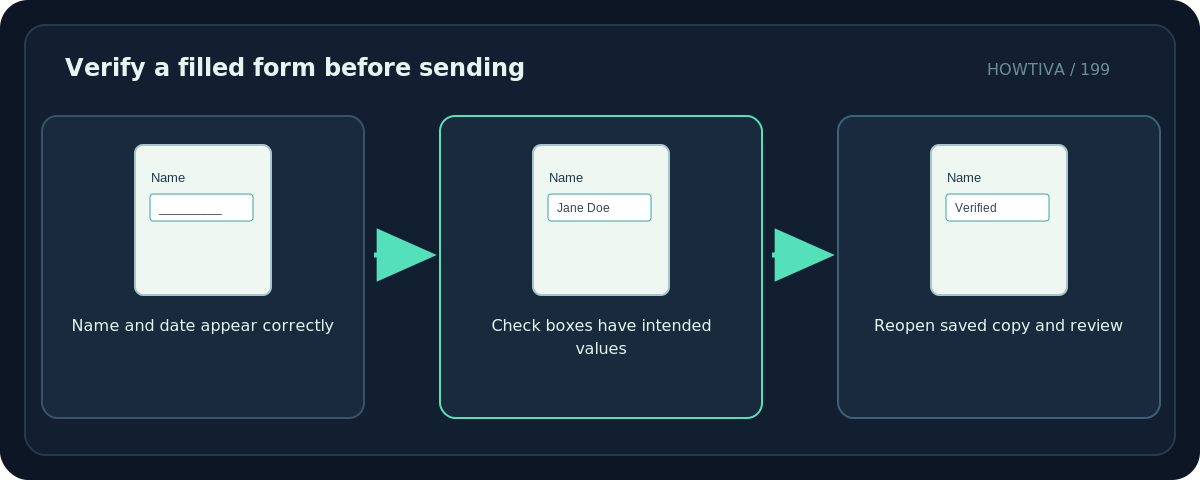
Do not send the file as soon as it looks complete on your screen. Save a separate filled copy, reopen it, and confirm that every answer, checkbox and date survived. Some PDF forms enforce validation rules or require a specific viewer.
Check whether the PDF is a true form
- Interactive form: clicking a blank reveals a cursor, checkbox or selection control; the file has actual fillable fields.
- Flat form: the blanks are part of the page image or static artwork. You need a text overlay or a dedicated form editor.
- Restricted form: fields or saving may be blocked by the author’s permissions; do not bypass restrictions.
- Official government or financial form: read the submitting organization’s instructions. Some forms require a particular app, digital signature or printed copy.
Method 1: Fill a PDF with Adobe Acrobat Reader or Acrobat
- Save the blank PDF to your device and open it in Acrobat Reader or Acrobat.
- Click the first available field and enter the requested information. Navigate to the next field using the mouse or keyboard when appropriate.
- For checkboxes or radio buttons, verify the selection rather than assuming a click registered; some forms limit mutually exclusive options.
- If a blank is not clickable, choose All tools → Fill & Sign when available and use the text tool or mark symbol to position content over the printed field.
- Zoom in before aligning a date, address or multi-line answer. Do not cover printed instructions or adjacent fields.
- Choose Save As and use a filename such as
application-filled.pdf. Reopen the saved file and inspect all fields.
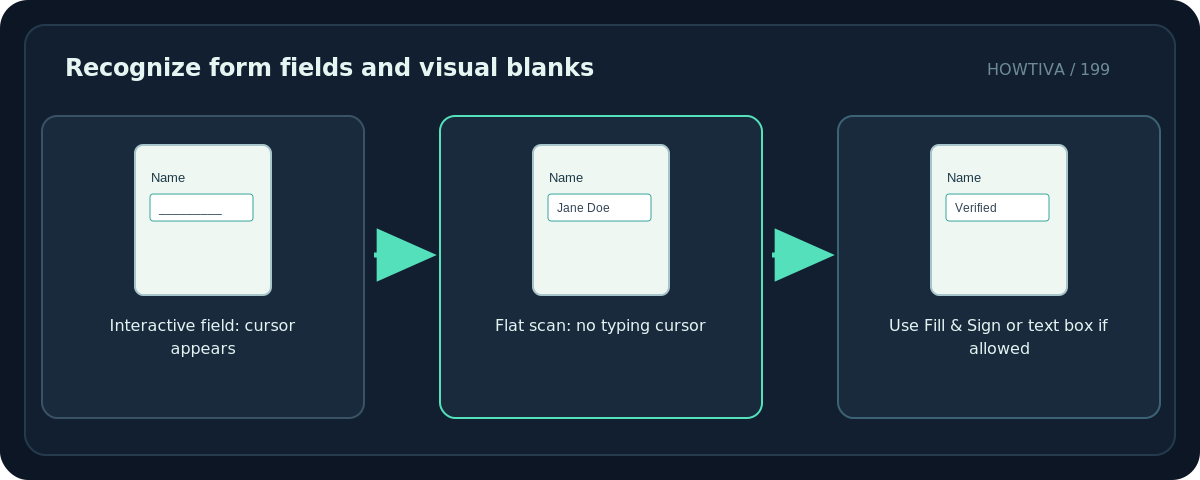
Adobe identifies Fill & Sign as a way to fill documents even when the original has no interactive form fields. Do not assume that typing a value creates a new reusable, editable form field for future recipients; it may just add an annotation or text appearance.
Method 2: Fill a PDF in Preview on Mac
- Open the form in Preview.
- Click a field; if the form contains an interactive field, type your information directly.
- If you cannot type in the blank, display the Form Filling toolbar and choose the Text Box tool, as Apple instructs. Place the box precisely over the blank.
- Use available sizing and positioning controls so the text does not obscure the field label.
- If the form requests a signature, use Preview’s Sign tool only if the recipient accepts that form of signature; otherwise follow the requested signing method.
- Save a new copy and reopen it to verify the completed content.
Preview’s AutoFill features may offer saved contact information, but Apple notes that not all PDFs support this feature. Check autofilled information before submitting; it can be outdated, incomplete or from the wrong contact.
Filling a non-interactive scanned form safely
Text overlays work for straightforward blanks but have limitations: they may not match handwriting boxes, align neatly with tiny fields or satisfy machine-readable validation. If the institution insists on an editable PDF or digital certificate, ask for the current official form instead of trying to force a photographed version to behave as one.
For sensitive applications, avoid anonymous upload-and-fill websites. A completed form can contain birth dates, addresses, national identifiers and signatures. Prefer a local editor or an explicitly approved service.
Troubleshooting
My typed data disappeared after saving. Try saving a local copy rather than merely closing the browser preview. Reopen it in Acrobat Reader to see whether field values persisted. If not, ask for a supported form or use the official submitting workflow.
The checkbox will not toggle. It may be a flat image rather than a real checkbox. In Fill & Sign, use a check symbol overlay only if permitted.
The text does not fit. Look for a field’s own font-size behavior; otherwise shorten wording only where the form allows it. A page screenshot is not a good substitute for a legible filled PDF.
The form says a signature is required. Determine whether a visual e-signature is accepted or whether an identity-verified digital signature is required. These are not equivalent.
The PDF opens but fields are disabled. Some dynamic or protected forms require a supported application. Use the issuer’s published instructions and do not attempt to remove security controls.
Final review before submission
Check dates, email addresses, character accents, required attachments, checkbox states, signature requirements and whether the submitted filename follows the issuer’s rules. Print-preview or open the file on a second device only as an extra check; never claim that this guarantees acceptance.
Frequently asked questions
Can I fill a PDF without Adobe Acrobat Pro?
Many forms can be filled in free Acrobat Reader or macOS Preview. Paid features may be needed for creating or extensively editing form fields.
Why can’t I click the blank?
It may be a static scan rather than an interactive field. Use a supported text overlay tool or obtain a fillable version.
Is a typed name automatically a legally valid signature?
Not always. The acceptance and legal effect depend on the document, jurisdiction and recipient’s rules.
Sources & Further Reading
- Adobe — PDF forms help — Reader/Acrobat Fill & Sign, saving and printing.
- Apple — Fill out and sign PDF forms in Preview — Preview interactive field and text box workflow.
- Adobe — Fill and sign documents on the web — Web text fields and form symbols.
Use the checklists as you go, and confirm the result before moving on to a more involved repair.