How to Find a Lost Android Phone
Open Google Find Hub on the web or another device to locate, ring or secure your missing phone.
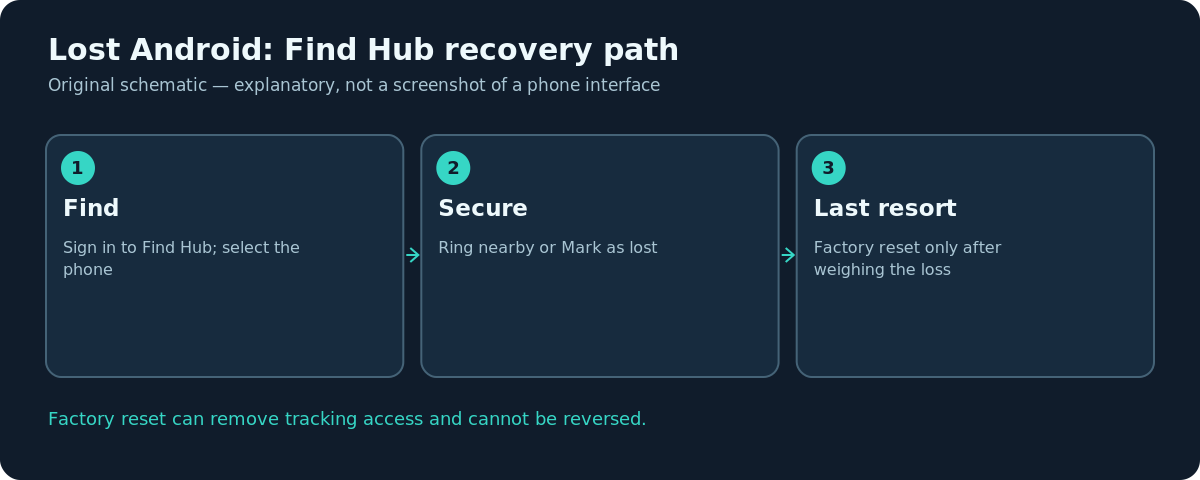
Quick answer: On another phone or computer, visit android.com/find or open Google’s Find Hub app. Sign in with the Google Account on your missing Android phone, select the device and check its location. Choose Play sound if it is nearby, or Mark as lost to secure it. Treat Factory reset as a last resort because it deletes data and can end your ability to locate the phone.
Google has renamed and expanded parts of its device-finding service as Find Hub. Some older phones or tutorials still show Find My Device. Features vary by Android version, hardware, connectivity, screen-lock setup and Google Account policy. The steps below use Google’s current Android Help instructions, not a claim that every manufacturer presents identical buttons.
Find the phone on the web or another Android device
- Open android.com/find in a trusted browser, or start Find Hub on another Android device.
- Sign in as the owner of the missing phone. If helping somebody else, use the app’s guest sign-in flow rather than permanently adding their Google Account to your phone.
- Choose the correct missing device from the list; check its name and other identifiers rather than selecting an old phone accidentally.
- Read the map and last-updated information. A shown position is an estimate. If the phone cannot report its current position, a last-known location may be available.
- If it is in a safe location nearby, select Play sound. Google says this rings the device at full volume for up to five minutes even when it was set to silent or vibrate.
- If recovery will take time, Mark as lost and add appropriate contact information for someone who might return it.
If a location is displayed inside a private building or at an unfamiliar address, do not attempt an unsafe confrontation. Save useful details, contact local authorities when theft is suspected and take steps to protect accounts and phone service.
Mark the Android device as lost
Select the phone in Find Hub and choose Mark as lost. The documented feature locks the device with its PIN, pattern or password and allows a lock-screen contact message. Enter an alternate contact method that does not depend on the missing handset. Read the prompts and verify the selected phone before confirming.
Google documents additional verification behavior for certain Android 17 devices with supported biometric unlock options; this is not a universal instruction for older Android versions. The safest general practice is to keep a strong screen lock configured before a phone is lost. If your device has no screen lock or Find Hub was disabled, some protection and discovery functions can be unavailable.
Understand offline and last-known location
A missing phone may be switched off, out of coverage, inside a building or disconnected from internet access. Find Hub may show a recent encrypted location or an approximate network-assisted result, depending on earlier settings. GPS, Wi-Fi and cell towers have different location precision. A pin near a shop does not prove the phone is in that exact shop.
For many remote actions Google lists requirements including power, internet access, signed-in Google Account, enabled Find Hub and visibility on Google Play. If the phone is currently offline, do not promise that a lock or reset has already completed. Review its status later. Some participating Find Hub networks may help locate offline devices, but support differs by model and prior configuration.
Remote reset is the last resort
If you conclude the phone is unrecoverable and sensitive data is exposed, review the Factory reset option in Find Hub’s device settings. Google’s Android Help warns that it permanently deletes device data, may not erase SD cards and removes the reset phone from Find Hub availability. This means a premature reset can cost you your remaining chance to locate it.
Check for recent backups first, especially photos, authenticator recovery methods and files stored only on the handset. A remote reset should never be used casually just to silence a notification or because a map takes time to update. If you later recover the reset device, Google’s device-protection measures can require the original Google Account password.
If the phone is stolen
Contact the mobile carrier to suspend the SIM or eSIM and ask about account and IMEI protection. Update sensitive account credentials if you believe someone may have accessed the unlocked handset. Review Google Account security activity and signed-in sessions from a trusted device. For suspected theft, file a report with the relevant local authority and avoid personal confrontation based on a map pin.
Be cautious about messages promising recovery for a fee, asking for two-step verification codes or claiming to be Google support. Use android.com/find directly. Do not share your Google password or the device PIN with people who contact you unexpectedly.
Prepare Find Hub before a future loss
While you still have a working phone, check Settings → Location and confirm location is enabled as appropriate for you. Google documents a Settings → Security → Find Hub path on certain devices for the setting that allows the phone to be located. Manufacturer menus can differ. Check that the Google Account shown is yours and that the phone has a PIN, password or pattern. Secure your backup sign-in methods so losing the phone does not permanently lock you out of the account needed for recovery.
Troubleshooting
- Phone does not appear: Verify the same Google Account, Find Hub enrollment and the device’s eligibility.
- Only an old location appears: Treat it as historical; the phone may be offline or have location disabled.
- Play sound does not ring: It may not be connected, turned on or supported in the current state.
- Locked out of Google Account: Use Google’s official account-recovery process, not a paid third-party finder.
- Cannot reset: Check requirements and connectivity; do not assume a failed or pending reset has secured the handset.
Frequently asked questions
Can Find Hub locate a switched-off Android phone?
On supported devices and with appropriate settings, some offline-finding features may help. There is no guaranteed live location when powered off.
Is Mark as lost the same as factory reset?
No. Mark as lost secures the device and can show contact details; factory reset is a destructive action.
Can I find a friend’s phone?
They can use the guest sign-in flow in Find Hub. Do not use their account without authorization.
Does a factory reset delete an SD card?
Not necessarily. Google’s instructions explicitly caution that SD cards may not be erased.
Sources and further reading
- Find, secure, or erase a lost Android device — Android Help.
- Be ready to find a lost Android device — Google Account Help.
Use the checklists as you go, and confirm the result before moving on to a more involved repair.