How to Find and Remove Suspicious Browser Extensions
In desktop Chrome, open Extensions → Manage extensions from the toolbar or menu, inspect the installed extensions and select Remove on an extension you no longer trust.
Quick answer: In desktop Chrome, open Extensions → Manage extensions from the toolbar or menu, inspect the installed extensions and select Remove on an extension you no longer trust. In Microsoft Edge, open Extensions → Manage extensions; in Firefox, open Add-ons and themes → Extensions. If you aren’t sure which extension causes an issue, disable one at a time before permanently removing it.
An extension can legitimately change page content, inject tools, or ask for access to websites. The danger signs are unexplained installs, broad permissions unrelated to the feature, new search redirects, an unexpected homepage, repeated permission requests or an extension returning after removal. A strange name alone is not proof of malware. Treat the process as an evidence-based audit, not a demand to remove every add-on.
Step 1: Inspect your actual extension list
- Open the browser profile where you noticed the suspicious behavior. Extensions may differ between work and personal profiles.
- In Chrome select the toolbar Extensions icon and Manage extensions, or open the browser’s More menu and find Extensions. You can also type
chrome://extensionsinto Chrome’s address bar. - Review each installed name, description, publisher and any displayed website permissions. Check whether you remember choosing to install it.
- Identify extensions with unusually broad access, such as reading and changing data on every website. Broad access can be justified for some trusted tools, but warrants scrutiny.
- If you suspect a specific add-on, disable it first and reopen the pages that were misbehaving. If the issue stops, investigate that extension further before re-enabling it.
- Use Remove only after you are comfortable that you no longer need it. Confirm the browser’s removal prompt; this is not the same as simply unpinning its icon.
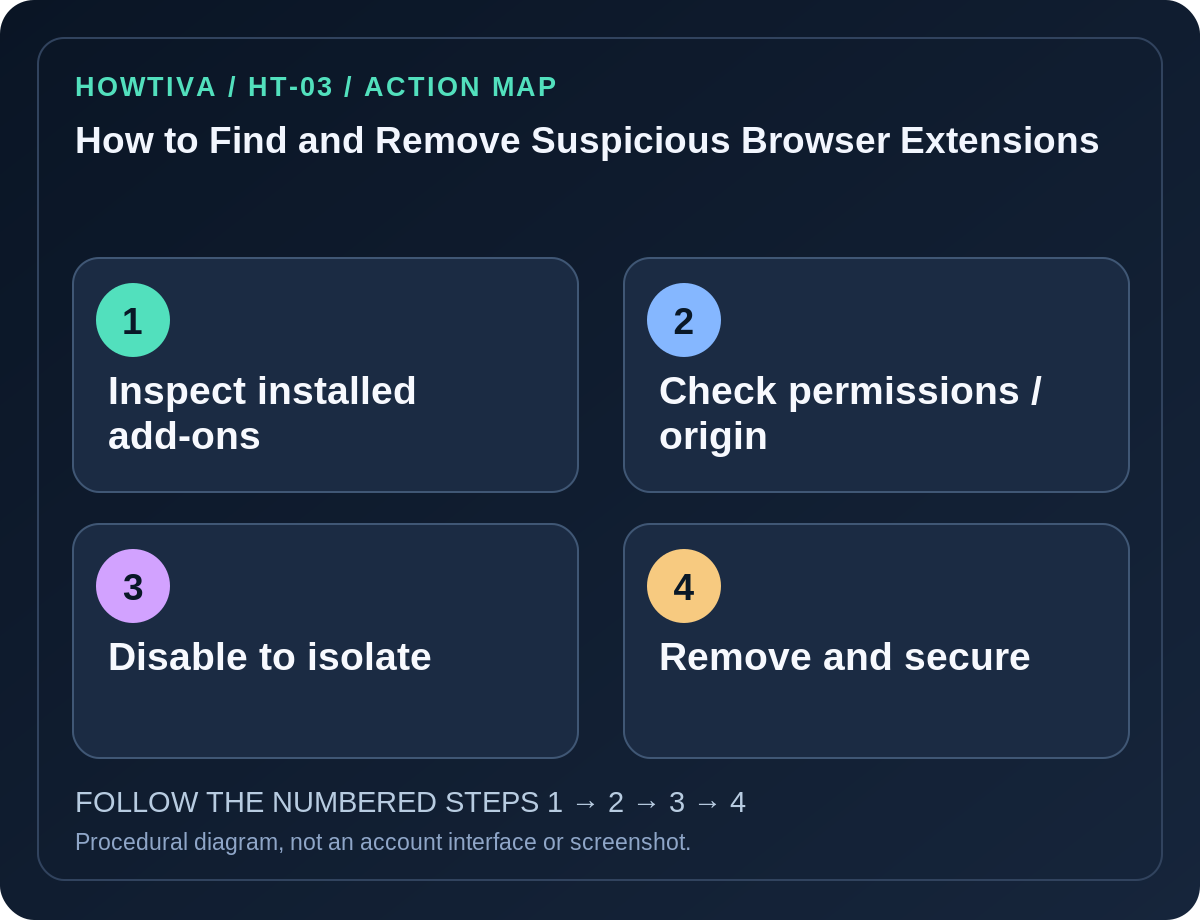
Step 2: Use the correct browser path
Chrome: Extensions → Manage extensions → select the suspicious extension → Remove → confirm. An extension hidden from the toolbar can still appear on the management page. Google notes that extensions may control the new-tab page, search engine or homepage.
Microsoft Edge: Select Extensions → Manage extensions, switch an extension off to test it, or use its Remove from Microsoft Edge action. Edge also supports extensions from other stores, so do not assume every extension was installed through the Edge Add-ons store.
Firefox: Open the application menu → Add-ons and themes → Extensions. Use the toggle to disable it; use the extension’s three-dot menu → Remove to uninstall. Mozilla’s Troubleshoot Mode can help isolate extension-driven behavior if normal browsing is unstable.
Safari: Safari’s extension management is separate from Chrome and Firefox. Review Safari → Settings → Extensions on Mac, and use the current Apple support instructions for uninstalling an associated Mac app where required. Do not copy Chromium extension steps into Safari.
Step 3: Secure the browser after removal
Check whether the browser’s default search engine, new-tab page, startup pages or notification permissions changed without your consent. Restore only settings you can verify against your browser’s normal preferences. If a fake security warning directed you to install the extension, consider whether passwords, session cookies or personal data may have been exposed before removal.
Update the browser and operating system. On Windows inspect Settings → Apps → Installed apps for unfamiliar software, and use reputable built-in security scanning tools. If you entered a password into a redirected or impersonated page, change that password from the genuine service and revoke unknown sessions; consider enabling a passkey or multi-factor protection. Removing an extension does not undo earlier data collection.
Troubleshooting real situations
- The extension has no Remove button: It may be installed by organizational policy or another application. Check browser management notices and ask the actual administrator on managed equipment. Do not use random registry edits found in comment threads.
- It returns after a restart: Investigate synced profiles, unwanted applications and device management before assuming removal succeeded. Google documents persistent hijacking as a warning sign of unwanted software.
- All extensions look unfamiliar: Compare their publisher names and installation purposes with the service you use. Don’t remove accessibility or workplace extensions blindly.
- Disabling it breaks a website: Turn it back on only after assessing trust and consider a narrower permission setting or a reputable alternative.
- A toolbar icon is missing: It may simply be unpinned; inspect the full extension management list.
Frequently asked questions
Is disabling enough? Disabling can stop the extension running and help isolate a problem. Remove it if you no longer trust or need it.
Can a legitimate extension request wide permissions? Yes. Permission scope alone is a reason to review, not definitive evidence of malicious intent.
Does removal delete data copied elsewhere? No. Review affected accounts separately if you suspect data exposure.
Sources & Further Reading
- Install and manage extensions — Google Chrome Web Store Help.
- Manage extensions that change your settings — Google Chrome Web Store Help.
- Add, turn off, or remove extensions in Microsoft Edge — Microsoft Support.
- Disable or remove Add-ons — Mozilla Firefox Help.
- Remove unwanted ads, pop-ups & malware — Google Chrome Help.
Use the checklists as you go, and confirm the result before moving on to a more involved repair.