How to Remove Browser Notification Spam
If unwanted alerts come from a website in Chrome on a computer, open Settings → Privacy and security → Site settings → Notifications.
Quick answer: If unwanted alerts come from a website in Chrome on a computer, open Settings → Privacy and security → Site settings → Notifications. Find the unwanted website among allowed notification senders and Block or remove its permission. You may also select the site-information control next to its address and set Notifications → Block. This stops that site’s web push permission; it does not uninstall apps or remove malware.
A pop-up inside a tab, a Chrome website notification and an alert from a native application can look similar. Identify the source before changing permissions. A website notification may appear even after you close the original page, provided the browser and operating system support its delivery.
Step 1: Identify the sender before clicking
- Read the visible sender or website address on the alert without opening the alert or following its links. Legitimate security settings do not require payment to ‘clear a virus’.
- Determine whether the alert is labeled Chrome or another browser, an installed app, or the operating system’s security service.
- If you see a domain you don’t recognize, do not click its Fix now, Unsubscribe, Download cleaner or phone-number link. Open Chrome settings yourself.
- If the alert disappears before you can read it, open the browser’s notification permissions list rather than guessing which site was involved.
- Capture the domain name for your own reference if needed, but never publish screenshots that reveal private notifications or account details.
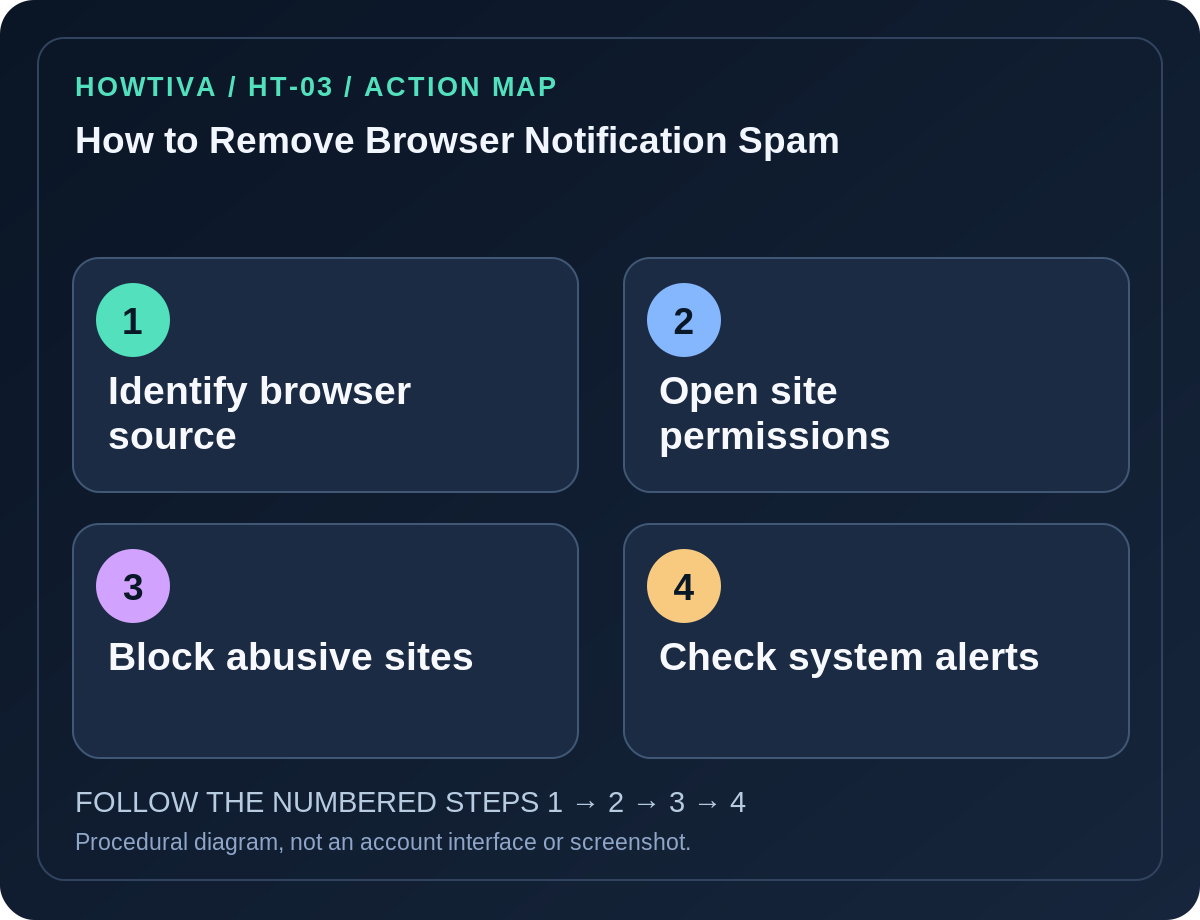
Step 2: Block unwanted website notifications in Chrome
- Open Chrome → More → Settings → Privacy and security → Site settings → Notifications.
- Review the list of websites allowed to send notifications. The layout and terminology can change; look for the Allowed section or per-site permission controls.
- Find the suspicious domain and choose Block if the menu offers it. Remove can reset a past decision, meaning the website might ask again; Block is more explicit.
- If you don’t want any website to ask, choose the stricter default notification setting in this screen. This may affect reminders from trusted services.
- For one currently open trusted website, inspect its site-information control beside the address and choose the correct notification permission.
- Close any malicious tabs, then watch whether alerts stop. Local visual notification delivery was not tested in this guide.
Android, other browsers and operating-system notifications
Chrome on Android offers site-permission controls through Chrome → Settings → Site settings → Notifications, but Android versions and manufacturers may also have Settings → Apps → Chrome → Notifications. The latter can silence the app broadly; prefer revoking one offending website’s permission in Chrome when possible.
In Windows 11, Settings → System → Notifications governs which apps may send system notifications. It can mute Chrome as an application but does not remove a malicious site’s underlying permission. On macOS, review System Settings → Notifications for app-level alerts. Firefox, Edge and Safari use their own website-permission interfaces, so select the correct browser rather than assume the Chrome path applies.
Why alerts continue after blocking one site
A different domain may have its own permission. Some scam campaigns rotate domains. Repeat the domain inspection for the exact sender, and check Chrome’s allowed list. If the alerts are in the page itself rather than notifications, use the browser’s Pop-ups and redirects setting instead. If there is an extension or installed unwanted program that repeatedly changes settings, review your extension list and device’s security scan.
Chrome may automatically revoke permissions from rarely visited or disruptive websites. If a legitimate news or calendar site suddenly stops sending messages, revisit its site permissions rather than disabling security controls globally.
Troubleshooting
- No suspicious site appears: You may be looking in the wrong browser profile or the notification may be native to an installed app. Check the sender label and OS notification history if available.
- The Block option is grayed out: A school or employer may manage that browser; ask the administrator.
- You clicked a scary alert: Close its tab, avoid installing anything, update the browser and check downloads. If you entered login information, secure the affected service directly.
- A trusted site’s reminders disappear: Restore only that known domain’s notification permission. Avoid broadly allowing unknown senders.
Frequently asked questions
Will clearing cookies stop all notification spam? Not reliably. Set the specific site permission to Block.
Do notification pop-ups prove I have a virus? No. Many are deceptive website alerts, but persistent redirects and unwanted programs deserve investigation.
Can I mute all notifications without blocking websites? Yes, at browser or OS level, but this can hide useful reminders and may leave the site’s permission in place.
Sources & Further Reading
- Use notifications to get alerts — Google Chrome Help.
- Block or allow pop-ups in Chrome — Google Chrome Help.
- Remove unwanted ads, pop-ups & malware — Google Chrome Help.
Use the checklists as you go, and confirm the result before moving on to a more involved repair.