How to Find Your IP Address on Windows
Open Settings > Network & internet, select your active Wi-Fi connection or Ethernet, then check IPv4 address in its properties.
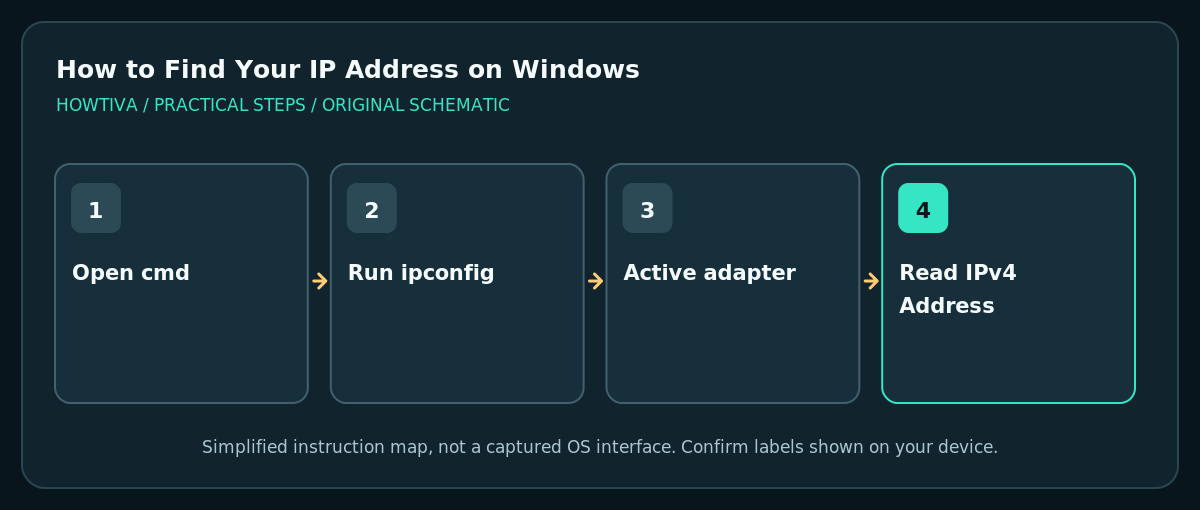
Quick answer: Open Settings > Network & internet, select your active Wi-Fi connection or Ethernet, then check IPv4 address in its properties. Alternatively open Command Prompt and enter ipconfig; read the address under the active network adapter.
The IP address in Windows network settings usually identifies your computer on the current local network. It is not necessarily the public IP address that websites see. VPN connections, several adapters and IPv6 can give your computer multiple addresses at once. Knowing which one you need prevents sharing the router’s address when someone actually asked for the laptop’s local address.
Find your local IPv4 address in Settings
- Check that your computer is connected to the network you are troubleshooting. If both Wi-Fi and Ethernet are active, identify which connection you actually use.
- Open Start > Settings > Network & internet. Microsoft also documents opening network settings by right-clicking the network or Wi-Fi icon in the taskbar.
- For wireless connections, choose Wi-Fi, then select the connected network or its Properties entry. For a wired connection, choose Ethernet. Menu layout can vary with Windows updates.
- Locate IPv4 address, usually alongside details such as DNS servers, gateway and link properties. Copy the number carefully, for example
192.168.1.37—an illustrative private address, not your actual address. - If the support person asks for IPv6 instead, look for the listed IPv6 addresses. Do not interchange local/private addresses with a public internet address.

Check the active adapter using Command Prompt
- Press Windows + R, type
cmd, and press Enter. Reading IP configuration normally does not require running as administrator. - Enter
ipconfigand press Enter. Windows lists adapters and basic IP configuration; look for the one matching your active Wi-Fi or Ethernet connection. - Read IPv4 Address and Default Gateway carefully. They are separate values: the gateway often identifies your router on the local network, not the computer itself.
- If several virtual adapters appear, such as VPN or virtualization software adapters, identify the active physical interface and connection state. Use
ipconfig /allonly if additional detail is needed; it also prints information you may not want to share publicly.
Local IP versus public IP
A local/private address is assigned to your device on a home, school or office network. Common IPv4 private ranges include 192.168.x.x, 10.x.x.x and parts of 172.16–31.x.x. A public IP is normally associated with your connection to the wider internet and may be shared by multiple local devices through a router. A VPN can change the public address a site sees. Windows Settings does not guarantee that the displayed adapter address is your externally visible IP.
Safety when sharing network details
- A local IP address alone does not normally provide remote access to your computer, but screenshots of network settings can contain Wi-Fi identifiers, hardware details and other useful context for an attacker. Share only what support needs.
- Do not post complete
ipconfig /alloutput publicly without checking for hostnames, adapter details or organisation-specific values. - Finding an address does not require disabling a firewall, releasing DHCP leases or resetting network settings. Avoid risky “repair” commands for a simple lookup.
Troubleshooting
IPv4 shows 169.254.x.x
On an ordinary DHCP network this often means Windows did not obtain a usable router-assigned address. Check whether Wi-Fi is truly connected, whether the router is working and whether your organisation manages static addresses. Do not invent an IP address to fill the field.
Several IP addresses are listed
A PC with wired, wireless, VPN and virtual-network adapters can have multiple values. Identify the adapter corresponding to the connection of interest. If remote access is involved, ask whether support needs a local, VPN or public-facing address.
My IP changes later
Home routers often assign addresses dynamically through DHCP; reconnecting or a lease renewal can change them. Record the address when you need it instead of treating it as a permanent identifier.
Someone needs my public IP, not local IP
Confirm what they need and why. A web-based IP lookup can show the internet-visible address, but results can reflect VPN/proxy routing. Avoid handing out network details to unsolicited callers or websites.
Frequently asked questions
Is Default Gateway my IP address?
No. It typically refers to the local router or gateway that sends traffic beyond the subnet. Read IPv4 Address for your machine’s adapter.
Does ipconfig change my network?
No. The plain ipconfig command displays current settings. Commands such as /release and /renew alter networking and are not needed just to look up an address.
Why do I see IPv6 and IPv4 together?
Modern networks can use both address families. Use whichever the legitimate application or administrator specifically requests.
Sources & Further Reading
- Microsoft — Essential Network Settings and Tasks in Windows — Wi-Fi/Ethernet Properties path to IPv4 address.
- Microsoft Learn — ipconfig command — Display IPv4/IPv6 and default gateway, /all behavior.
- Microsoft — Fix Wi-Fi connection issues in Windows — 169.254 automatic configuration warning and DHCP issues.
Use the checklists as you go, and confirm the result before moving on to a more involved repair.