How to Turn On File History in Windows
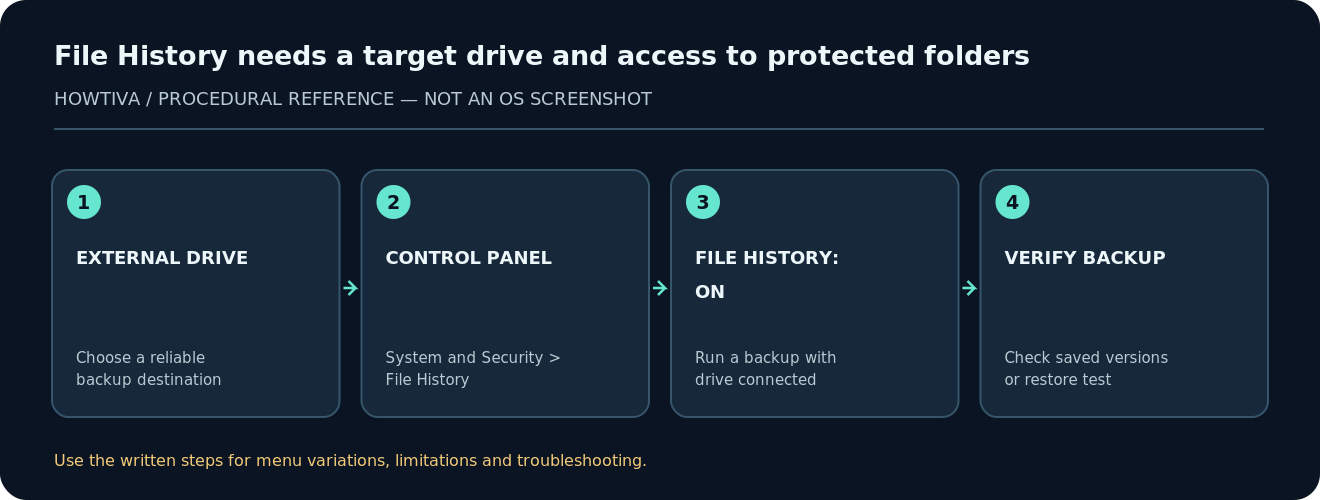
Connect a reliable external drive or configure a supported network backup location. In Windows 11, open Control Panel > System and Security > File History, select a destination if asked, then choose Turn on.
Quick answer: Connect a reliable external drive or configure a supported network backup location. In Windows 11, open Control Panel > System and Security > File History, select a destination if asked, then choose Turn on. Confirm that your important files are in the folders File History protects, and verify a backup rather than assuming the toggle guarantees coverage.
File History preserves earlier versions of selected personal files and folders. It is useful after accidental deletion or unwanted edits. It is not a complete Windows system image and does not replace other backups for apps, bootability, accounts or files outside its scope. Microsoft still documents the feature for Windows 11 and Windows 10 even though newer Windows versions emphasize other backup options in Settings.
Before turning it on: Check your data and destination
- Identify the files that matter most: documents, photos, projects and custom work folders. Make a note of any important data kept outside standard libraries.
- Connect an external drive with enough free space for multiple versions over time, or make sure the designated network location is reliably reachable. The backup location should be separate from the Windows system drive.
- Check the drive in File Explorer. If it already holds valuable data, do not format or erase it just to begin a backup. Confirm the filesystem and available space before choosing it.
- If using a laptop, consider when the backup drive will actually be attached. A disconnected drive cannot receive new copies at that time.
- For important or irreplaceable files, maintain an additional independent copy. One File History drive can fail, be stolen or become corrupted.
Method 1: Enable File History in Windows 11
- Open Start, type Control Panel, and open the matching desktop app.
- Choose System and Security > File History. If Control Panel is arranged by icons, select File History directly.
- If Windows has not identified a backup drive, select Select drive, choose your connected external drive or appropriate network location, and confirm.
- Click Turn on. Windows begins tracking applicable files and copies versions on its schedule. Do not disconnect the drive while the first backup is running.
- Check the File History window for status or recent run information. If available, use Run now to start a backup rather than waiting for the normal schedule.
- Reopen the backup drive in File Explorer to confirm that backup content was created; then run a cautious test restoring a noncritical sample file to a separate folder.
Windows 10 difference: File History was exposed more prominently in earlier Windows Settings interfaces; on current Windows 11 builds, the documented path goes through Control Panel. Do not confuse the Windows Backup app’s account syncing features with this local file-version history feature.
Which folders get backed up?
Microsoft describes File History as focusing on libraries such as Documents, Pictures, Music and Videos, including custom libraries. Depending on setup, Desktop and other known folders may also be included; inspect the actual backup selection instead of treating every folder anywhere on the PC as covered. Files on another partition, a separate user profile, certain app databases or ad hoc directories might not be included automatically.
If you keep critical project data elsewhere, consider adding the folder to a library when Windows exposes that option, or use another backup method that explicitly includes its exact path. Always verify the resulting backup contains the file you expected. Cloud-only placeholders in sync folders require special care: an offline backup cannot safely be assumed to include a full cloud file merely because its name appears in File Explorer.
Change the backup drive or schedule
In the File History Control Panel screen, look for Select drive to change backup destination and Advanced settings to review how often copies are saved and how long versions are retained. Exact choices can change by build or organization policy. Fewer copies use less space but reduce the chance that the version you need still exists. Keep enough capacity for changes over time and avoid a retention setting you have not understood.
If you change backup drives, follow prompts carefully and do not delete the existing drive’s history until you have validated the new destination and the versions you need.
Restore a previous version without overwriting work
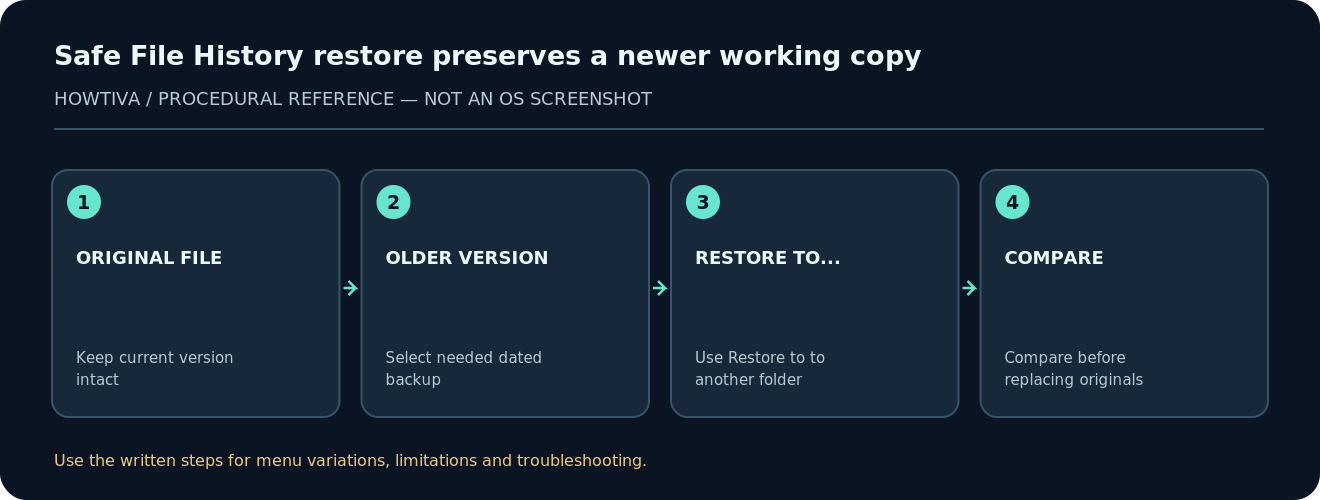
- Locate the folder in File Explorer where the document currently belongs. Right-click and choose Restore previous versions if offered; alternatively open the File History recovery interface.
- Look through available dates and versions. Pick one from before the accidental edit or deletion.
- Preview the version first when Windows provides that control.
- Prefer Restore to a different folder when available, particularly if a newer file exists at the original location. Compare both copies carefully.
- Only replace the active file after confirming the recovered copy is correct. Overwriting the current version can discard changes that are not included in the backup.
Troubleshooting File History
File History cannot find a usable drive
Reconnect the external drive, check its letter in File Explorer and confirm space is available. For a network location, inspect network access and the destination’s permissions. If the destination holds valuable data, do not format it as a first troubleshooting step.
The feature is on but no recent files are protected
Verify drive connection, backup status and applicable folders. A file stored only in an excluded or cloud-only folder might never have been captured. Create a harmless test text document in a known included folder, allow a backup to run, then check for a retrievable previous version.
I cannot find a version old enough
File History only has versions recorded since its configuration, within the available retention and storage limits. It cannot reconstruct edits from before the first successful backup. Look for another backup, prior application version history or cloud versioning if applicable.
The drive is nearly full
Review retention settings and future capacity. Do not manually delete random folders from the FileHistory directory without understanding the effects. Consider a larger destination while preserving older versions you may need.
An organization controls backup settings
Work-managed PCs may limit the feature or direct backups to company services. Contact the administrator before changing a managed backup destination.
Verify protection with a low-risk exercise
Create a non-sensitive file in a folder that should be backed up, wait for an actual completed backup, edit the sample and verify that an earlier version can be restored to a different folder. This is a suggested user check, not a test performed by Howtiva. The success criteria are a readable recovered file, correct version/date and no changes to the original.
Frequently asked questions
Is File History the same as System Restore?
No. File History saves versions of eligible personal files; System Restore focuses on system components and settings.
Will File History back up every drive?
No. Its scope depends on protected folders, libraries and configuration. Confirm important paths explicitly.
Can I use a USB drive?
Yes, a suitable external drive can be a destination when Windows recognizes it. Keep it available for regular backups and store it safely.
Can I recover a file that was never backed up?
Not through File History. Check other backup systems or appropriate recovery services instead.
Sources & Further Reading
Use the checklists as you go, and confirm the result before moving on to a more involved repair.