How to Use Windows Clipboard History
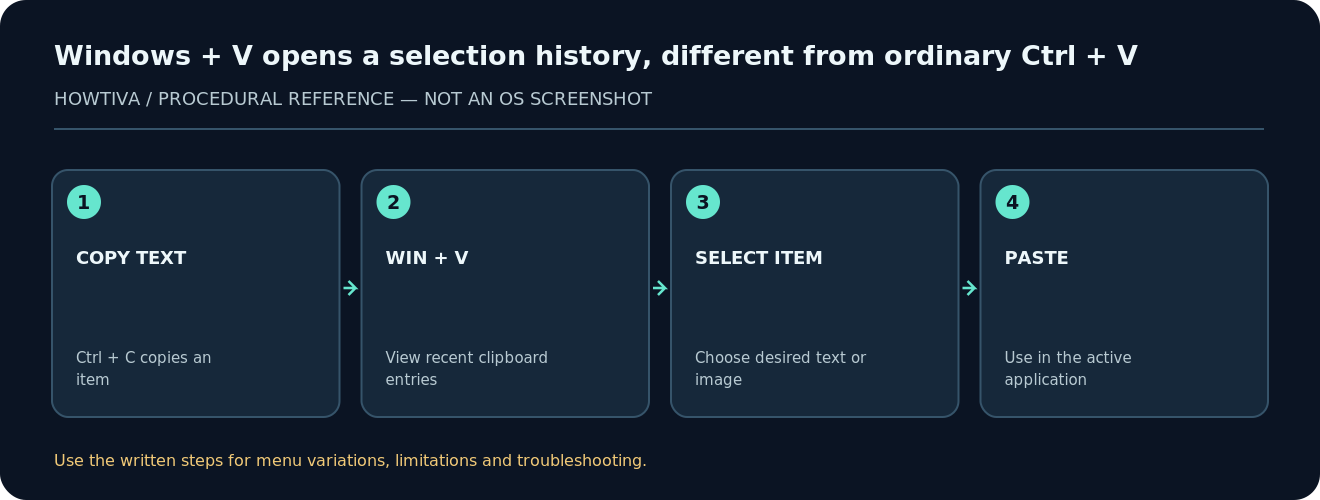
Press Windows + V. If Windows offers Turn on, select it to enable Clipboard history. Copy text using Ctrl + C, then press Windows + V to choose a recently copied item to paste.
Quick answer: Press Windows + V. If Windows offers Turn on, select it to enable Clipboard history. Copy text using Ctrl + C, then press Windows + V to choose a recently copied item to paste. Use the … menu on an item to delete or pin it. To clear history, use Settings > System > Clipboard > Clear clipboard data or the Clipboard history panel.
The ordinary clipboard holds the latest item you copied. Clipboard history is an additional list that can retain several eligible copied entries so you can reuse something from earlier. Microsoft documents the feature for Windows 11 and Windows 10. Its availability can be restricted by device management policies; menus and icon styling may vary by build.
Step 1: Enable clipboard history
- Make sure you are signed in to your Windows account and using a normal desktop app with a text field.
- Press Windows + V. If history has never been enabled, choose Turn on in the panel. If a history list already appears, it is enabled.
- Alternatively open Start > Settings > System > Clipboard and turn on the clipboard history setting when offered.
- Copy two short, harmless sample phrases from a document, one at a time, using Ctrl + C.
- Press Windows + V. Confirm that the eligible entries are listed. Click the entry you need while the destination is ready for pasted content.
If a normal Ctrl + V paste works but Windows + V does not open history, the ordinary clipboard may be working while history is disabled or restricted. Do not diagnose a broken keyboard solely from that symptom.
Step 2: Reuse something you copied earlier
Suppose you are drafting an email and copied an address, then copied a tracking number. Clicking the older address in Windows + V can paste it without finding and copying the original again. Choose entries consciously: some items look similar or contain stale information. Double-check identifiers, email addresses and dates before sending.
Text, HTML and bitmap content are supported subject to size and quantity limits. Microsoft documents a maximum of 25 stored entries and an individual item size limit of 4 MB. Large files, certain protected content or unsupported formats might not be added to history even when they can be copied by other means. Do not treat clipboard history as a permanent archive or a document recovery service.
Step 3: Pin an item you frequently need
- Press Windows + V and locate a safe, reusable piece of text.
- Open that item’s See more (…) menu and choose Pin, if offered.
- Confirm that the entry shows the pinned status. Microsoft indicates that unpinned clipboard history is normally cleared when the PC restarts; pinned items are retained.
- When a pinned snippet becomes outdated or sensitive, return to its menu and unpin or delete it. Keep only content you deliberately want readily accessible.
Privacy warning: Do not pin passwords, authentication codes, private keys, medical records or other confidential material. Some apps prevent copying sensitive data into history, but that is not a guarantee across every app. If you accidentally copy a secret, remove it from the panel and consider changing the secret if exposure is a real concern.
Step 4: Clear entries securely and thoughtfully
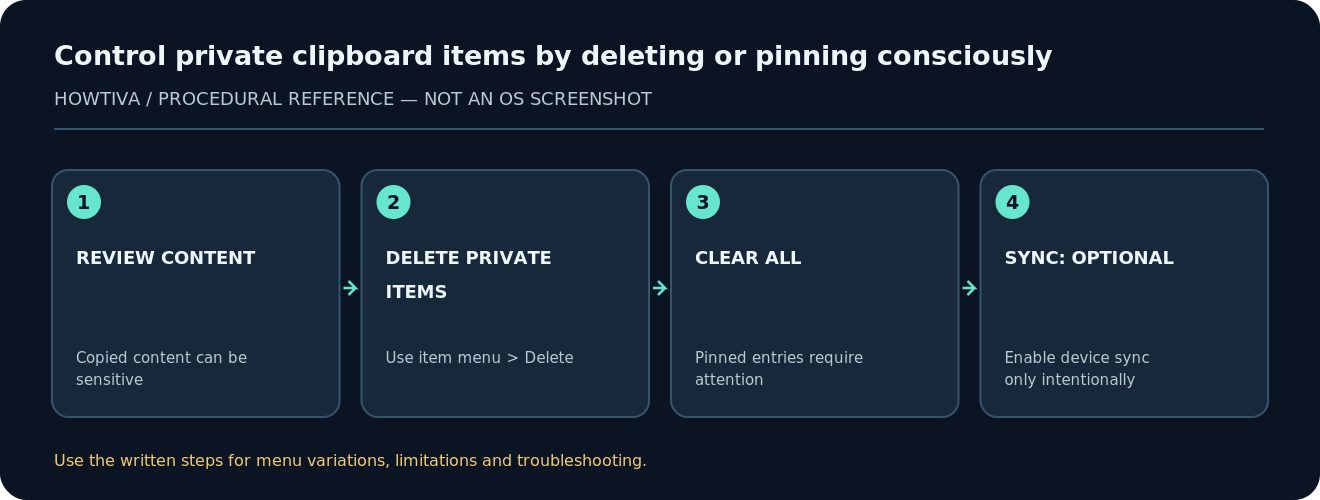
- Open Windows + V and use Delete next to an individual item if just one copied entry needs removing.
- Select Clear all in the panel, or open Settings > System > Clipboard > Clear clipboard data, to remove unpinned history entries.
- Inspect pinned items separately. Microsoft’s clear operation excludes pinned items, so deleting private items may require unpinning and deleting them individually.
- Treat clearing as removing the clipboard-history entries, not as a secure wipe of every temporary copy created by any application or cloud service.
Optional: Sync copied content across devices
Cross-device sync is not required for local history. Microsoft notes that it depends on supported account sign-in and settings. To inspect your options, go to Settings > System > Clipboard and look for cross-device sync. If available, you may see Automatically sync text that I copy and, on some versions, a manual-sync option. Read the implications before activating it: syncing eligible text means transmitting it through a connected service to other devices.
If a work or school PC hides the setting, device policy may block it. Microsoft-account versus work-account and regional behavior can vary. Local clipboard history can still be useful without sync.
Troubleshooting
Windows + V opens an empty panel
First turn history on, then copy a few short lines of ordinary text and try again. Entries copied before enabling history may not be in the list. Also remember that a restart normally clears unpinned history.
An image or copied file does not appear
Not all content types and sizes are retained. Try short text to establish whether the feature works. Use File Explorer or the original app to manage actual files; Clipboard history is not a full file manager.
History disappears after restarting
This is expected for unpinned items. Pin only safe reusable text that needs to persist. If pinned entries also disappear, review account/device policy or whether you are signed in to a different Windows profile.
Paste does not work in one app
Test with a simple text editor to isolate the app. Some password fields, remote desktops, virtual machines and protected applications restrict clipboard interaction. Avoid bypassing the restriction if it is part of a security policy.
Sync will not turn on
Check whether the feature is supported, whether you are using the required account and whether the device is organization-managed. Synchronization is optional and should not be used to store secrets.
Good clipboard habits
Use clipboard history for short, non-sensitive snippets. Confirm the destination application before selecting an entry; paste actions can expose text to other people during screen-sharing. Clear history after using shared computers, review pinned items periodically, and store important information in an appropriate document or password manager rather than relying on the clipboard.
Frequently asked questions
How do I see text I copied before the last item?
Press Windows + V, then choose an earlier entry from the history panel.
Can I recover everything copied last week?
Not necessarily. History has size and entry limits, and unpinned items are normally cleared by a restart. It is not a backup system.
Does Clear all delete pinned items?
No. Review and remove pinned entries separately.
Does clipboard history need an internet connection?
Local history does not require cloud sync. Cross-device sync is a separate optional feature.
Sources & Further Reading
Use the checklists as you go, and confirm the result before moving on to a more involved repair.