How to Freeze Header Rows in Excel
To keep row 1 visible in Excel while scrolling, open the worksheet and select View → Freeze Panes → Freeze Top Row in versions where that option is available.
Quick answer: To keep row 1 visible in Excel while scrolling, open the worksheet and select View → Freeze Panes → Freeze Top Row in versions where that option is available. To keep more than one header row, select the cell below the last row you want visible and choose View → Freeze Panes → Freeze Panes. The frozen region consists of rows above and columns left of the chosen cell.
Freezing is a viewing aid, not a security lock. It does not prevent changes to the row, protect formulas or necessarily control how a printed sheet repeats headings. Check printing settings separately if the spreadsheet must be distributed on paper.
Method 1: Freeze the first row
- Open the workbook and select the correct worksheet. Save a working copy if this is a shared operational file.
- Locate View → Freeze Panes on the Excel ribbon. On desktop versions, select Freeze Top Row when that command is present.
- Scroll down until row 1 would ordinarily disappear. Confirm that the labels are still visible at the top.
- Save the workbook if you want that view retained for the next user who opens it in a compatible Excel version.
The method works when row 1 contains the field labels. If the workbook has a title spanning rows 1–2 and the actual headings appear on row 3, freezing only the top row will not solve your problem.
Method 2: Freeze two or more rows
For example, suppose row 1 is the report title, row 2 holds a date or note, and row 3 contains Name, Department, Status and Owner. Select cell A4 to freeze rows 1–3. Then choose View → Freeze Panes → Freeze Panes. The selected cell itself does not become frozen: Excel uses the space above and left of it.
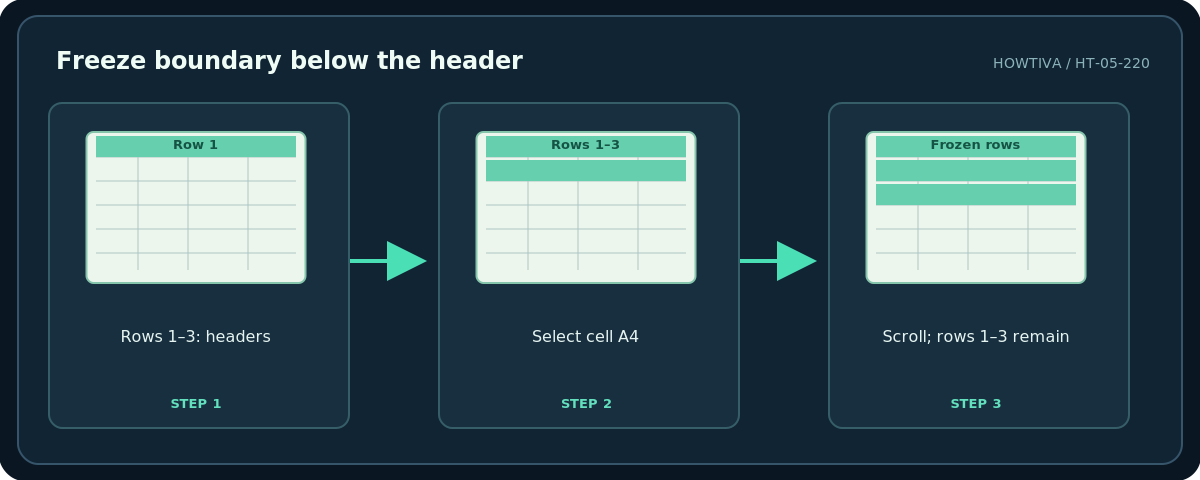
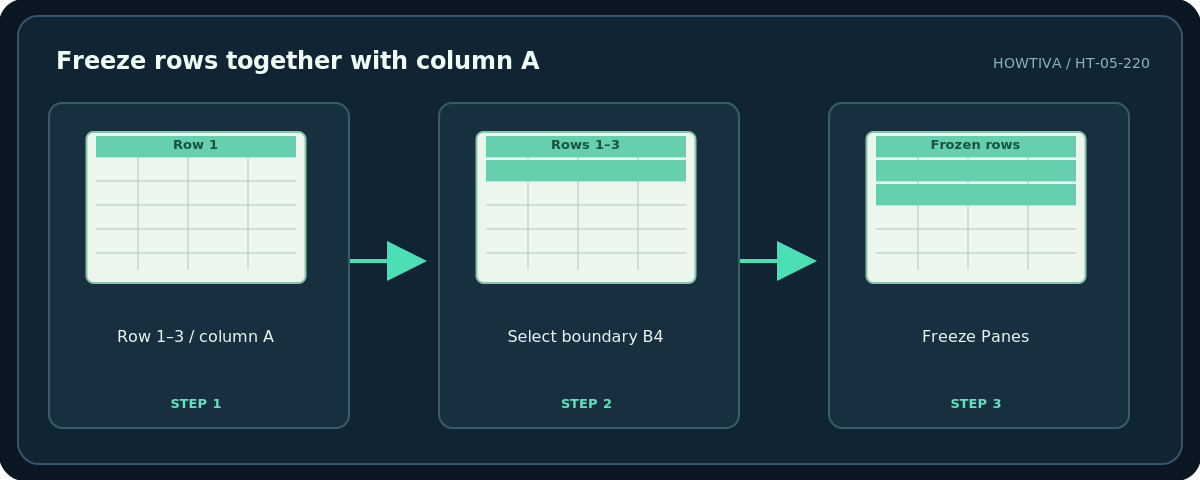
If you need both three rows and column A visible, select B4 and use the same command. That choice freezes rows 1–3 and column A together. To freeze only the first two columns with no header rows, use C1. If your sheet shows a different menu or is currently split, unfreeze existing panes first and consult the version-specific View menu.
Method 3: Unfreeze or change your selection
- Go to View → Freeze Panes.
- Select Unfreeze Panes to clear an existing freeze.
- Select the new boundary cell below and to the right of everything you want anchored.
- Apply Freeze Panes again and test vertical and horizontal scrolling.
A fixed cell selection is easier to audit than repeatedly trying random freeze commands. You can note the boundary cell in internal workbook documentation if colleagues maintain the sheet.
Excel for the web and mobile differences
The exact submenu location and commands can differ between Windows, Mac, web and mobile releases. Use the application’s View controls or the current Microsoft help for your version. On smaller screens, commands may be hidden behind menus; avoid inventing a tablet gesture. If a recipient’s client does not preserve the view, the underlying row data is still intact.
Troubleshooting
The wrong rows stay visible. Unfreeze, select the first cell below the target rows, then freeze again. For three header rows the boundary is row 4, not row 3.
Unexpected columns stay visible. You selected a column other than A when freezing. Choose a boundary in column A if you want only rows to remain fixed.
The command is unavailable. Check whether the workbook is in a special editing mode or the client has limited functionality. Try a supported desktop or browser version without claiming every license includes the same controls.
The printed pages do not repeat headers. Freeze Panes affects scrolling, not print titles. Use the applicable Page Layout / Print Titles workflow and confirm in print preview.
Frequently asked questions
Does freezing protect the data?
No. For edit permissions or formula protection, use sheet protection and access controls, which are different features.
Can I freeze nonadjacent rows?
Not directly with ordinary Freeze Panes. The frozen area is the contiguous region above the boundary.
Why do columns freeze as well?
Any columns left of the selected cell are also frozen. Select the intended boundary precisely.
Sources & Further Reading
- Microsoft — Freeze panes to lock rows and columns — Rows above and columns left of selected cell; unfreeze command.
Use the checklists as you go, and confirm the result before moving on to a more involved repair.