How to Organize Gmail with Labels
On Gmail in a desktop browser, look in the left sidebar beside Labels and select Create new label. Give it a clear name such as Projects, Bills, or Follow-up.
Quick answer: On Gmail in a desktop browser, look in the left sidebar beside Labels and select Create new label. Give it a clear name such as Projects, Bills, or Follow-up. Select one or more messages, click the Labels icon, and apply the label. You can then locate those messages by clicking the label in the sidebar.
Labels are not ordinary folders. One email can have several labels; removing one label doesn’t necessarily remove the email from another label. Archiving removes the Inbox label without deleting the message, while deleting removes it from your ordinary label views and moves it to Trash.
Step 1: Design a small label system
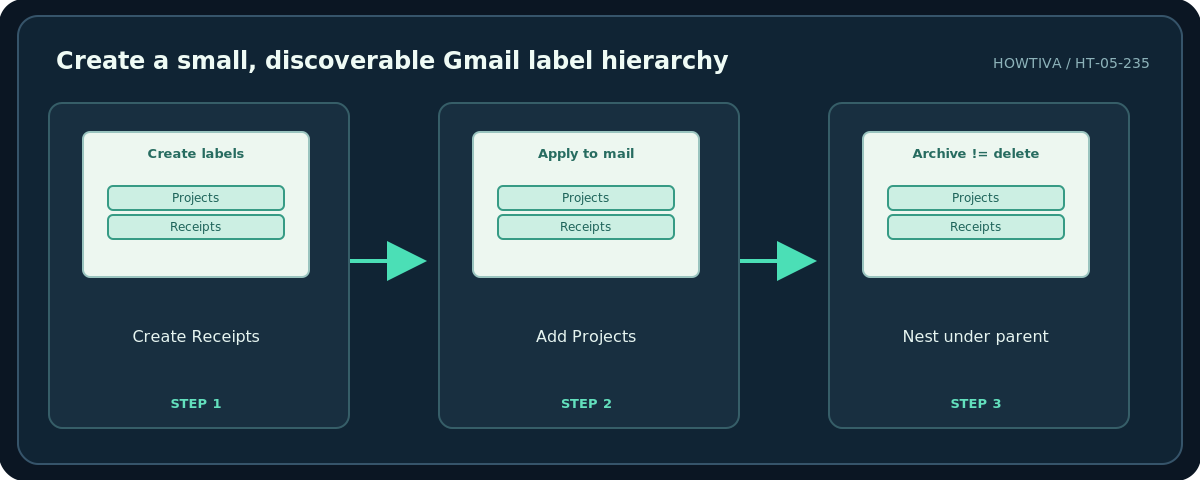
Start with three to six labels based on what you actually need to find. For example: Action needed, Waiting, Receipts, Projects, and Reference. Prefer labels describing the next action or type of material over dozens of overlapping topic names. You can nest labels such as Projects/Website underneath Projects where that improves navigation.
Avoid putting sensitive client names in labels on a shared-screen demonstration. Your Gmail labels are personal to your own account; recipients do not see labels you apply. If you use a team mailbox managed through another tool, its organization may behave differently.
Step 2: Create and apply a label
- Open Gmail on your computer and expand the left navigation panel if necessary.
- Beside Labels, click Create new label. Type a short name, for example
Receipts. - To nest it, select Nest label under and choose a parent. Confirm creation.
- Select one or more messages using the checkboxes beside them. Click the Labels icon in the upper toolbar.
- Select the label or labels to apply and confirm. Open the sidebar label to check the chosen messages appear there.
- For labels used frequently, consider making them visible in the left sidebar. Options for showing/hiding labels are available in Gmail settings.
Step 3: Combine labels with archive and search
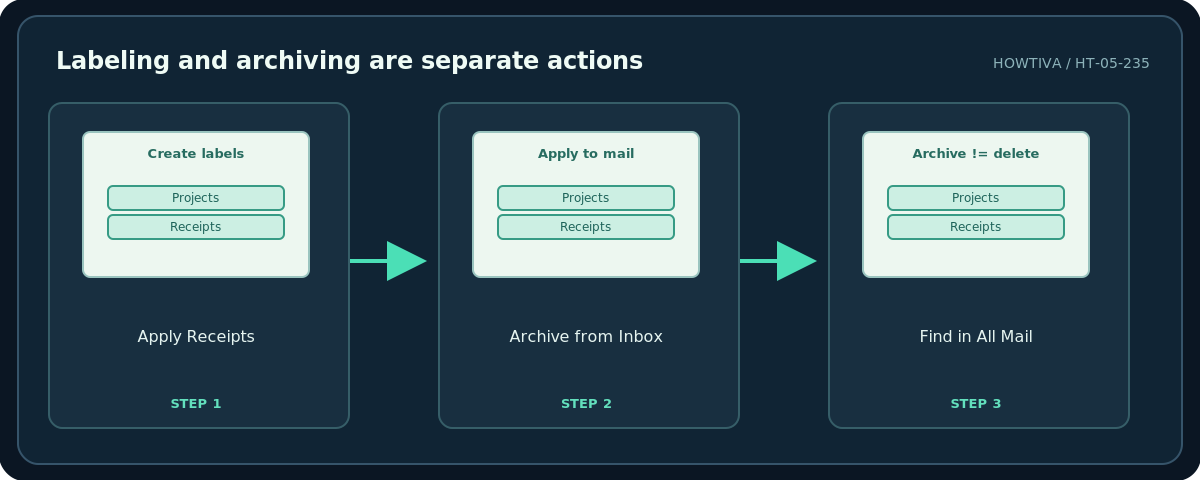
Suppose a paid invoice no longer requires action. Apply Receipts, then click Archive. The message leaves Inbox but stays under Receipts and is still searchable in All Mail. Do not choose Delete when you mean Archive. To add the same email to Projects too, apply both labels; Gmail does not force a single home folder.
For a busy inbox, create a filter on desktop that automatically applies a label to future incoming messages matching tested criteria. Use non-destructive actions first, and preview matches before choosing Skip Inbox or Delete. Not every conversation reply is guaranteed to match an older filter.
Use Gmail labels on mobile
On Android, Gmail Help documents Menu → Create label to add a label. For individual messages, open or select the message and use its labeling options. The iPhone app may arrange management commands differently. If the menu does not show the creation tool, use Gmail on a desktop browser rather than inventing a hidden gesture.
Clean up a growing label list
Merge ideas conceptually before renaming or deleting labels. If you rename a label, references to the label name in your personal workflow may need updating. If you delete a label, the messages ordinarily remain in your mailbox unless separately deleted; however, do not assume that an automated filter referencing the old label updates as intended. Review Filters and Blocked Addresses after label changes. Search for duplicate or unused labels periodically.
Troubleshooting
A labeled email still appears in Inbox: Applying a label does not archive it. I cannot find a message after archiving: Search Gmail, open All Mail, or click its label. The email shows two labels: That is normal; labels are nonexclusive. A filter did not label the reply: The reply might not satisfy the filter criteria. I cannot create a label in an external email app: The other app may map labels to folders differently; use Gmail itself for reliable setup.
Frequently asked questions
Can recipients see my labels?
No. Personal Gmail labels are for organizing your account.
Can an email have several labels?
Yes. That is a key difference from a single-folder organization model.
Is deleting a label the same as deleting every email in it?
No. Deleting the organizational label is not generally the same action as deleting each message.
Sources & Further Reading
- Gmail Help — Organize & archive email — Labels vs folders, multiple labels, creating and archiving.
- Gmail Help — Create & manage labels — Label creation and editing on supported Gmail apps.
- Gmail Help — Create rules to filter your emails — Applying labels with filters and when replies are affected.
Use the checklists as you go, and confirm the result before moving on to a more involved repair.