How to Recognize a Phishing Email
Do not follow unexpected email login or payment links. Verify the request through a known official channel.
Quick answer: Treat an unexpected email that urges you to log in, pay, download a file or reveal a one-time code as unverified. Do not use its buttons or attachments. Open the sender’s service independently using a known bookmark or official app, check whether the claimed issue exists there, and report the suspicious message in your email provider.
Phishing is an attempt to make you perform an action that benefits an attacker. Many phishing messages now have good grammar, real-looking logos and legitimate-sounding details. A single sign of authenticity is not enough; verifying through a separate channel is more reliable than guessing from appearance.
Check a suspicious email without opening its links
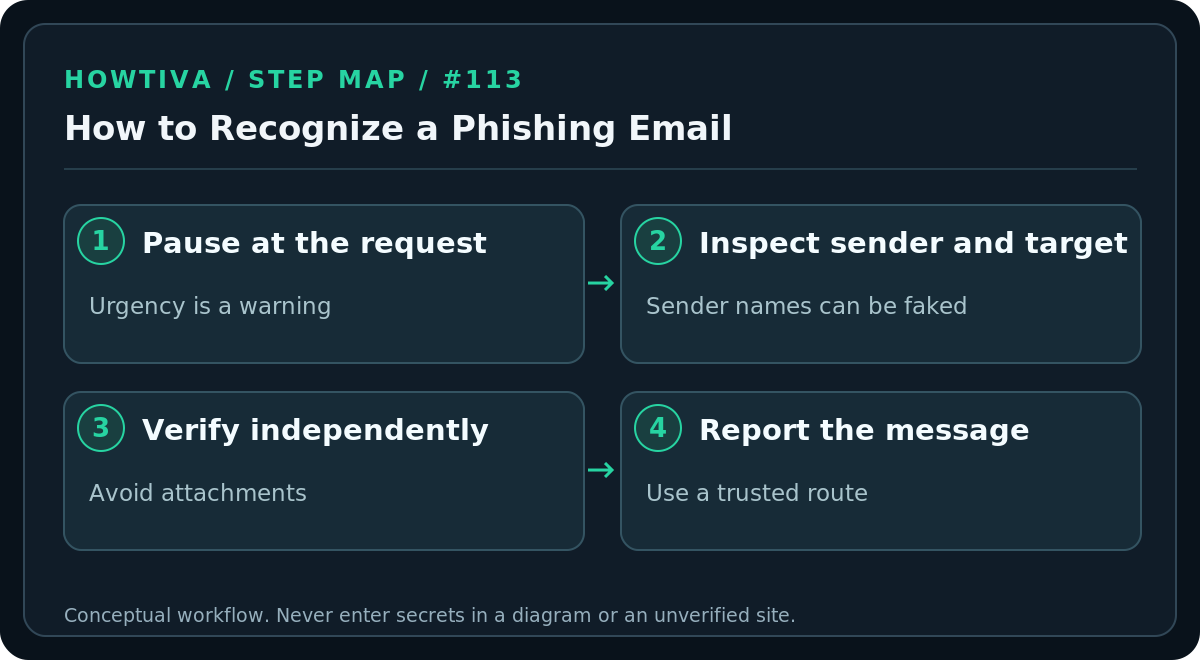
- Stop at the request. Is the message pushing you to “verify now,” enter a password, approve a sign-in, open an invoice or transfer money? Time pressure should prompt extra checking.
- Read the full sender address if your mail program shows only a display name. A display name can be copied. The sender address can also be forged or compromised, so this is a clue—not proof.
- Inspect the actual destination without visiting it. On a desktop, hovering may show the address; on mobile, a long press may preview it, but pressing can behave differently by app. If you cannot preview safely, skip the link entirely.
- Look for a domain mismatch. An email claiming to be from your bank but directing you to an unrelated hostname deserves independent verification. Watch for misspellings, extra subdomains and unfamiliar URL shorteners.
- Open the known service yourself. Use a stored bookmark, official app or a domain you have independently confirmed; check notifications or account messages inside it. If needed, call a contact number from a statement or the official site, not the email.
- Report, then remove the message. Gmail on desktop offers More → Report phishing. Other mail apps have provider-specific reporting tools. Follow your employer’s security team process for work email.
Do not forward a potentially malicious attachment to friends asking “is this real?” A screenshot of the message without sensitive information, or a report through approved tools, is generally safer. Some organizations ask staff to use a dedicated phishing-report button so their analysts can review the full original message.
Common warning signs, and their limitations
Urgency and threats: “Your account will close in 30 minutes” exploits anxiety. Genuine services can send urgent notifications too; the distinguishing step is checking the claim through a trusted route.
Unexpected files or payment requests: A surprise PDF invoice, document-sharing invitation, QR code or bank-detail change needs confirmation. Attachments and links can install malware or lead to credential-harvesting pages.
Branding and writing style: Logos, sender names and polished English can be forged. Poor spelling is a warning sign, but clean spelling is not a green light.
Authentication indicators: A message passing email authentication checks is not automatically safe; attackers can send phishing from their own properly configured domains or compromised legitimate accounts. The safest check remains independent verification of the requested action.
Report phishing in common email services
For Gmail on a computer, open the suspicious message, select the More menu next to Reply, then Report phishing, according to Google’s official help. This reports the message to Gmail; it does not cancel a bank transaction or reset your password. For Microsoft Outlook, Apple Mail or a company mailbox, find that provider’s current phishing-report feature or use your organization’s established abuse channel. The menu may vary across desktop, browser and mobile versions.
You can also forward phishing email to the Anti-Phishing Working Group at reportphishing@apwg.org or report scams to the US FTC at ReportFraud.ftc.gov, as applicable. Avoid sending private medical, financial or personal material to unrelated third-party “checkers.”
If you already clicked or replied
Opened a webpage but entered nothing: Close it, do not grant browser permissions and check that you did not download or run software. Update your browser and system. A mere click does not automatically mean all accounts are compromised, but it can warrant caution.
Entered a password: On a different trusted route, change the password for that real service immediately, replace it on other services where it was reused and review active sessions and MFA methods. If the email password was exposed, inspect forwarding rules and recovery settings.
Entered a one-time code or approved an unfamiliar prompt: Treat it as possible active account compromise. Secure the real account immediately and contact its official support through a known channel. Do not send any more codes to “reverse” the problem.
Installed or ran an attachment: Disconnect the affected device from networks if you suspect active malware, follow your organization’s incident process when applicable, and use reputable security tools or professional assistance. A scan that finds nothing does not guarantee the device is clean.
Troubleshooting
- You cannot reveal the link destination on a phone: Don’t risk tapping it. Use the official app or navigate independently.
- The message appears to come from your colleague: Contact them through a different established channel. Their mailbox may be compromised.
- A legitimate message was sent to Spam: Verify it independently before marking it safe. Providers have false positives.
- You keep receiving copies: Report and block as appropriate; do not reply “remove me,” which can confirm that your address is active.
FAQ
Is a padlock icon enough to make a link safe? No. HTTPS protects transport but can also be used by fraudulent websites.
Can I trust an email with my name and account details? Not automatically. Such details may be publicly available or exposed in an older breach.
Sources & Further Reading
- FTC phishing signs and responses — untrusted links, signs, multi-factor and APWG/FTC reporting.
- Gmail avoid and report phishing — Gmail More > Report phishing desktop flow.
- Chrome unsafe site warnings — warning and lookalike domains.
Use the checklists as you go, and confirm the result before moving on to a more involved repair.