How to Recover a File from Mac Trash
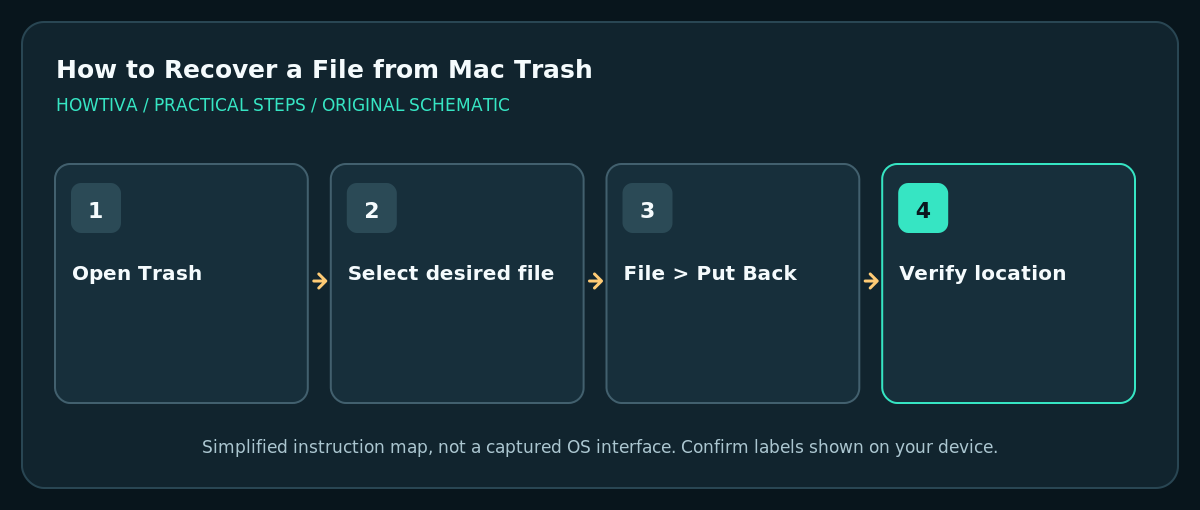
Click the Trash icon in the Mac Dock, select the file, then choose File > Put Back to restore it to its original location.
Quick answer: Click the Trash icon in the Mac Dock, select the file, then choose File > Put Back to restore it to its original location. You can also drag a file out of Trash to a folder you choose. If Trash was emptied, look for a Time Machine backup or supported cloud recovery.
Trash is macOS’s holding area for many files you delete in Finder. Items commonly remain there until you empty Trash, but that is not an unlimited archive: automatic emptying settings, iCloud Drive retention rules and permanent deletion can remove the normal undo route. Recover first, clean up later.
Restore a file with Put Back
- Click the Trash icon at the end of the Dock. If you cannot see the Dock, move the pointer to the configured screen edge and wait for it to appear.
- Browse for the filename or preview the item using Finder’s available views. Confirm that it is the right file before restoring.
- Click the file once to select it, then choose File > Put Back from the Finder menu. You can also Control-click the item and choose Put Back if that option is shown.
- Open the original Finder folder and check the document or image. If the original folder no longer exists, review the behavior or error rather than moving unrelated files.
- An alternative is to drag the file out of Trash to a known safe location such as a project folder or the Desktop. This is helpful when you do not want to return it to the old location.
Do not empty Trash during recovery
Finder’s Empty Trash command deletes the items currently stored there. Avoid this action until you have confirmed every item you need is restored. Some users enable an automatic remove-after-30-days option under Finder > Settings > Advanced. In addition, items deleted from iCloud Drive have their own retention behavior. Do not assume a file will stay in Trash forever merely because you have not manually emptied it.
If it was an iCloud Drive file
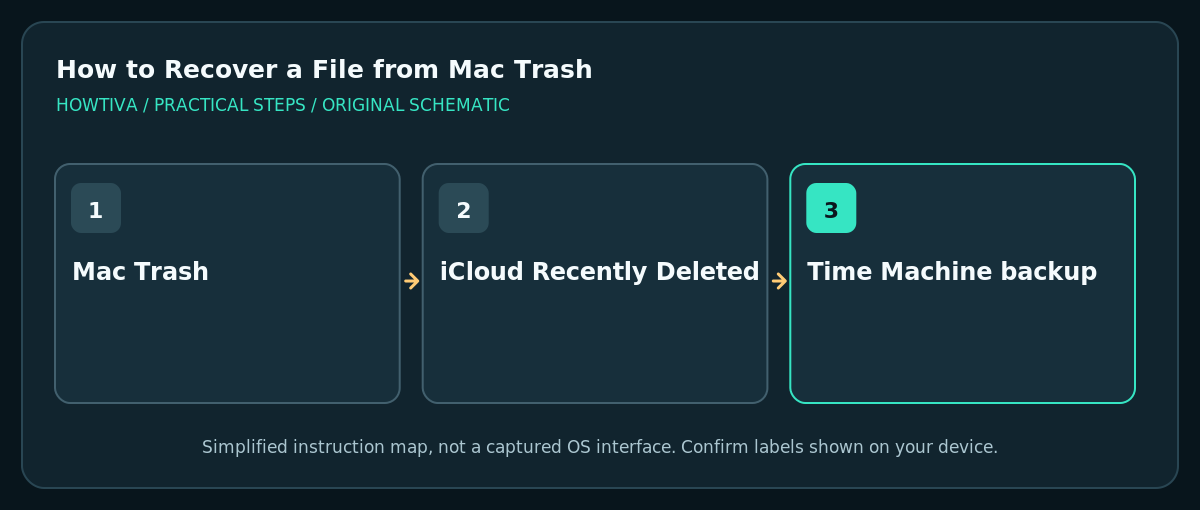
- Check Mac Trash first. If you use iCloud Desktop & Documents syncing, a deletion may affect the same file across your Apple devices.
- If the file is not there, visit icloud.com/iclouddrive and check Recently Deleted with the correct Apple Account.
- Select only the desired file and choose Recover if Apple presents that option. Apple generally permits recovery of eligible recently deleted iCloud Drive files for up to 30 days, but permanently removed items cannot be restored through this route.
- If needed, check icloud.com/recovery for other supported file recovery categories. Avoid editing or deleting other iCloud Drive data during a recovery process.
If Trash was emptied
Check whether the missing document exists in a Time Machine backup made before deletion. In Finder, open the location that previously held the file and browse available backups, choosing a suitable earlier snapshot. Do not overwrite a newer version without comparing it. For very important work that exists nowhere else, minimize writes to the affected storage and seek qualified recovery support; recovery is not assured.
Troubleshooting
Put Back is not available
Confirm the file is selected inside Trash and belongs to a path where Finder can restore it. Drag it to a safe ordinary folder as an alternative. A file from a disconnected external disk may require reconnecting the correct volume.
The file was deleted in Photos, Mail or another app
Those apps may have their own Recently Deleted or Trash views; Finder’s Trash may not contain the item. Check the app’s supported recovery options first.
The same filename already exists
Compare the versions and preserve both when possible rather than automatically replacing one. File names alone do not tell you which copy contains the latest changes.
The file keeps disappearing again
If the folder syncs with iCloud Drive or another service, verify which device and account initiated deletion. Avoid repeated restores while an unresolved sync conflict continues.
Frequently asked questions
Does Trash automatically empty itself?
It can if the Finder remove-after-30-days option is enabled; iCloud Drive items follow separate retention rules as documented by Apple.
Does Put Back work for a whole folder?
It generally works for selected folders as well as files when Finder can determine the previous location.
Can I recover files permanently deleted from iCloud?
Not via the ordinary Recently Deleted recovery controls. Check independent backups, and do not assume the cloud provider can recover a permanently deleted item.
Sources & Further Reading
- Apple — Delete files and folders on Mac — Put Back, drag-out, Empty Trash and automatic removal.
- Apple — Recover deleted files on iCloud.com — Recently Deleted and 30-day retention boundaries.
- Apple — Restore items backed up with Time Machine — Recovery from a historical backup.
Use the checklists as you go, and confirm the result before moving on to a more involved repair.