How to Rotate Pages in a PDF
To fix sideways pages permanently, open the PDF in Adobe Acrobat, go to All tools → Organize pages, select the affected page thumbnails, choose Rotate left or Rotate right, and save a copy.
Quick answer: To fix sideways pages permanently, open the PDF in Adobe Acrobat, go to All tools → Organize pages, select the affected page thumbnails, choose Rotate left or Rotate right, and save a copy. On a Mac, Preview → View → Thumbnails lets you select pages and use the Rotate button. Merely rotating the viewing window is not the same as saving the page orientation.
A PDF can contain a mixture of portrait and landscape pages. The correct fix depends on whether the page itself is sideways or you just want to read it temporarily. Work from a duplicate so you can restore pages and annotations if anything changes unexpectedly.
Decide which pages to rotate
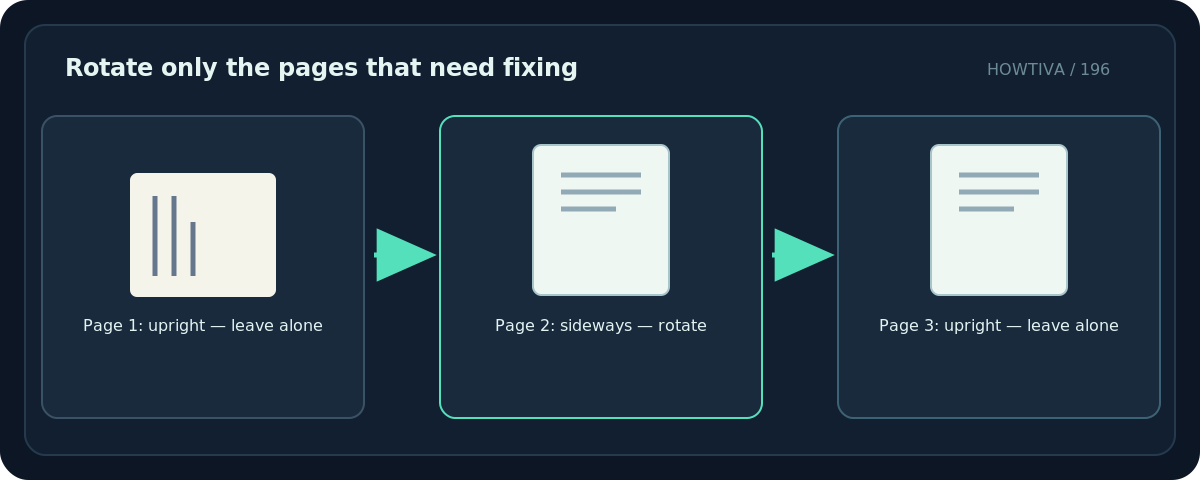
- One sideways scan: rotate only that page; do not rotate the whole document.
- Several pages with the same wrong orientation: select the exact thumbnails or use a supported page range.
- A landscape chart that is meant to be landscape: leave it in landscape unless the recipient specifically needs a different orientation.
- An incorrectly scanned page: rotation changes orientation; it does not automatically straighten a tilted scan or repair text recognition.
Method 1: Save a permanent page rotation in Adobe Acrobat
- Open the PDF in Acrobat with the Organize pages feature available in your edition. Keep the original file unchanged.
- Choose All tools → Organize pages. Confirm the visible thumbnails belong to the intended PDF.
- Select the page you want to correct. For multiple pages, use Acrobat’s selection and page-range controls. Adobe documents choices for odd, even, all, and manually entered pages.
- Choose Rotate page left for 90 degrees counterclockwise or Rotate page right for 90 degrees clockwise. Repeat as required for a 180-degree correction.
- Inspect the first affected page, the last affected page, and at least one page that should not change. Save the edited PDF with a new filename.
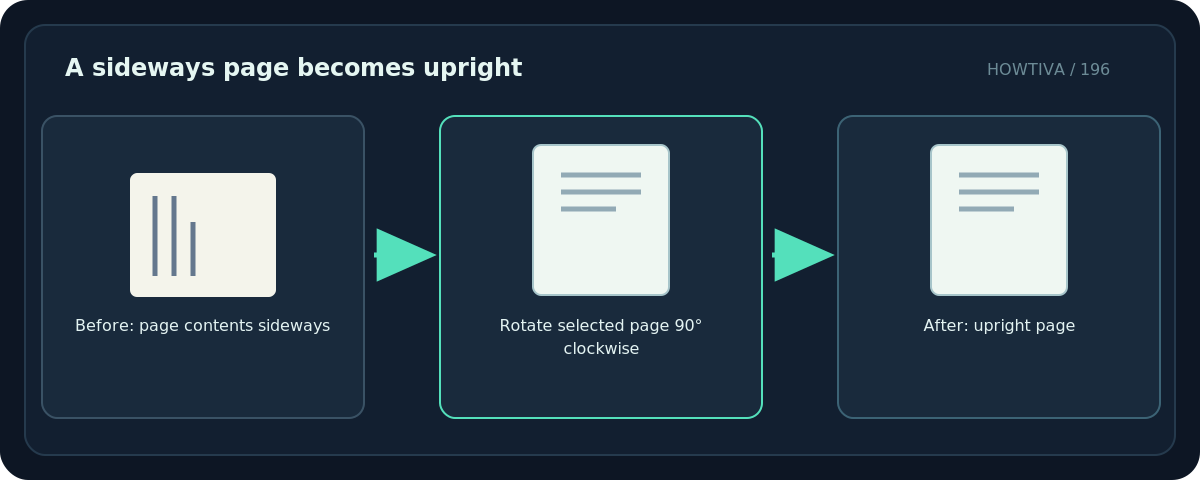
Do not confuse two different commands: Adobe’s View → Rotate view only changes what you see for that session; it does not change the underlying document rotation. If you need recipients to see the corrected orientation, use Organize pages and save the file.
Method 2: Rotate one or multiple PDF pages in Preview on Mac
- Open the PDF in Preview and choose View → Thumbnails (or View → Contact Sheet).
- Select the single page thumbnail you want to rotate. For a group, select the intended pages in the sidebar; double-check the selection before modifying them.
- Click Rotate Left. To rotate right, hold Option while clicking Rotate Right, as Apple describes. Repeat if a page is upside down.
- Compare selected and unselected thumbnails. Choose File → Save or save a duplicate depending on your workflow, then close and reopen the result to confirm the stored orientation.
Preview is included with macOS. On Windows, Preview is not available. If you only have a browser viewer or a free reader, its rotate button may adjust the view rather than the PDF file; check whether your app offers document-page editing and whether that feature is part of your plan.
Troubleshooting: why did the page turn back?
The page looks correct until you reopen it. You may have rotated the view instead of the page, or left the document unsaved. Open the saved output in a second PDF viewer to verify the result, rather than relying on the still-open session.
Every page rotates when only one should. Undo the operation if possible and select the exact page thumbnails before repeating. In Acrobat, verify whether the dropdown is set to All pages, Odd pages, Even pages or a typed range.
Text is now upright, but the margins are strange. Rotation does not crop excess blank paper or change the content’s position. Do not use cropping as a method to hide confidential data; the hidden portions might still exist in the PDF.
Rotation is disabled. The file might be protected, restricted by its owner, or opened in an app without editing features. Ask for an editable copy or use an authorized PDF editor. Do not attempt to bypass permissions.
Check the saved PDF before sharing
Open the saved copy, scroll through every page, and confirm that headers, tables, signatures, page numbers and annotations still appear correctly. If the PDF has a clickable form or digital signature, changing pages may affect document validation; work on a copy and confirm the workflow requirements before resaving a signed record.
Frequently asked questions
Can I rotate just page 2 of a PDF?
Yes. Select only page 2 in Acrobat’s Organize pages view or Preview’s Thumbnails sidebar, rotate it and save a copy.
Can I fix a skewed scan with Rotate?
Not precisely. Rotate handles right-angle orientation. Deskewing a page tilted by a few degrees requires a scan-enhancement or deskew feature.
Does rotating a PDF edit its text?
No. It changes page orientation; it is not a text-editing or OCR operation.
Sources & Further Reading
- Adobe — Rotate pages in PDFs — Acrobat Organize pages, rotation ranges and Rotate view limitation.
- Apple — Crop or rotate a PDF in Preview — Preview rotation of one or several selected pages.
Use the checklists as you go, and confirm the result before moving on to a more involved repair.