How to Share Your Location from an iPhone
Use Find My for ongoing sharing or Messages for a live location or fixed pin.
Quick answer: To let someone follow your location as you move, open Find My → People → + → Share My Location, choose the person and set how long to share. In a Messages conversation, you can also tap + → Location → Share. To send only one place without live tracking, send a pin instead. These are different actions: a pin stays fixed, while live sharing updates.
This guide follows Apple’s iOS 27 instructions. If you have an older iOS version, the icons and placement may differ. Location-sharing availability can also depend on your country, Apple Account settings, Location Services and whether the recipient can receive the type of sharing you choose. Do not assume that sending a map screenshot shares your continuing location.
Share your live location using Find My
- Open Find My and choose the Me tab.
- Turn on Share My Location. If the wrong Apple device is selected for location sharing, choose Use This iPhone as My Location where shown.
- Select the People tab, then tap + and choose Share My Location.
- Choose a person from your contacts or enter their name in the recipient field. Check the person carefully before continuing.
- Tap Done, then choose a duration. Use a short duration for a meeting or a longer one only when you deliberately want continuous visibility.
- Ask the other person to confirm they can see you. If they cannot, check Find My permissions and that you have usable connectivity.
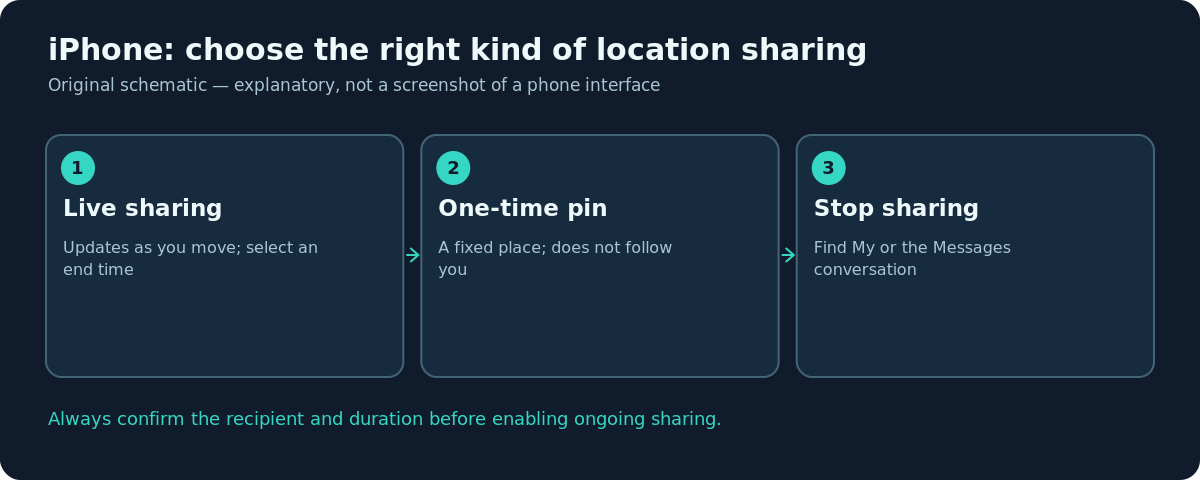
Before sharing, consider who might have access to the recipient’s device or account. Your live location can reveal travel patterns, home and work locations and when you are away. A duration is a privacy control, not just a convenience setting.
Share from a Messages conversation
Open Messages, choose the existing conversation, tap +, choose Location, then Share. Select the duration and send the location item. Apple’s current iPhone guide says shared location updates in real time inside the conversation, with Find My powering the feature. This is useful when planning to meet someone you already message regularly.
For a one-time location, open the same Location sheet and choose the Map Pin control. Move the map to the place you want, then Send Pin. That pin does not change as you travel. For a meeting point such as a café or entrance, a static pin may be more precise and more private than an ongoing share. In an SMS conversation, a pinned location is also a practical alternative.
Always review the map before sending a pin. It can be your current spot, but it can also be a destination you move the pin to. The recipient sees the place you sent, not necessarily where you stand at the moment they open it.
Stop location sharing
To stop sharing with one person, use Find My → People, select their name and choose Stop Sharing My Location. You can also open the Messages conversation, tap the person’s name at the top and select Stop Sharing My Location where the active share appears. To suspend sharing more broadly, check the Me tab and turn off Share My Location if that is your intent.
Do not rely on simply closing an app, putting the iPhone in your bag, or muting a conversation to stop an existing live share. Review the actual sharing setting. If you repeatedly share with different people, occasionally audit the People list so old permissions do not linger longer than intended.
Location Services and account checks
If the other person sees Location Not Available, start with Settings → Privacy & Security → Location Services. Confirm Location Services is on, then review permissions for Find My. Apple’s Find My instructions also say the active device must be set as the one sharing your location. On devices with several Apple products, it is possible to share from a different device than the iPhone you are carrying.
Check whether the iPhone has Wi-Fi or mobile-data access; a location cannot continually update when the phone is unreachable. A stale marker is not proof that someone is currently at that position. If the option does not appear for a recipient, try a fixed pin and check Apple’s regional availability notes rather than changing settings at random.
Choose a safer way to meet someone
For a one-off pickup, share the meeting point and an approximate arrival time instead of granting ongoing location access. For a trusted friend accompanying you on a journey, live sharing with a clear end time may be appropriate. If you are concerned about unwanted tracking, stop active shares and inspect your device’s privacy permissions. Avoid posting a live link to a public group or social profile.
For travel or emergency situations, remember that a location share depends on the phone having sufficient service and power. It is not a substitute for contacting local emergency services when immediate help is needed.
Troubleshooting
- Recipient gets a pin, not a moving dot: You may have selected Send Pin instead of Share. Start a live share deliberately if required.
- Wrong location is shown: Check Use This iPhone as My Location in Find My and verify Location Services.
- The share ended too early: Inspect the duration you selected; start a new share with a suitable time window.
- Recipient cannot view your shared position: Recheck the intended account/contact, network access, regional availability and permission settings.
- You want privacy now: Stop the share directly in Find My or Messages; do not depend on app closure.
Frequently asked questions
Will a pinned location follow me around?
No. A sent map pin describes a fixed location. Choose live sharing only when continuous updates are intentional.
Can I choose who sees my location?
Yes. Apple’s Find My sharing flow selects individual recipients and a duration. Review that list periodically.
Does turning off a Messages notification stop sharing?
No. Notification settings are separate from sharing controls. Stop the share itself.
Is it safe to share live location indefinitely?
That depends on your circumstances and trust in the recipient. Short-lived shares reduce unnecessary exposure when you only need to coordinate a meeting.
Sources and further reading
- Share your location in Find My on iPhone — Apple iPhone User Guide (iOS 27).
- Share your location in Messages on iPhone — Apple iPhone User Guide (iOS 27).
Use the checklists as you go, and confirm the result before moving on to a more involved repair.