How to Share Your Location from Android
Google Maps lets you share live location with a chosen person or send a link with limited duration.
Quick answer: Open Google Maps on your Android phone. Tap your profile picture → Location sharing → New share, set the duration and select the person. Tap Share. If you need to stop, go back to Location sharing, select that person and tap Stop. This shares changing location, not merely a screenshot of a map.
Google Maps is the main cross-brand method covered here, whether you use a Pixel, Samsung or another Android phone with Google services. Other apps may have their own location-share controls. You need the right Google Account and working location permissions; an organisation-managed account or an age restriction can affect availability. These steps reflect Google’s support instructions checked in October 2026.
Share live location with a Google contact
- Turn on Location in Android Settings if it is off. Then open the Google Maps app and check the account shown under your profile photo.
- Tap the profile picture or initial, then Location sharing.
- Choose New share. Set how long you want the person to see your position.
- Choose the intended contact. Google’s documented person-to-person sharing flow may require the contact’s Gmail address to be in Google Contacts.
- Tap Share. Check the recipient and the duration before confirming.
- Return to the Location sharing page afterward to review who has access.
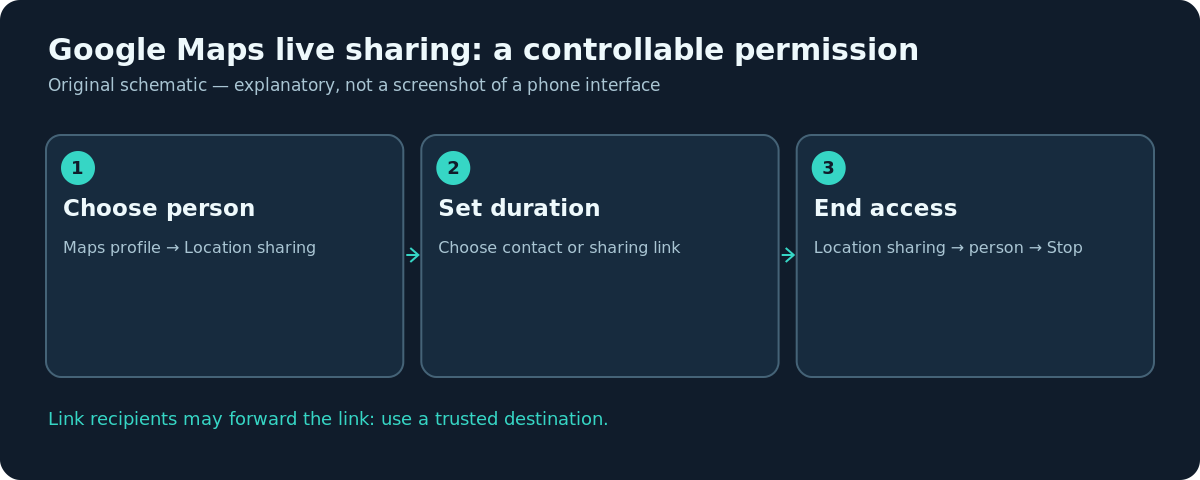
People with whom you share can see more than a map dot. Google says they may also see your name, profile photo, recent device location, battery power and charging state; depending on settings they may set arrival or departure notifications. This is why the recipient and duration matter even if the sharing interface looks informal.
Share a link instead of choosing a contact
To send location access to someone who does not have a Google Account, Google Maps supports a link-based option: open Location sharing → New share, choose Copy to clipboard where available, then paste the link into a text, email or another messaging app. Google’s current documentation limits this type of real-time link access to up to 24 hours. The link is not the same as a private, single-recipient account permission: someone who receives a forwarded link may also use it.
If you only want to send a meeting spot, search for the place in Maps and share the place itself rather than your live location. A location marker for a restaurant entrance can be enough for a pickup and avoids continuous tracking. Confirm the marker is on the correct entrance or side of the street before sending.
Stop sharing with one person
Open Google Maps → profile picture → Location sharing. Select the person you want to remove and tap Stop. Check that the active share has disappeared. You can stop one person without necessarily stopping a different share, so review the list rather than assuming one tap ends every active permission.
If you used a link, check the share’s status and expiry time. A copied link may remain in message histories even after access expires; that is still a reason to avoid posting it publicly. When arranging a temporary meeting, set a short time window from the beginning.
Share a journey’s progress instead
For a journey with navigation running, Google Maps offers Share trip progress. Start navigation, pull up the information card and choose Share trip progress, then pick the recipient. Google says the shared destination, estimated arrival time and current location stop sharing when you arrive or end navigation. This is a better fit for someone waiting for you than allowing open-ended all-day access.
The exact appearance of trip sharing can depend on the mode of travel and Maps version. If you do not see the control, use ordinary Location sharing with a short limit instead of assuming the trip-share option exists on every navigation screen.
If sharing is inaccurate or unavailable
Start with the basics: device Location enabled, Maps updated, correct signed-in Google Account, and mobile data or Wi-Fi functioning. Give the phone a moment outdoors or near a window if its location is wildly inaccurate. Indoor GPS signals can be poor; a dot on a map is an estimate, not proof of an exact position or even that the device holder is safe.
If you cannot share beyond a day with a particular person, Google’s support page describes account and age-verification conditions. The quickest workaround may be a short-lived link, but do not use it where you need account-only access. For recipients without Gmail accounts, a Maps link can be more compatible than selecting them as a Google contact.
Troubleshooting
- Location sharing menu is missing: Confirm the Google Maps app, not just the browser, is open and the account supports the feature.
- Wrong account appears: Tap the profile image and switch to the Google Account whose contact list you intend to use.
- The person can’t find your position: Ask them to open the current share rather than an old screenshot, and check your Location Services and connectivity.
- Link has expired: Start another share only if continued access is still appropriate.
- Recipient can see battery status: This is documented sharing information, not necessarily a bug; stop sharing if you do not want it exposed.
Frequently asked questions
Can I share location from a Samsung Galaxy with these steps?
Usually yes, if the phone runs the supported Google Maps app and has the necessary account and permissions. Samsung also has other sharing features with different controls.
Can people follow a Google Maps location-sharing link indefinitely?
Not under the documented link option: Google limits link-based real-time sharing to up to 24 hours. Account-based shares have separately chosen durations.
Can I send just one place?
Yes. Share a selected map place or pin instead of enabling the live Location sharing feature.
How do I know I really stopped sharing?
Open Maps’ Location sharing management view and confirm the recipient is no longer listed as receiving an active share.
Sources and further reading
- Share your real-time location with others in Google Maps — Google Maps Help.
Use the checklists as you go, and confirm the result before moving on to a more involved repair.