How to Silence Unknown Callers on iPhone
In current iOS, open Settings > Apps > Phone > Screen Unknown Callers and choose Silence. Calls from numbers not saved in your contacts are silenced and sent to voicemail rather than ringing normally.
Quick answer: In current iOS, open Settings > Apps > Phone > Screen Unknown Callers and choose Silence. Calls from numbers not saved in your contacts are silenced and sent to voicemail rather than ringing normally. Apple also offers Never and, on supported versions, Ask Reason for Calling—a screening option that is not the same as blocking.
Before you turn on Silence, add important family, medical, school and work numbers to Contacts. Legitimate calls from unsaved numbers can otherwise be missed. Carrier voicemail and regional call features can affect what happens to the call.
Silence numbers you have not saved
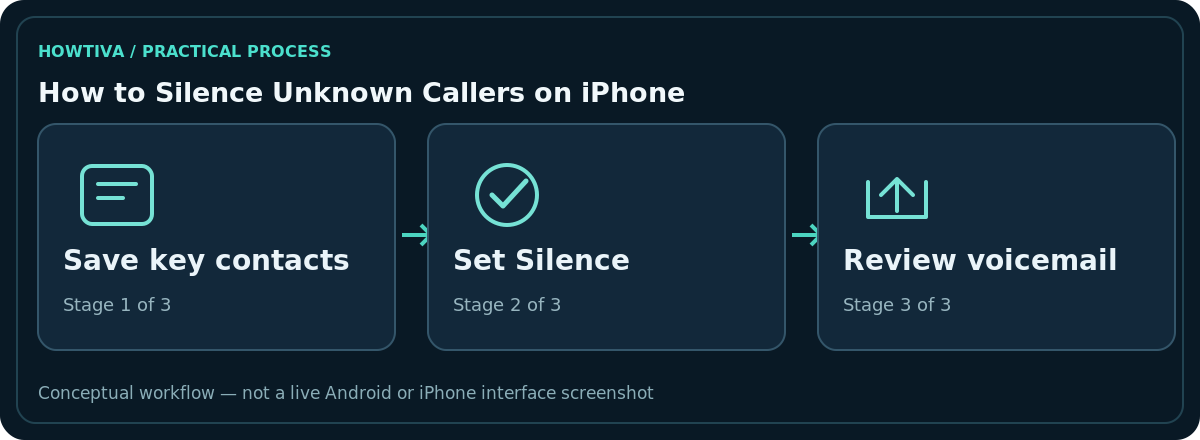
- Open Settings, scroll to Apps, and select Phone.
- Find Screen Unknown Callers. If you are on an older iOS build, search Settings for unknown callers; the menu may be named or grouped differently.
- Choose Silence, then leave Settings.
- Confirm that voicemail is configured with your mobile carrier if you need callers to leave a message.
- Review recent calls and voicemail periodically because a legitimate caller might not ring through.
This affects calls from unsaved numbers, not only verified scam calls. It does not mean the caller’s phone number has been permanently blocked. Apple notes that calling emergency services can temporarily turn off call screening for 24 hours.
Understand all three modes
Never lets unsaved numbers ring as ordinary calls. Ask Reason for Calling asks an unknown caller to state why they are calling before your iPhone rings; exact availability depends on device language, region and current iOS support. Silence automatically silences unknown calls and routes them to voicemail where available.
If your job requires accepting calls from new customers, a delivery driver or a hospital, consider Ask Reason for Calling where available, or keep Never rather than silencing everyone. There is no safe way to guess whether every unfamiliar number is unwanted.
Separate unknown-call filtering from spam protection
The Phone app may also contain Call Filtering options that organise unknown callers in a separate list. Filtering a call-history list is not the same as preventing the phone from ringing. Carrier spam tools and third-party identification apps are also separate services with their own privacy implications and false-positive rates.
If you specifically want to block one repeat harasser, use the individual number-blocking controls rather than treating all unsaved numbers as spam. Phone numbers can be spoofed, so avoid returning suspicious calls based solely on the number shown.
If important calls go straight to voicemail
Open Settings > Apps > Phone > Screen Unknown Callers and choose Never to restore ordinary ringing for unsaved callers. Also check Focus settings, Silent mode, blocked contacts, carrier service and Wi-Fi Calling where relevant. Apple’s troubleshooting page recommends checking both Phone and Focus when calls fail to ring.
If you have a recent emergency-service call, the 24-hour screening exception may change what you experience. Test with a trusted person whose number is not saved to Contacts only if it is safe and convenient; do not use emergency lines for testing.
How to prepare before enabling Silence
Go through your address book and add the actual numbers you frequently need: relatives, school offices, medical services, team members or local delivery services when available. Keep in mind that a hospital switchboard may call from several outgoing numbers and couriers may use temporary numbers, so a list can never be complete. If you are expecting an urgent result or important first-time business call, it can be wiser to keep the feature on Never for that period.
Review voicemail access with your carrier before treating Silence as a safe substitute for ringing. If voicemail is not enabled or is full, an important caller may be unable to leave useful information. You should also check the separate Unknown Callers filtered-call list where your iOS release provides it.
Respond safely to unfamiliar numbers
Do not assume that an unsaved call is malicious, and do not assume that a number saved under a trusted name cannot be spoofed. If someone claims to be from a bank, delivery provider or government office, end the call and use the organisation’s independently verified contact details. A screening prompt can help triage calls, but it cannot authenticate the caller. Remember that Silence is a convenience and interruption-control setting, not fraud prevention by itself.
Frequently asked questions
Does Silence block the caller permanently?
No. It prevents normal ringing from unknown numbers; the caller may still leave voicemail depending on your carrier settings.
Will a delivery driver be silenced?
If the driver’s number is not in Contacts, it may be. Temporarily choose Never if you are expecting important unsaved calls.
Can I allow just one unknown number?
Add that number to Contacts if you trust it and want it treated as known. A one-off legitimate caller may still use a different number.
Why does my iPhone still ring for a few unknown calls?
Review the selected mode, recent emergency-service exceptions and other call-handling rules; not every caller pathway is identical.
Sources & Further Reading
- Manage unknown callers on iPhone — Apple Support; checked 2026-10-27.
- If calls do not ring and go straight to voicemail on iPhone — Apple Support; checked 2026-10-27.
Use the checklists as you go, and confirm the result before moving on to a more involved repair.