How to Troubleshoot a Home Internet Outage
Identify an internet outage through ISP status, gateway lights, second-device tests and safe restart procedures.
Quick answer: When home internet stops working, check the provider’s outage page, test another device on the same network, and inspect the modem/ONT and router status before changing any settings. If the provider reports an area outage, local Wi-Fi password changes or factory resets are unlikely to help.
This guide is for outages affecting more than one device. If only one laptop is broken, use device-level Wi-Fi troubleshooting instead. Fiber, cable, DSL and fixed-wireless systems use different hardware, LEDs and recovery procedures; always prioritize your provider’s instructions.
Determine the scope of the outage
- Test two trusted websites on a phone connected to home Wi-Fi. Then disable Wi-Fi and use mobile data to see whether the phone’s apps can reach the internet elsewhere.
- Test a second home device. Note whether the network name remains visible even though no webpages load.
- Open your ISP’s official outage/status page using mobile data or a separate connection. Search by your service address or account through its authenticated app if required.
- Ask whether service has recently been suspended or equipment replaced. Do not share account identifiers or access codes in a public help forum.
Identify each link in the chain
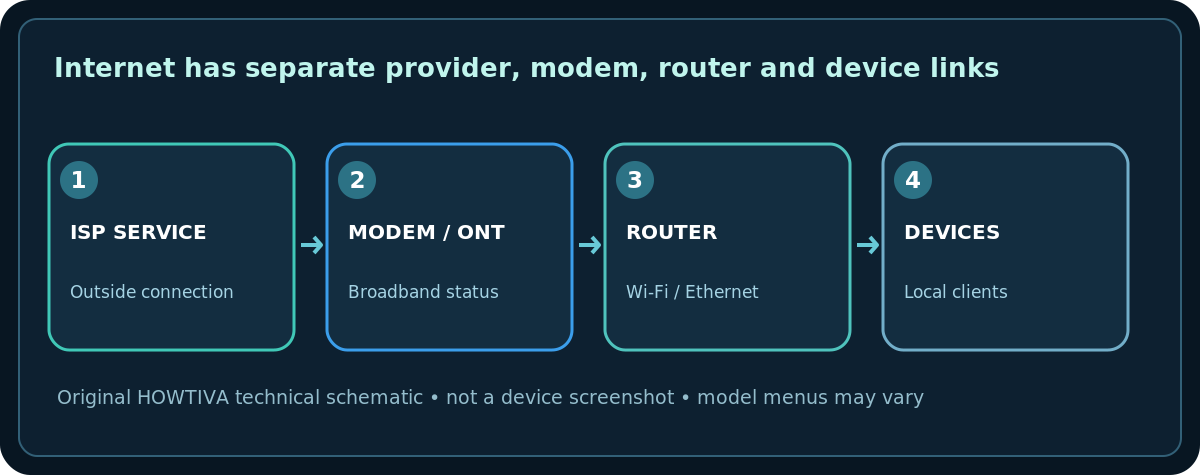
Most homes have some variation of outside service → modem or optical network terminal (ONT) → router/Wi-Fi access point → device. A combined ISP gateway contains more than one of these functions. Wireless bars measure one section of the chain only.
- Check that the relevant equipment is powered and its cables are visibly seated. Do not touch damaged plugs or open any housing.
- Record indicator names and patterns before restarting. An Internet, Broadband, PON, LOS or WAN light can mean different things by model. Compare with the manufacturer’s guide rather than interpreting color generically.
- On fiber, do not bend or unplug thin optical cables to experiment. A red LOS or alarm light may require ISP support; definitions are device-specific.
- If an ISP-supplied gateway includes a diagnostic app, run its connection test and save the result for support.
Restart carefully when no area outage is known
A normal gateway restart may recover a temporary fault, but it disconnects every connected user and can interrupt calls, downloads or security equipment. Warn household members. Follow your ISP’s device-specific restart steps; a provider may recommend unplugging power briefly and waiting several minutes for synchronization. Do not press and hold Reset: that usually invokes factory default restoration rather than a restart.
If you have separate modem/ONT and router, the provider’s documented boot order takes priority. Do not repeatedly unplug equipment during a firmware update or while it is clearly provisioning.
Distinguish Wi-Fi failure from upstream service failure
- Home network absent on every device, router powered: Inspect Wi-Fi radio and access-point status. The ISP connection might still work over Ethernet.
- Wi-Fi visible, no device gets internet: Check gateway WAN status and the provider outage notice.
- Only one room fails: Likely a coverage or interference issue rather than a region-wide outage.
- Wired laptop works, Wi-Fi fails: Local wireless settings or access point are implicated.
- Internet returns then drops repeatedly: Record timestamps and modem log information; provider line diagnostics may be needed.
Before calling support
Prepare your provider, gateway model, outage start time, LED pattern, whether Ethernet works and any published outage reference. Ask support whether there is an account, provisioning, line or neighborhood issue and whether a technician is required. Do not disclose router admin passwords, personal identity documents or one-time verification codes outside an official authenticated support flow.
Avoid destructive fixes
Do not change your DNS provider, disable firewall protection, upload third-party firmware or factory-reset hardware to fix an otherwise confirmed ISP outage. If you depend on an alarm, medical device, home phone or work VPN, arrange a safe alternative connection before modifying equipment.
Frequently asked questions
Wi-Fi bars are full. Why is the internet down?
Wi-Fi signal strength describes the local link to the router; the router may have lost its upstream connection.
Does restarting erase Wi-Fi settings?
A normal restart normally preserves them. A factory reset may wipe network configuration and provider provisioning.
Can I fix a neighborhood outage at home?
Not usually. Confirm the provider notice and avoid unnecessary changes while its service is being restored.
Sources & Further Reading
- AT&T — Troubleshoot your internet (checked 2026-10-27).
- AT&T — Learn about optical network terminal status lights (checked 2026-10-27).
- Microsoft — Fix Wi-Fi connection issues in Windows (checked 2026-10-27).
Use the checklists as you go, and confirm the result before moving on to a more involved repair.