How to Update macOS Safely
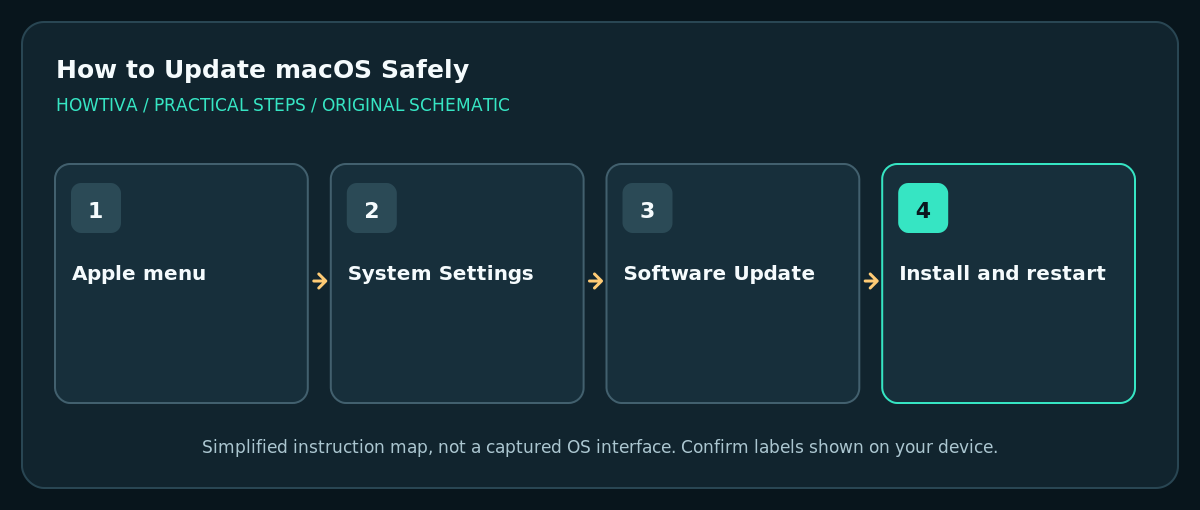
Back up your Mac first, then open Apple menu > System Settings > General > Software Update. If a compatible update appears, follow the onscreen instructions and allow the Mac to restart and finish installation without interrupting it.
Quick answer: Back up your Mac first, then open Apple menu > System Settings > General > Software Update. If a compatible update appears, follow the onscreen instructions and allow the Mac to restart and finish installation without interrupting it.
Apple distributes both smaller security and stability updates and larger macOS upgrades. Software Update generally offers software that is compatible with your particular Mac. Before a significant upgrade, confirm that essential work apps, storage devices and other specialized tools support the intended macOS version.
Prepare the Mac before updating
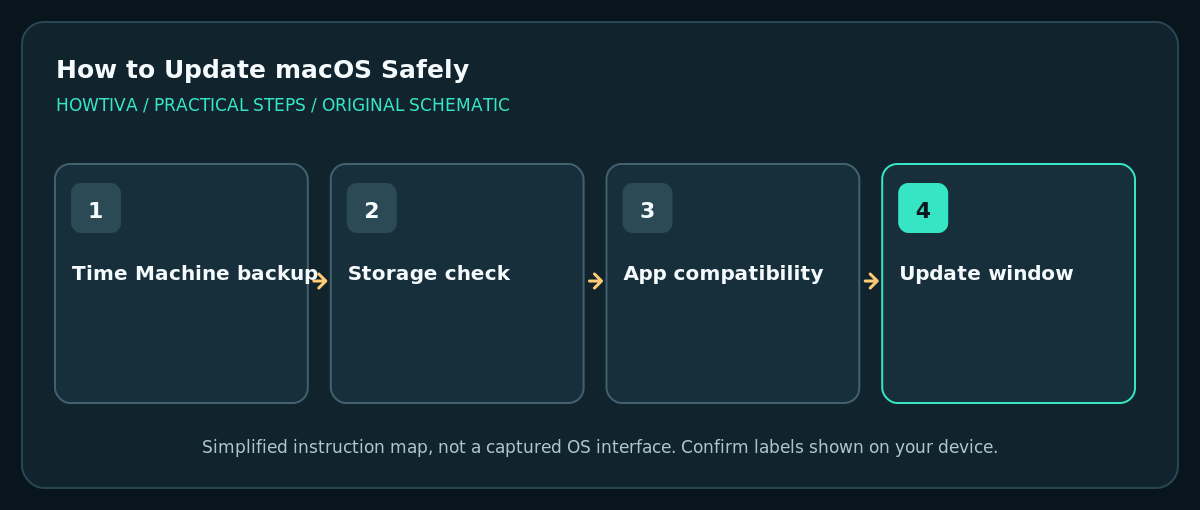
- Save your work and close apps with unsaved documents. If using a laptop, connect the power adapter.
- Create a current Time Machine backup on a suitable external disk, or verify another independent full backup. A cloud-synced folder is useful but is not itself a reliable substitute for a historical backup.
- If possible, open a few backed-up documents to confirm the backup is usable. A status message showing that backups were scheduled does not prove the last backup completed.
- Check storage under System Settings > General > Storage. If low, move known large files to verified storage; do not delete system or library folders at random.
- Check compatibility for essential third-party apps, extensions, audio software, device drivers, VPN clients and business tools before a major upgrade. Vendor statements may lag behind the latest macOS version.
- Use dependable internet. If you need the Mac immediately for a deadline, postpone the installation until you have time for a restart and potential troubleshooting.
Update using Apple’s Software Update
- Choose Apple menu > System Settings.
- Click General > Software Update. On older macOS versions, Software Update might be directly in System Preferences.
- Wait while Software Update checks availability. It normally shows only releases compatible with the Mac.
- Read the update or upgrade information. Follow the Update Now, Upgrade Now or other action that the Mac actually displays; names change with versions.
- Enter an administrator password if requested. Do not shut down or disconnect power while installing.
- Your Mac may restart and display progress several times. After you can sign in again, check Apple menu > About This Mac to confirm the installed macOS version.
Update versus upgrade
An update usually refers to a release within your current macOS generation, often including security and reliability fixes. An upgrade moves to a newer major release. A large upgrade may require additional free storage and could affect compatibility with older apps. You can often install supported security releases without moving to the very latest major version, but availability depends on what Apple is currently offering for your Mac.
If the update does not appear
Software Update only offers compatible releases. Confirm the model and currently installed version through About This Mac; then review Apple’s macOS compatibility information. Managed Macs may have software update restrictions. Do not assume a missing upgrade means the Mac is malfunctioning, and do not download repackaged installers from unverified websites.
Troubleshooting
The update cannot download
Check internet and disk availability. Try again using a stable network. If an employer manages the Mac, check whether a deployment policy is delaying the offer.
The installation seems stuck
An upgrade can spend time with a blank screen, logo or progress bar. Leave the Mac connected to power and avoid repeated force shutdowns. If it genuinely cannot start normally after a substantial period and normal recovery steps fail, use Apple’s documented macOS Recovery path or an authorized service provider, not destructive erase commands.
An app stops working after upgrading
Look for a vendor update compatible with your macOS. If the tool is critical, keep the original license information and project files safe, and consider restoring from an appropriate backup according to vendor and Apple instructions.
Frequently asked questions
Does updating macOS remove my files?
The update process normally preserves personal data, but you still need a verified backup in case installation or hardware problems occur.
Can I update without Wi-Fi?
A stable network connection is needed for downloading; the specific connection type depends on your Mac and setup. Internet sharing or wired Ethernet may be an alternative.
Should I use Terminal to force a version?
For routine updates, prefer Software Update. Apple’s Terminal installer method is an advanced alternative and still depends on availability and compatibility.
Sources & Further Reading
- Apple — How to download and install macOS — Software Update compatibility, Recovery and advanced installer methods.
- Apple — Back up your Mac with Time Machine — Backup prerequisites and setup.
- Apple — See used and available storage space — Available disk capacity and Storage settings.
Use the checklists as you go, and confirm the result before moving on to a more involved repair.