How to Find Large Files on Windows 11
Open Settings > System > Storage > Cleanup recommendations and look under Large or unused files. For a specific folder, open File Explorer, choose View > Details, and sort by Size to bring large individual files to the top.
Quick answer: Open Settings > System > Storage > Cleanup recommendations and look under Large or unused files. For a specific folder, open File Explorer, choose View > Details, and sort by Size to bring large individual files to the top.
When a Windows drive is almost full, the largest single file is not always the biggest storage problem: apps, several medium-size video files, synced folders and system data can also consume space. Start by identifying where space is used. Do not delete unfamiliar system files just because they appear large.
Find the largest cleanup candidates in Settings
- Press Windows + I to open Settings.
- Choose System, then Storage. Allow Windows time to calculate storage usage.
- Open Cleanup recommendations and inspect Large or unused files, along with Temporary files, Unused apps and other categories displayed on your device.
- Review the location and purpose of every item. If a file looks unfamiliar, choose to keep it until you know which app created it.
- Remove an item only after confirming you do not need it or have a separate backup. If you are only researching, make no selections and close Settings.
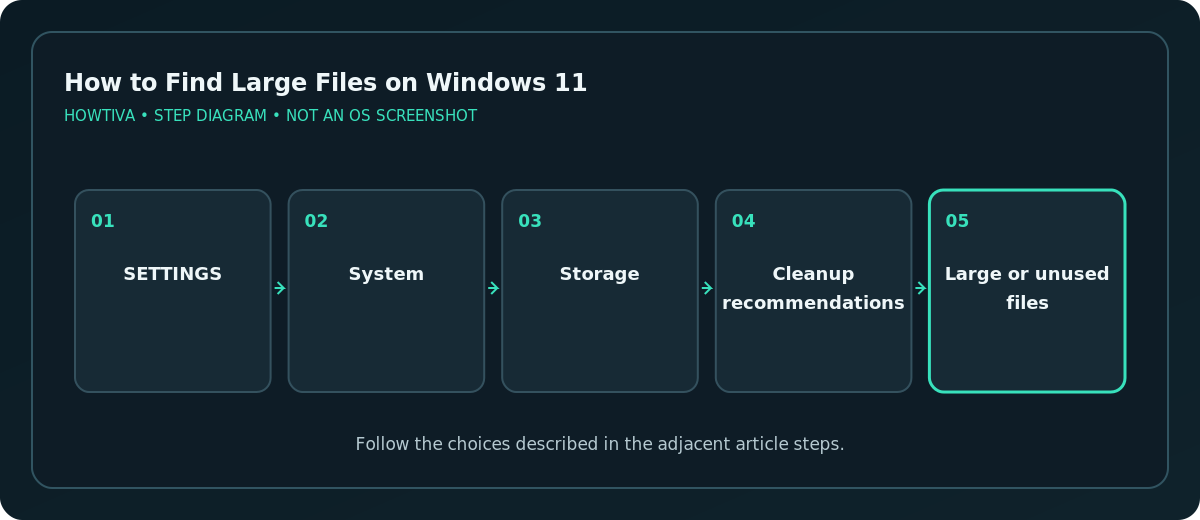
The recommendations screen is not an exhaustive index of every file on every drive. It is a starting point for safe, guided cleanup, and the available categories change with actual storage usage.
Sort a folder by file size in File Explorer
- Open File Explorer with Windows + E.
- Choose a likely location, such as Downloads, Videos, Pictures, or a project archive on the drive.
- Select View > Details if you are seeing icons instead of a file list.
- Select the Size column heading, or use the folder’s Sort by > Size command, to order files by size. Reverse the order if smaller files appear first.
- Check large results using their file names, types and locations before opening, moving, or deleting anything.
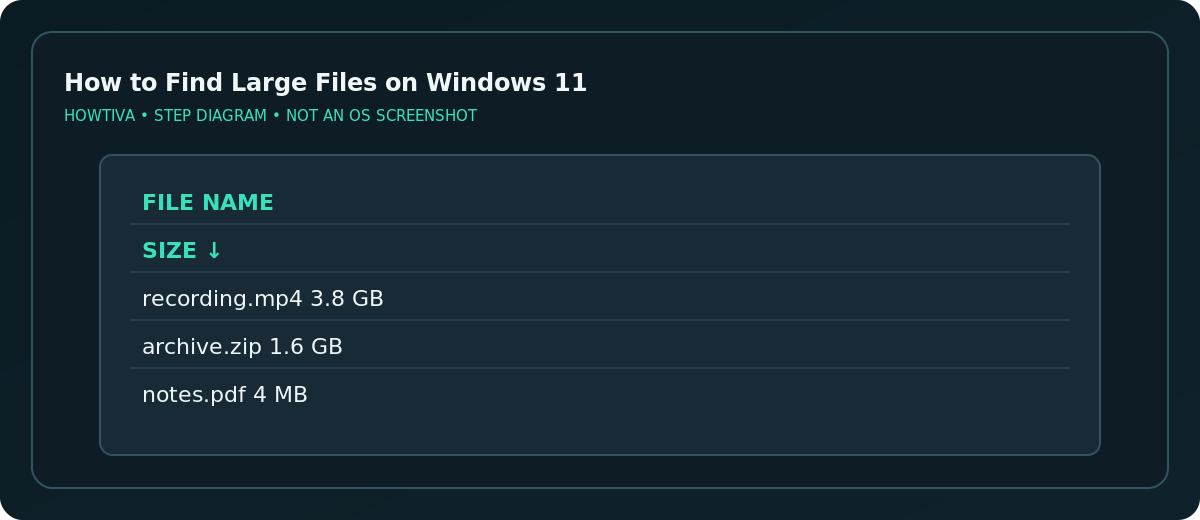
Important limitation: The Size column reliably describes individual files; the values shown for folders may be missing or incomplete. A folder that looks blank in the Size column may still contain gigabytes. To inspect a folder, right-click it, choose Properties, and wait for Windows to calculate its contents.
Search more broadly if the problem file is hiding
If the Downloads folder looks small, examine common space consumers: exported videos, virtual machine images, game recordings, ISO installers, local backups and project caches. File Explorer can search the selected folder or drive. A search started at This PC may be slower but covers more local locations than a single folder. Search results can include OneDrive placeholders, so distinguish cloud-only entries from locally stored copies.
Avoid relying on a single undocumented search operator across every Windows build. Sorting real files in a known folder is an easier-to-verify method. If you search by extension (such as .mp4, .zip, or .iso), verify the results against the actual Size column.
Decide whether to keep, move or delete a large file
For personal photos, videos and documents, move a verified copy to an external drive before deleting the original. Open a sample on the destination and compare its size before removing the source. If the file is part of a synced OneDrive folder, deletion may also sync to the cloud and other devices; understand sync status first. Consider Free up space for a suitable synced file instead of deleting it everywhere.
Do not delete content from Windows, Program Files, ProgramData, or hidden app data folders as a shortcut. Use an application’s own uninstall or cache-management feature. Do not remove recovery images or backup sets unless you know exactly what they restore.
When the space number does not match what you see
- Storage displays “System & reserved”: These are not ordinary personal files. Review Microsoft’s cleanup options rather than manually deleting them.
- File Explorer shows no large files: Examine multiple drives and user accounts, including hidden folders only if you understand their function.
- A file cannot be deleted: It may be in use, protected or owned by another account. Close the relevant app; never force permissions on system directories just to reclaim space.
- The Recycle Bin still uses space: Deleted files may remain there until you empty it. Inspect its contents before permanent removal.
- Cloud placeholder looks unusually large: Its advertised size may not be physical space used locally. Check its sync state.
Frequently asked questions
Is there a safe built-in way to list every large file?
There is no guarantee that Cleanup recommendations lists everything. Combine Settings for an overview with File Explorer searches and folder-level sorting.
Should I delete the biggest file immediately?
No. First identify what created it and whether it is a backup, personal project or system component. Size alone does not establish that deletion is safe.
Why is an entire folder not sorted by total size?
Details view primarily sorts files by their reported sizes. Open a folder’s Properties to see its aggregated contents.
Sources & Further Reading
- Microsoft — Free up drive space in Windows — Large file cleanup recommendations and File Explorer size sort.
- Microsoft — Find your files and apps in Windows — Search scope and File Explorer navigation.
- Microsoft — Storage settings in Windows — Storage categories and drive usage.
Use the checklists as you go, and confirm the result before moving on to a more involved repair.