How to Find Large Files on a Mac
Choose Apple menu > System Settings > General > Storage. Open the Documents category, where available, and look for a Large Files view or sorting by Size. You can also use Finder in List view and sort a folder by Size.
Quick answer: Choose Apple menu > System Settings > General > Storage. Open the Documents category, where available, and look for a Large Files view or sorting by Size. You can also use Finder in List view and sort a folder by Size.
A Mac can run short of storage even when the Desktop looks nearly empty. Large exports, video downloads, archives and device backups may be scattered across folders. The built-in Storage screen provides a broad starting point, while Finder helps you inspect particular folders and confirm which items are safe to move.
Use the built-in Storage screen first
- Open the Apple menu, choose System Settings, and select General > Storage.
- Wait for macOS to calculate its category chart. The storage categories depend on the files and apps actually present on the Mac.
- Find Documents and use its Info or details control, if provided.
- Look for a Large Files list or sort the visible document listing by Size. Some versions also offer a File Browser tab showing sizes by folder.
- Inspect an item before removing it. Open its location in Finder if you need to understand a file’s purpose.
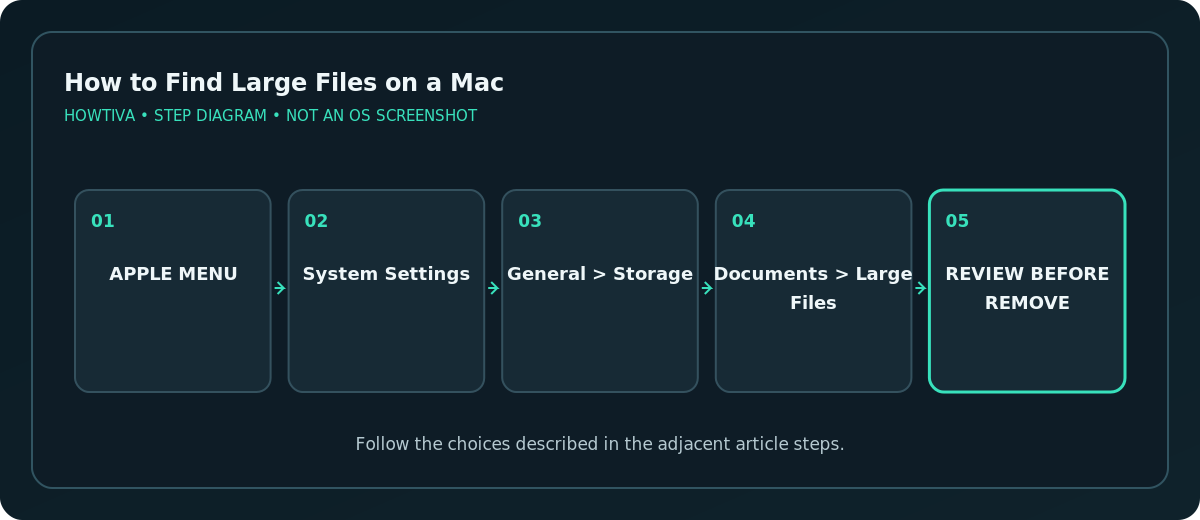
This screen emphasizes files macOS classifies as documents or other manageable content. It may not list every large item inside photo libraries, app containers or system areas. The “System Data” category is not a single folder you should manually erase.
Sort large files in a Finder folder
- Open Finder and visit Downloads, Movies, or the folder containing your exported work.
- Choose View > as List if the window is showing icons.
- Click the Size column header. If you cannot see it, adjust the list’s visible columns using Finder’s view options or window width.
- Click again to reverse the ordering so the biggest individual files are near the top.
- Select a file and press Command + I to inspect its size, kind and location before making any change.
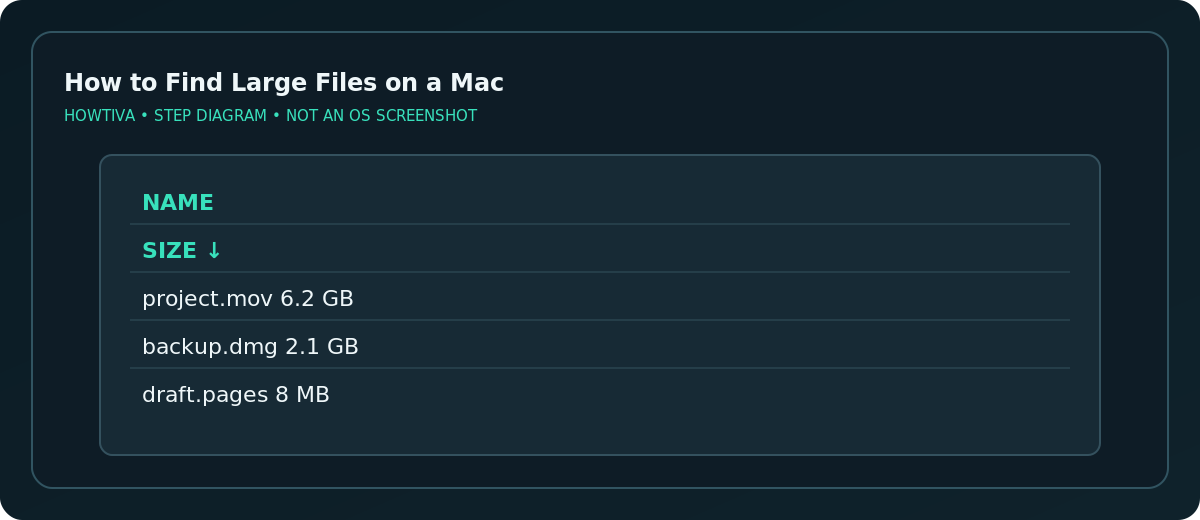
Folder sizes may not appear in the list without an additional calculation or view setting. Use Get Info for a selected folder when you need its approximate total, remembering that external volumes and cloud items can take time to measure.
Search by file size across the Mac
Finder can narrow search results using criteria rather than only a filename. Start a search in Finder, choose the scope that fits your goal, and select the + button to add a search rule. In the attribute menu, choose or add File Size, if offered, and specify the threshold you want. For example, a threshold of 500 MB is useful for locating large videos and disk images, though it will naturally miss many medium-sized files that add up.
Choose This Mac for a broad search when available, or the named folder if you only want one project. Searches may omit protected locations or files Spotlight has not indexed. Treat results as discovery aids, not as an inventory suitable for deleting everything at once.
Understand iCloud and shared files before deleting
A file visible in iCloud Drive may exist locally, in iCloud, or as an on-demand placeholder. Deleting a synced document from Finder is not the same as removing its local downloaded copy; deletion can synchronize across your devices. If you want to free local space but preserve the cloud copy, use the supported iCloud management option instead of moving the item to Trash.
If a file belongs to an app library—such as Photos, Music or a video-editing library—use that application’s controls where practical. If the file is an old iPhone backup, check its date and whether you still need it before deleting it.
Troubleshooting unexpected storage numbers
- You cannot find the Documents section: Category visibility varies by macOS version and the contents of the Mac. Use Finder and its Size sorting as a fallback.
- Search returns few files: Select a broader scope, allow indexing to finish or inspect known folders directly.
- Large files appear in Trash: Emptying Trash is a separate, permanent decision. Restore anything accidentally deleted before doing it.
- An app’s library is huge: Its library may appear as a single package in Finder. Do not manually delete files inside the package unless the app vendor explicitly directs you.
- File size and disk space disagree: Cloud optimization, caches and snapshots can affect the chart. Do not “fix” this by deleting unknown system paths.
Frequently asked questions
Can I search the whole Mac for files above a size threshold?
Finder supports search criteria including metadata attributes. Add a file-size condition when available, while remembering that indexed results may not include every protected or remote file.
Will sorting files delete anything?
No. Sorting only rearranges a listing. Actual deletion requires a separate command and confirmation.
Is “System Data” safe to clear manually?
Not as a single category. Use supported storage management and application cleanup methods rather than deleting system internals.
Sources & Further Reading
- Apple — Find and delete files on your Mac — Storage category, large files, file browser, and warnings.
- Apple — Narrow your search results in Finder — Finder scope and criteria.
- Apple — Get file, folder, and disk information — Get Info and file sizes.
Use the checklists as you go, and confirm the result before moving on to a more involved repair.