How to Uninstall Apps on Windows 11
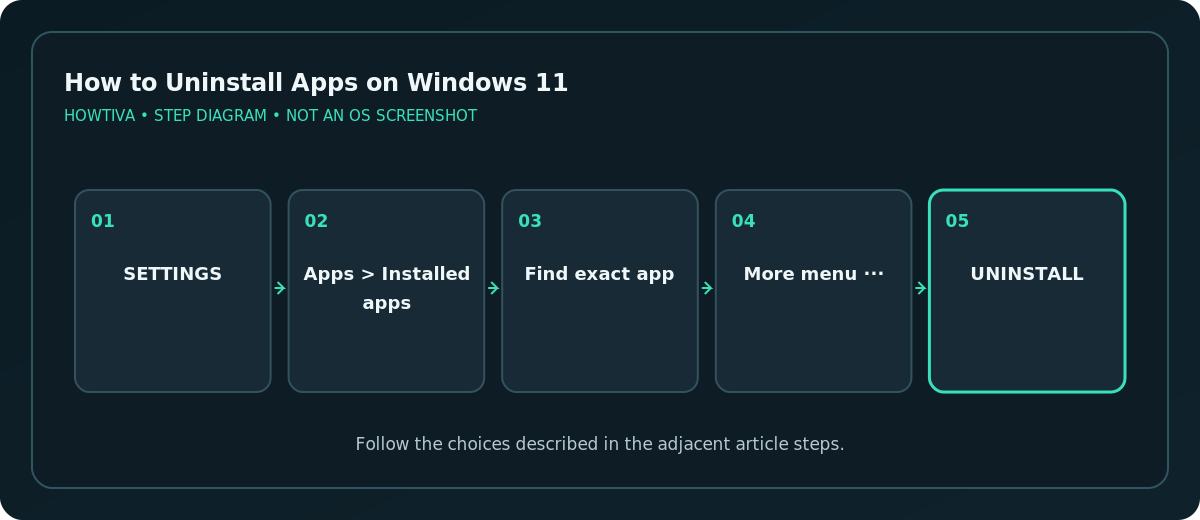
Open Start > Settings > Apps > Installed apps, find the application, select its More (three dots) menu, and choose Uninstall.
Quick answer: Open Start > Settings > Apps > Installed apps, find the application, select its More (three dots) menu, and choose Uninstall. Follow the prompts. If an older desktop program does not offer this option, try Control Panel > Programs > Programs and Features.
Uninstalling is different from deleting a shortcut or an app’s folder. Windows uses registered uninstall procedures that can remove program components and provide a chance to keep or delete associated data. Before removing an app you depend on, back up locally saved projects, export any settings you may need, and confirm that the software is not required by another application.
Remove an app using Windows Settings
- Save documents in the app and close it. If it has a running background task, allow the task to finish first.
- Press Windows + I to open Settings.
- Select Apps > Installed apps.
- Find the application’s exact name. Use the search box to narrow the list if needed. Double-check the publisher so you do not remove a similar-sounding application.
- Select the More menu beside it and choose Uninstall. Confirm if Windows asks, then complete the app-specific prompts.
- Return to Installed apps and check that it no longer appears. Restart only if the uninstaller instructs you to do so.
Some installed apps are managed by an organization or built into Windows. Their Uninstall control may be unavailable. Do not try to defeat a policy or remove system applications using unsupported command-line scripts.
Alternative: uninstall from Start
Open Start, choose All apps if necessary, and locate the app. Right-click it, then select Uninstall if offered. Depending on the app type, this may start its uninstaller or take you to another Windows removal screen. If it only removes a tile or shortcut, confirm whether the program is still listed in Installed apps. Removing a pinned tile is not a full uninstallation.
Older desktop software: use Control Panel
- Search Windows for Control Panel and open it.
- Choose Programs > Programs and Features.
- Find the actual software entry, select it, and choose Uninstall or Uninstall/Change.
- Follow its installation wizard. Read every prompt so you know whether it will retain settings, user files, or shared components.
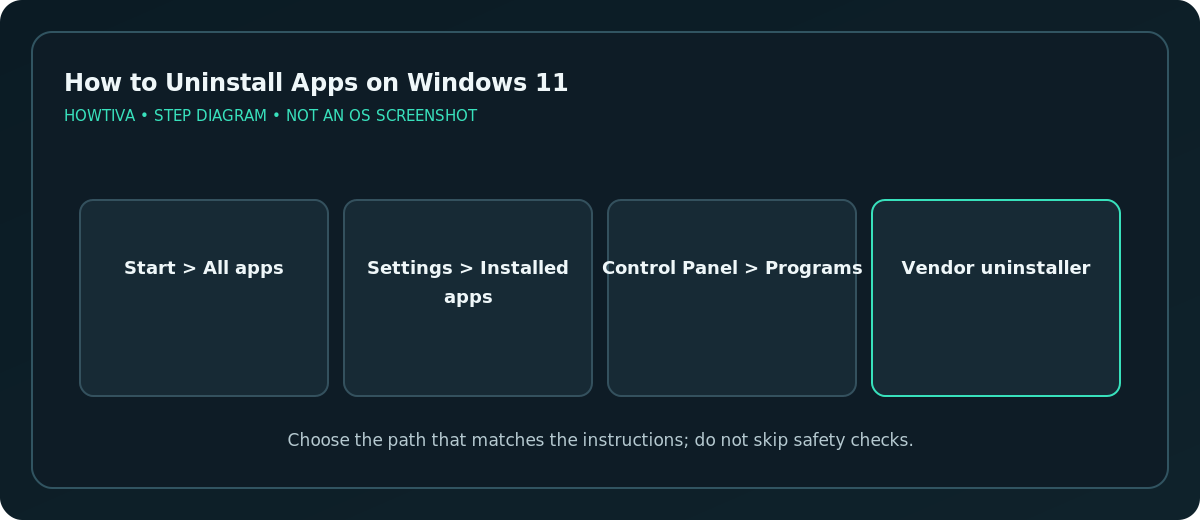
Microsoft explicitly recommends this alternative because some programs cannot currently be removed through the Windows Settings app. Certain security products, device drivers and creative tools may instead provide a vendor-specific uninstaller. Obtain that utility from the legitimate vendor, not a download advertisement.
Preserve documents, subscriptions and licenses
Uninstalling an app is not a substitute for backing up its documents. Keep any projects that reside in the application’s proprietary library or data folder. For licensed software, sign out or deactivate only if the developer instructs you to, especially before moving to another computer.
A recurring subscription does not necessarily end when the app is removed. Manage billing through the original seller. Deleting a browser or chat app also does not automatically erase a remote account or content stored on its service.
Fix an uninstallation that fails
- The application is still open: Close its windows and related processes normally, then try again. Restart if necessary.
- Uninstall is greyed out or missing: It may be a built-in/managed app. Check the publisher’s instructions and organizational policy.
- You receive a missing-installer or package error: Microsoft offers a Program Install and Uninstall troubleshooter for supported scenarios. Avoid deleting registry entries manually unless instructed by a qualified professional.
- Windows cannot find the app: Search under a different product name or publisher and also inspect Control Panel’s program list.
- The app appears after a restart: Determine whether another component or management service is reinstalling it; simply removing its files will not solve this.
- You only need to repair a malfunction: Use Repair or Reset where offered, but review their data implications before resetting anything.
Frequently asked questions
Why does the app icon remain after uninstalling?
A stale shortcut or cached search result can persist briefly. Verify the executable and Installed apps listing rather than assuming the icon proves an app remains installed.
Is manually deleting Program Files a good alternative?
No. It bypasses application cleanup and can break shared components or leave Windows with a broken registration.
Will deleting the app cancel its subscription?
Usually not. Check billing separately with the provider.
Sources & Further Reading
- Microsoft — Uninstall or remove apps and programs in Windows — Settings, Start, Control Panel, preinstalled limits and troubleshooting.
- Microsoft — Find your files and apps in Windows — Find installed apps.
Use the checklists as you go, and confirm the result before moving on to a more involved repair.